Чем открыть формат OBJ?
В областях IT, связанных с трёхмерной графикой, можно часто встретить модели в формате OBJ. Файл рассматриваемого формата представляет собой текстовый файл, содержащий только геометрию 3D-объектов, т.е. хранит позиции вершин, нормали к вершинам и текстурные координаты. Информация о материалах хранится в файле MTL, на который в начале файла даётся ссылка с помощью директивы mtllib.
Формат описания 3D-графики OBJ является весьма популярным, поскольку отличается простотой описания и поддерживается практически всеми 3D-редакторами. Прежде чем рассмотреть, какие программы открывают OBJ, следует отметить, что порой целью открытия файла является не просмотр модели, а, например, ознакомление со списком названий объектов, или подсчёт количества вершин. Эти и другие действия можно выполнить, открыв файл в обычном текстовом редакторе, например, Notepad++.
Итак, рассмотрим, чем же открыть файлы с расширением OBJ? Вот самые популярные программы, с помощью которых вы легко сможете посмотреть 3d-модель.
Как открыть OBJ в Blender?
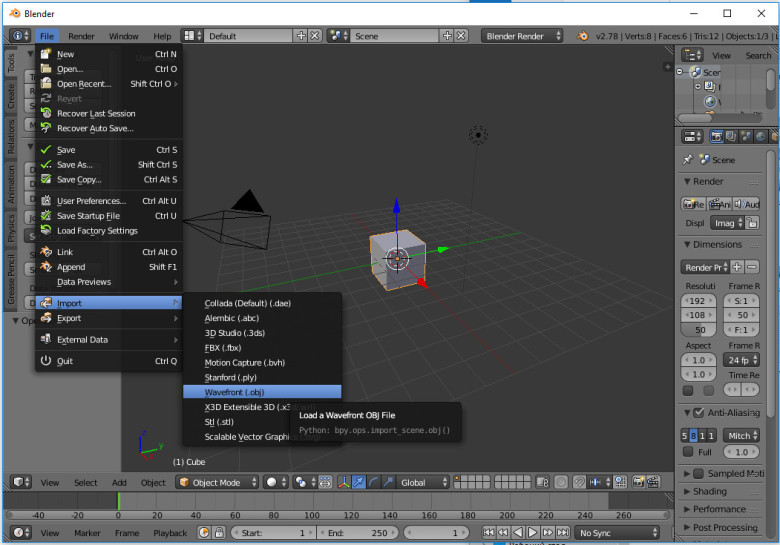
Чтобы открыть файл OBJ в программе Blender в основном меню следует последовательно выбирать пункты «File» — «Import» — «Wavefont (.obj)». В открывшемся диалоговом окне потребуется указать OBJ-файл и нажать кнопку «Import OBJ».
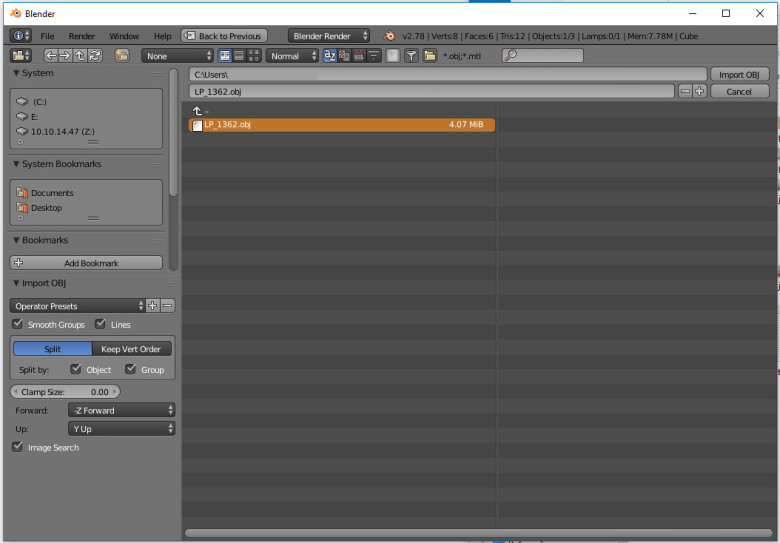
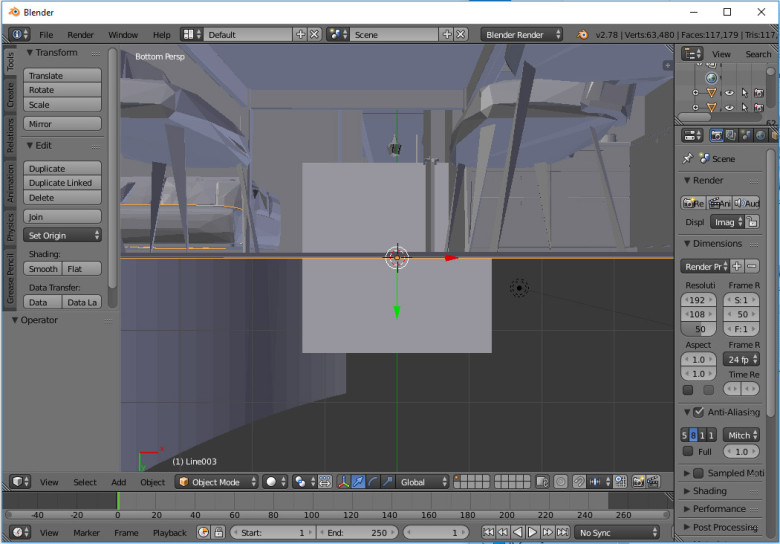
Внимание! Для того, чтобы помимо полигонов отображались и текстуры, необходимо чтобы в файле OBJ были верно прописаны пути до MTL-файла, а в MTL-файле верно указаны пути до картинок.
Как открыть OBJ в 3D Max?
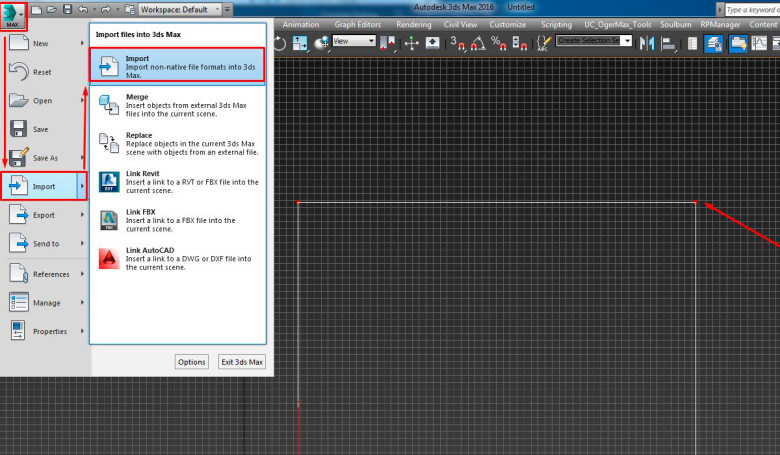
Ещё одна очень популярная программа для 3D-моделирования — Autodesk 3ds Max. В ней также следует воспользоваться функцией импорта сторонних файлов: «Import» — «Import non-native file formats into 3ds Max».
Как открыть OBJ в Sketchup?
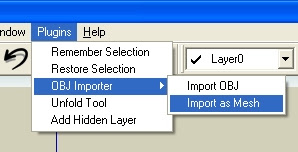
Программа SketchUp доступна как в виде десктопного приложения, так и в виде онлайн-редактора. Для онлайн-версии потребуется регистрация учётной записи. Как любой другой 3D-редактор, Скетчап поддерживает импорт множества форматов, в том числе и расширения OBJ. Для иморта следует воспользоваться плагином «OBJ Importer», находящимся во вкладке «Plugins». В выпадающем подменю доступно два варианта импорта — as OBJ и as Mesh.
Как открыть формат OBJ в Архикаде?
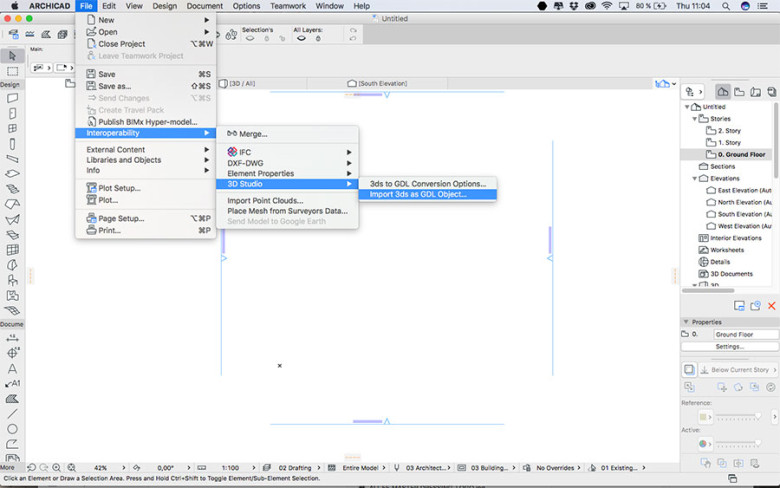
В Archicad нет возможности напрямую открыть файл OBJ. Чтобы просмотреть модель в Архикаде потребуется:
1. Преобразовать файл формата OBJ в 3DS. Для этого можно воспользоваться программами 3DS Max, Cinema 4K и др.
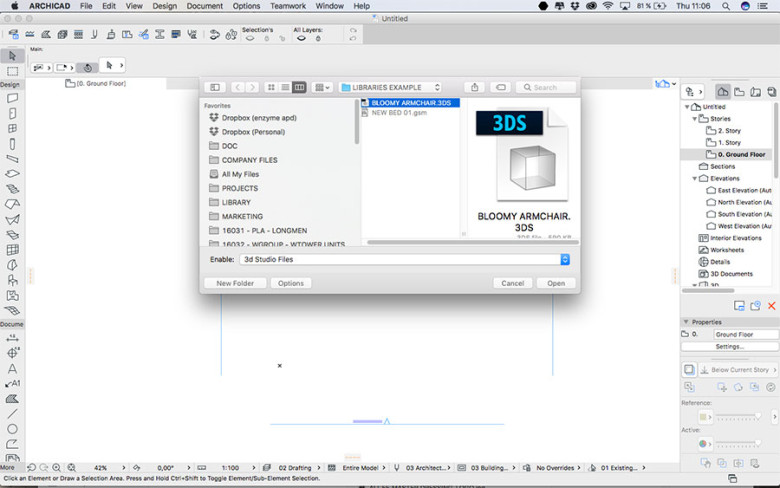
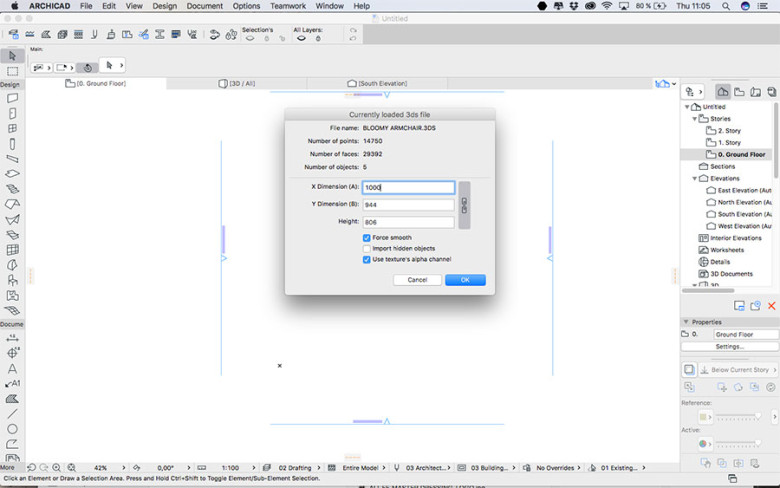
2. Импортировать 3DS стандартными средствами: «Взаимодействие» — «3D Studio» — «Импортировать 3DS в виде объекта GDL…».
Как открыть OBJ в MeshLab?
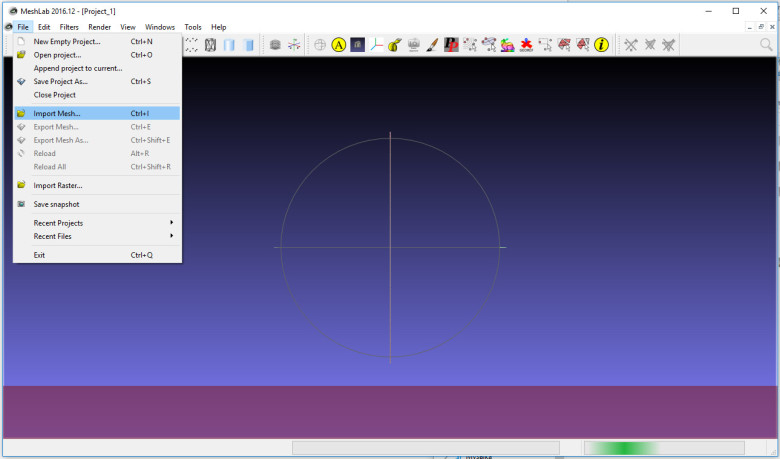
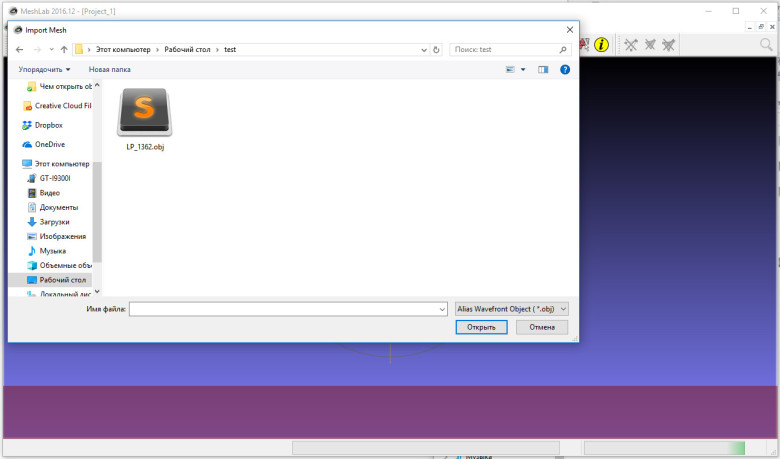
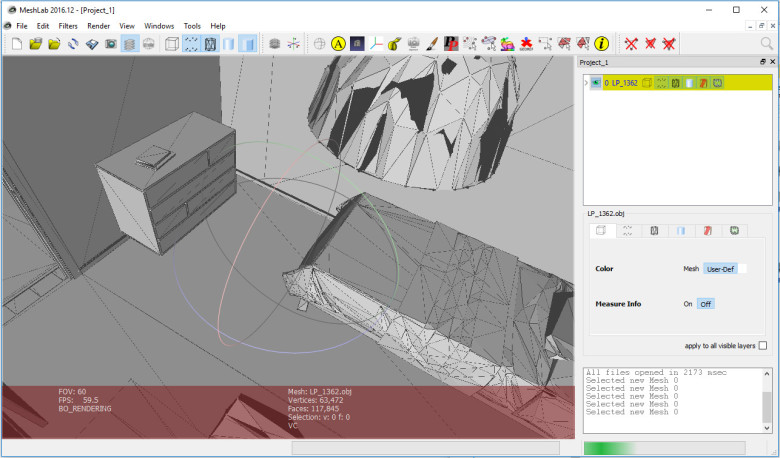
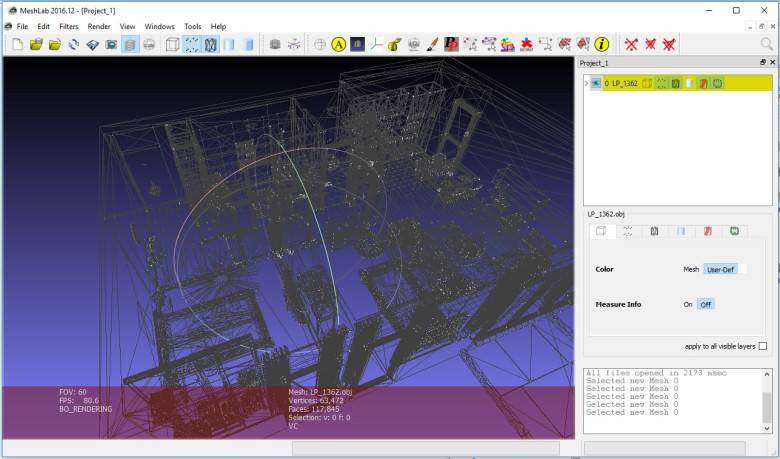
Для того, чтобы загрузить модель формата OBJ в программе MeshLab следует в верхнем меню перейти по пунктам «File» — «Import Mesh…». После выбора нужного файла 3d-модель откроется в центральном окне приложения. Для удобства просмотра можно воспользоваться кнопками включения/отключения отображения вершин, границ и полигонов.
Как открыть OBJ онлайн?
Если на компьютере не оказалось ни одной из перечисленных программ, а времени скачивать их нет, то можно воспользоваться онлайн-просмотрщиком файлов с расширением OBJ. Для этого достаточно вбить в поисковик фразу «obj открыть онлайн». В качестве такого онлайн редактора можно использовать https://threejs.org/editor/ — написан на движке Three.js, позволяющий работать с 3d-графикой посредством WebGL.
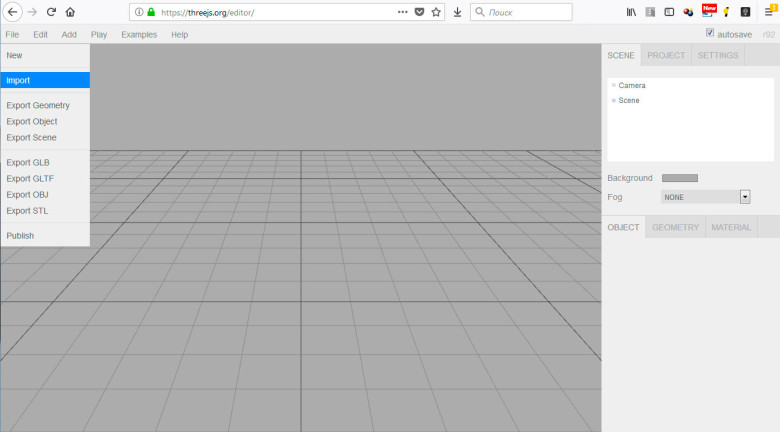
В верхнем меню выбираем пункты «File» — «Import». В открывшемся диалоге следует перейти в каталог, где расположен obj-файл. Выбрав его, модель загрузится в редактор, где её можно наглядно рассмотреть, увеличивая и поворачивая.
Как открыть obj в blender
OBJ is a widely used de facto standard in the 3D industry. The OBJ format is a popular plain text format, however, it has only basic geometry and material support.
- Mesh: vertices, faces, edges, normals, UV’s
- Separation by groups/objects
- Materials/textures
- NURBS curves and surfaces.
There is no support for mesh vertex colors, armatures, animation, lamps, camera, empty objects, parenting or transformations.
- Importing very large OBJ-files (over a few 100mb), can use a lot of RAM.
- OBJ’s export using Unix line endings \n even on windows, if you open the files in a text editor it must recognize \n line endings.
Usage
Import/Export geometry and curves to the OBJ format.
If there is a matching .MTL for the OBJ then its materials will be imported too.
Properties
Import
When importing an OBJ it’s useful to split up the objects into Blender objects, named according to the OBJ-file. However, this splitting looses the vertex order which is needed when using OBJ-files as morph targets. It also looses any vertices that are not connected to a face, so this must be disabled if you want to keep the vertex order.
As far as Blender is concerned OBJ Objects and Groups are no difference, since they are just two levels of separation, the OBJ groups are not equivalent to Blender groups, so both can optionally be used for splitting.
Clamp Size OBJ-files often vary greatly in scale, this setting clamps the imported file to a fixed size. Forward / Up Axis
Since many applications use a different axis for „Up“, there are axis conversion there settings, Forward and Up axis – By mapping these to different axis you can convert rotations between applications default up and forward axis.
Blender uses Y Forward, Z Up (since the front view looks along the +Y direction). For example, it’s common for applications to use Y as the up axis, in that case -Z Forward, Y Up is needed.
Image Search This enables a recursive file search if an image file can’t be found.
Export
Write out Blender’s face and vertex normals (depending on the faces smooth setting).
Mostly this isn’t needed since most applications will calculate their own normals but to match Blender’s normal map textures you will need to write these too.
UVs Write out the active UV layers coordinates from Blender. Materials Write out the MTL-file along with the OBJ. Most importers that support OBJ will also read the MTL-file. Triangulate Write out quads as two triangles. Some programs only have very basic OBJ support and only support triangles. Polygroups Write faces into OBJ groups based on the meshes vertex group. Note that this does a best guess since a face’s vertices can be in multiple vertex groups. NURBS Write out NURBS curves as OBJ NURBS rather than converting to geometry. Objects as OBJ Objects / Groups
Write out each Blender object as an OBJ object.
Note that as far as Blender is concerned there is no difference between OBJ Groups and Objects, this option is only included for applications which treat them differently.
Since many applications use a different axis for „Up“, there are axis conversion there settings, Forward and Up axis – By mapping these to different axis you can convert rotations between applications default up and forward axis.
Blender uses Y Forward, Z Up (since the front view looks along the +Y direction). For example, its common for applications to use Y as the up axis, in that case -Z Forward, Y Up is needed.
When referencing paths in exported files you may want some control as to the method used since absolute paths may only be correct on you’re own system. Relative paths on the other hand are more portable but mean you have to keep your files grouped when moving about on your local file system. In some cases the path doesn’t matter since the target application will search a set of predefined paths anyway so you have the option to strip the path too.
| Auto: | Uses relative paths for files which are in a subdirectory of the exported location, absolute for any directories outside that. |
|---|---|
| Absolute: | Uses full paths. |
| Relative: | Uses relative paths in every case (except when on a different drive on windows). |
| Match: | Uses relative / absolute paths based on the paths used in Blender. |
| Strip Path: | Only write the filename and omit the path component. |
| Copy: | Copy the file on exporting and reference it with a relative path. |
Compatibility
NURBS surfaces, text3D and metaballs are converted to meshes at export time.
Missing
Some of the following features are missing:
- NURBS Surfaces – this could be added but is not widely used.
- Advanced Material Settings – There are material options documented but very few files use them and there are few examples available.
- Normals – Blender ignores normals from imported files, recalculating them based on the geometry.
© Copyright : This page is licensed under a CC-BY-SA 4.0 Int. License.
How do I open an obj file?
I tried to open an .obj file using import but all I got was the workstation with the block. Yes, I’m a total beginner.


2 Answers 2
Only .blend files can be opened by Blender. Other file formats can be only imported.
Go to File ‣ Import ‣ Wavefront (.obj) and choose the file.
Remember to save the Blender file as a .blend file. If you wish to export the obj file go to the menu item File ‣ Export ‣ Wavefront (.obj).