Litemanager pro server что это за программа
Обзор бесплатной программы для удаленного управления ПК с широким функционалом — LiteManager Free. Если по каким либо причинам вам не подходят другие решения для удаленного управления, TeamViewer, Radmin, AnyDesk и прочие, стоит присмотреться к Litemanager.
Litemanager используется для администрирования многими компаниями. На мой взгляд это одно из лучших средств для администрирования, так как оно легко справляется с администрированием более 10К ПК в Компании, которой я работаю (версия Litemanager Pro).
LiteManager умеет легко подключаться по локальной сети или через Интернет к удаленным компьютерам и другим устройствам, достаточно указать IP-адрес или DNS-имя устройства. Программа состоит из серверной (Litemanager Server) и клиентской части (Litemanager Viewer). ПО Litemanager создано отечественными разработчиками, поэтому она имеет полностью русский интерфейс.
Скачивание Litemanager
Переходим на официальный сайт и на главной странице нажимаем кнопку «Скачать» для Windows версии (ПО так же доступно и на других платформах, например Android, Mac OS, Linux). Затем через меню загрузок в браузере переходим в папку со скаченным архивом Litemanager.
В папке загрузок щелкаем правой кнопкой мыши по скаченному архиву и выбираем пункт «Извлечь все. », чтобы распаковать содержимое архива.
В окне «Распаковка сжатых ZIP-папок» нажимаем кнопку «Извлечь».
В распакованном архиве нас интересуют два файла:
- LiteManager Pro — Server — серверный модуль, предназначен для установки на удаленном компьютере.
- LiteManager Pro — Viewer — клиентский модуль, предназначен для установки на ПК администратора.
Установка LiteManager Pro — Server
Запускаем «LiteManager Pro — Server.msi», в окне мастера установки нажимаем кнопку «Next».
В следующем окне лицензий отмечаем пункт «I accept the terms in the license agreement» и нажимаем кнопку «Next».
В окне выбора папки установки указан путь по умолчанию, для изменения расположения щелкаем кнопку «Change. », если требуется. Для продолжения нажимаем кнопку «Next».
Следующее окно — интеграция с фаерволом Windows. Здесь ничего не меняем, нажимаем кнопку «Next».
Для начала установки нажимаем кнопку «Install».
Даем разрешение в окне контроля учетных записей.
Еще одно разрешение для «ROMServer.exe».
В окне безопасности задаем пароль администратора, который будем вводить при подключении в Litemanager Viewer. Нажимаем кнопку «ОК» для применения настроек.
В последнем окне мастера установки нажимаем кнопку «Finish», чтобы запустить «Litemanager — Server».
Значок LiteManeger будет отображаться в системном трее ОС Windows, при наведении курсора на значок можно получить информацию, включающую IP-адрес текущего ПК. На этом настройка серверной части закончена.
IP-адрес так же можно узнать и другими способами, например через командную строку (CMD) командой «ipconfig».
Установка LiteManager Pro — Viewer
Теперь очередь за установкой на ПК администратора, она аналогична установке серверной части. Запускаем «LiteManager Pro — Viewer.msi» из ранее разархивированного архива в папке загрузок.
Принимаем условия лицензии, нажимаем кнопку «Next».
В окне выбора расположения нажимаем кнопку «Next».
Для начала установки нажимаем кнопку «Install».
В появившемся окне «Контроль учетных записей» нажимаем кнопку «Да».
Для завершения установки нажимаем кнопку «Finish».
Настройка подключения
После завершения установки запуститься «Litemanager — Viewer», либо запускаем программу через ярлык на рабочем столе. Появится окно выбора типа лицензии. Так как у нас в статье обзор на бесплатную версию, выбираем вариант «FREE».
В главном окне программы в левой верхней части нажимаем на кнопку «Добавить новое соединение» (значок в виде зеленого плюса). Затем в окне «Новое соединение» вводим IP-адрес устройства к которому хотим подключиться и нажимаем кнопку «ОК«.
Новое подключение создано. Щелкнув правой кнопкой мыши по созданному подключению появится контекстное меню с различными режимами для управления удаленным устройством. Также различные режимы доступны в правой части главного окна «Litemanager — Viewer«. Можно обратить внимание, что некоторые режимы недоступны из за отсутствия «PRO»-лицензии.
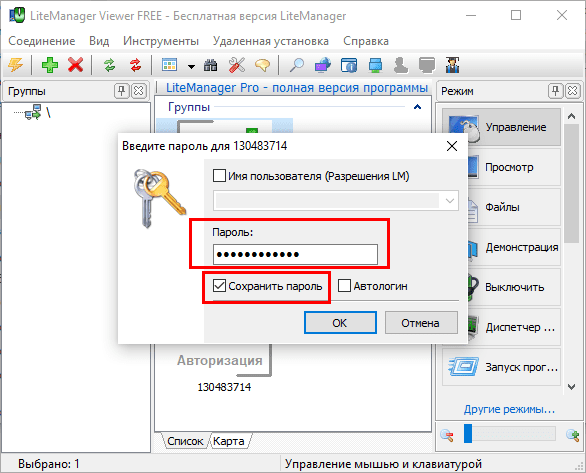
При подключении к удаленному устройству вводим пароль администратора, который мы задавали при установке серверной части.
Remote access software, free remote desktop software, remote administration Windows
 LiteManager Pro/Free — remote access software for remote administration of computers over the Internet or remote control in a local network, for distant learning, providing remote support to users and supervising work activity of employees.
The program allows to quickly and easily control computer desktop in real-time mode with full support for Windows, provides secure remote access to the file system, processes and services of the remote computer. LiteManager has built-in tools for creating network map, collecting technical data, ability to deploy and update using remote installation services, configure private ID router (NOIP) and many other features. Classroom management software.
Remote administration is now possible without IP address. Using Connect by ID mode, you can choose your personal unique ID by yourself and connect by it. Client and server modules of the program can work in networks connected to the Internet via a proxy server. Instructions for the software — Viewer and Server installation.
LiteManager is detected as a potential unsafe program (RemoteAdmin, PUP, PUA, Riskware, Unsafe, Unwanted etc.), because it provides unattended remote access to the PC. This is the correct definition, Antivirus software takes care of the user’s security and we agree with this. For us, user safety comes first.
Warning: Do not accept help from unknown callers!
 Download (Pro/Free for Windows, build 5050)
 LiteManager.apk / Google play (Android, 5022)
 LiteManager (app, pkg) / App store (Mac OS, 5006)
 App store (iOS, iPhone, iPad, 4942)
 LiteManager Linux (Linux x64, 5011)
 Wine (emulator for Linux, Mac OS)
Only one time fee and all updates are free, lifetime license and technicians unlimited. More information on buying LiteManager…
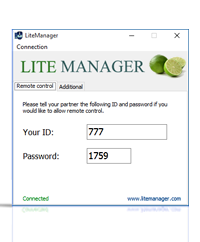
Free version of remote desktop software that includes key features and allows you to control up to 30 computers simultaneously free of charge! and more computers if you have a license key. Remote desktop without limits on session time and speed.
This version is available free of charge for both individuals and legal entities.
You can use the program to provide technical support for users. The ability to configure your own connection by ID server (NoIP) ensures completely autonomous and independent operation, and as a result, the operation of the whole technical support service.
Main features of the Free version and its key differences from the Pro version are shown in the table LiteManager Free remote desktop software, remote control.
LiteManager QuickSupport optimized for instant support does not require installation or administrator rights — simply download and run it.
Warning: Do not accept help from unknown callers.
Microsoft, or your ISP will never call and ask you to download LiteManager.
Please be attentive and never grant access to people you don’t know personally or whom you don’t trust.
ROMServer.exe (Server without installation) (for remote user)
ROMViewer.exe (Viewer without installation) (for administrator)
ROMServer.exe (without administrator’s rights) (for remote user)
LiteManager portable generally comprises all the features of the full version without the need to install anything, portable runs directly from a USB stick. More about portable version.
Advantages of our product:
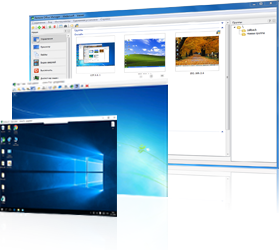
- You can control and view the desktop of a remote computer. Remote Desktop control.
- You can use Drag&Drop function, system clipboard, Copy&Paste function, switch between the monitors and users working in different terminal sessions. There is support for graphical shell of Windows 7 Aero which doesn’t turn off when connection is established. The program can work in economy mode to decrease the network traffic consumption.
- It allows browsing the file system, copy, delete, run and open files for editing and offers a tab system for faster navigation. File manager can transfer data between two connected computers.
- It allows you to control processes and services, view information about running programs, launch and stop them. Task manager also displays information about connected users.
- This mode allows you to restart or turn on a computer by using Wake-On-LAN function. You also can turn on, turn off or switch a monitor to the standby mode.
- You can communicate with users in a text chat. You also can send a message to a user in the form of notification. Audio and video chat for communication via a microphone and webcam. The chat can work in dialog, broadcast or audio and video capture mode.
- Connection in the form of command line, you can work as a user or as a system.
- It allows to quickly and easily collect information about installed hardware and software.
- Independent desktop recording into a video file. It is a convenient and efficient tool for controlling working time of employees.
- You can create a topology map of your network with all equipment to facilitate the administration process. The map is fully interactive with the ability to connect and configure connections.
- Using «Callback connection» or «Connect by ID» functions you can connect to computers that are not accessible in the Internet. Cascade connection allows you to create a connection to a LM server via another LM server. The program can be used through a proxy server.
- Several methods of program installation by means of built-in Windows tools, MSI and program’s auto update function. A server can be configured before installation.
- This feature allows finding computers both with installed server side components and without them, after which you can add them in the main list.
- Connecting to the registry with ability to edit data as well as to import and export registry keys.
- Using «Connect by ID» mode you can connect to computers without IP addresses and specify a convenient ID by yourself. Additional application NoIP ships with the program and allows to connect LMViewer and LMServer without an IP address and to configure your enterprise server of ID connections. NoIP can also be used on UNIX systems running Wine.
The full list of LiteManager features and screenshots are provided below.
 QuickSupport optimized for instant support.
 Connect by ID. How to establish a connection by ID.
 Overview of solutions for corporate and home users.
 OnLine program help is now available on the website.
 Answers to questions official FAQ.
 Knowledge base for LiteManager.
Reliable remote desktop software for unattended access.
Get secure remote access to network computers and servers. Employee monitoring feature allow managers to watch over users activity while employees are left alone.
Provide instant tech remote support.
Provide remote technical support for individual or commercial users via LiteManager, 24/7 help desk support for daily computer issues.
Classroom management software.
Effective software to help teacher and students in daily classes. LiteManager demonstration — share your screens and display your presentations on student computers.
LiteManager – как зайти на удаленный ПК
LiteManager – бесплатная программа для управления удаленным компьютером. Это аналог популярного TeamViewer, который все чаще грешит блокировкой пользователей за использование коммерческой версии в свои целях. Через LiteManager можно управлять до 30-ти компьютерами одновременно (можно снять ограничение после покупки Pro версии).
Как начать пользоваться:
- Скачайте LiteManager с официального сайта
- Установите серверный модуль LiteManager Pro – Server.msi на компьютер, которым нужно управлять. Во время установки программы задайте пароль доступа для клиентского модуля
- Установите клиентский модуль LiteManager Pro – Viewer.msi на компьютер, с которого будете подключаться. После установки программа запустится автоматически. Также, программу можно запустить нажав на ярлык LM-Viewer на рабочем столе.
- Подключитесь к удаленному компьютеру
Теперь рассмотрим подробно этап подключения к удаленному компьютеру и настройку соединения.
Первое подключение к удаленному компьютеру
Запускаем программу. Кликаем дважды по Добавить новое соединение
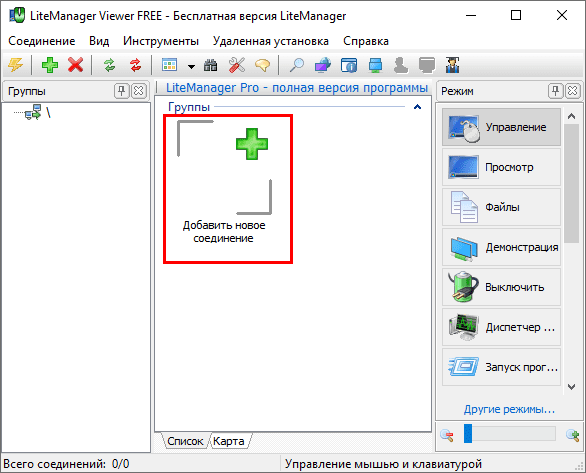
В открывшемся окне введите ID компьютера, к которому нужно подключиться и нажмите ОК
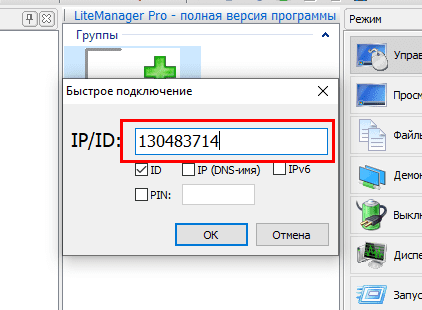
Теперь подождите пару секунд (проверяется подключение). Откроется окно для ввода пароля, введите пароль (поставьте галочку в Сохранить пароль , чтобы в следующий раз подключиться автоматически).
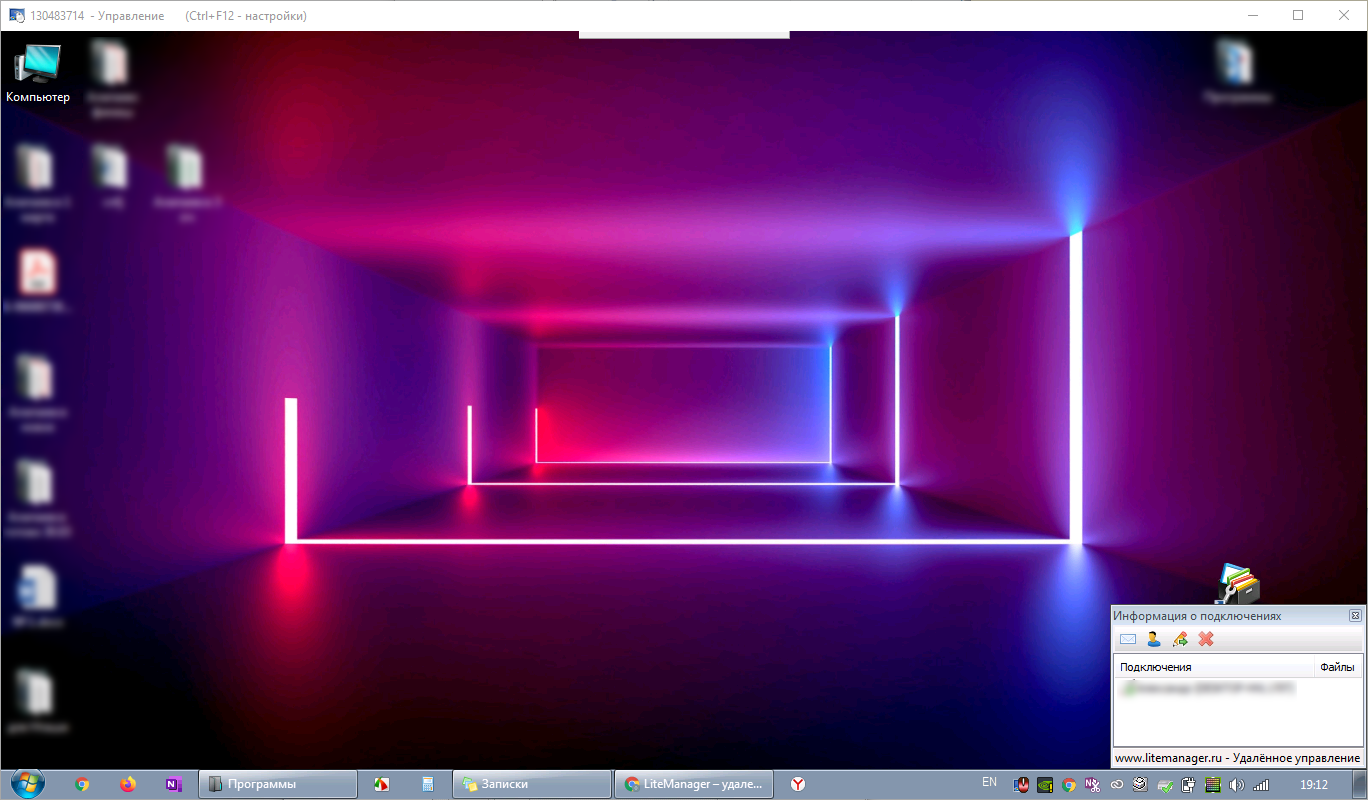
Готово! Теперь можно управлять удаленным рабочим столом.
Не забудьте сохранить данные для входа на удаленный компьютер.
Как зайти через LiteManager на удаленный ПК потом?
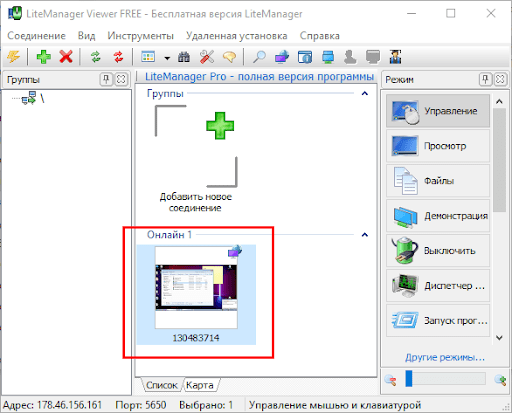
Кликните дважды на плашку с удаленным компьютером. Вы зайдете автоматически (если пароль сохранен).
Как сделать работу на удаленном компьютере быстрее?
Нажмите Ctrl + F12 , чтобы вызвать настройки. Откроется окно с настройками. Перейдите на вкладку Цвет и CPU и установите настройки по образцу
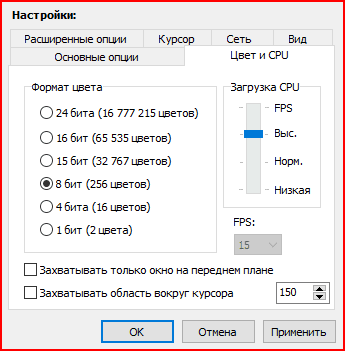
И на вкладке Расширенные опции установите настройки по образцу, потом нажмите ОК
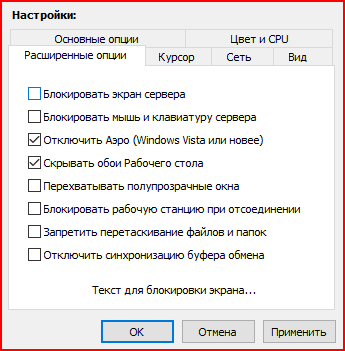
Особенности LiteManager
Бесплатная версия, обладает всеми основными функциями и позволяет осуществлять управление до 30-ти компьютеров одновременно абсолютно бесплатно! Или более, при наличии лицензионного ключа. Удаленный рабочий стол без ограничений по времени и скорости сеанса.
- Управление и просмотр удаленного рабочего стола компьютера Remote Desktop
- Файловый менеджер для работы с файлами и папками
- Диспетчер задач
- Управление питанием компьютера
- Текстовый и аудио-видео чат
- Telnet управление компьютером через командную строку
- Диспетчер устройств или инвентаризация
- Запись экрана по расписанию
- Карта сети
- Подключение сервера с динамическим IP адресом и функция каскадного соединения для работы в сложных сетях
- Удаленная установка и обновление
- Встроенный поиск компьютеров
- Редактор реестра
- Соединение по ID и NoIPServer приложение
Программа LiteManager позволяет удаленно управлять компьютерами через Интернет, администрировать локальную сеть, а также контролировать сотрудников на протяжении всего рабочего дня.