Setup_WinThruster_2018.exe — что это за файл?
 Приветствую. Setup_WinThruster_2018.exe — исполняемый файл, предположительно установщик программы WinThruster. 2018 — вероятно год выпуска ПО. Слово Setup означает установка.
Начинаем разбираться
Данный файл можно например найти в папке Загрузки. Как бы не было странно, вы его могли случайно скачать. Например была какая-то реклама, вы нажали по ней, после чего началась загрузка. Папка для скачанный файлов по умолчанию как раз и есть Загрузка (имеется ввиду та, которую видно в проводнике).
Если запустить файл, появится примерно такое установочное окно:

Что за программа WinThruster?
WinThruster — очередной чистильщик системы, который как всегда — нереально ускоряет, исправляет ошибки, и пользоваться компом будет одно удовольствие. Но на практике ничего такого нет, я сомневаюсь что WinThruster лучше чем CCleaner.
Remove WinThruster
It has become quite difficult to tell apart the legitimate security apps from the fake ones that float around the net these days. WinThruster is an application classified as a scareware. This software has no advantages at all, quite the contrary because it attempts to scare you enough into paying them.
WinThruster is usually installed at the same time as some other free software you downloaded from the internet whose setup program include one or more optional apps. These apps tend to be offered discretely and it’s only through customizing the install process that we can stop them from being installed.
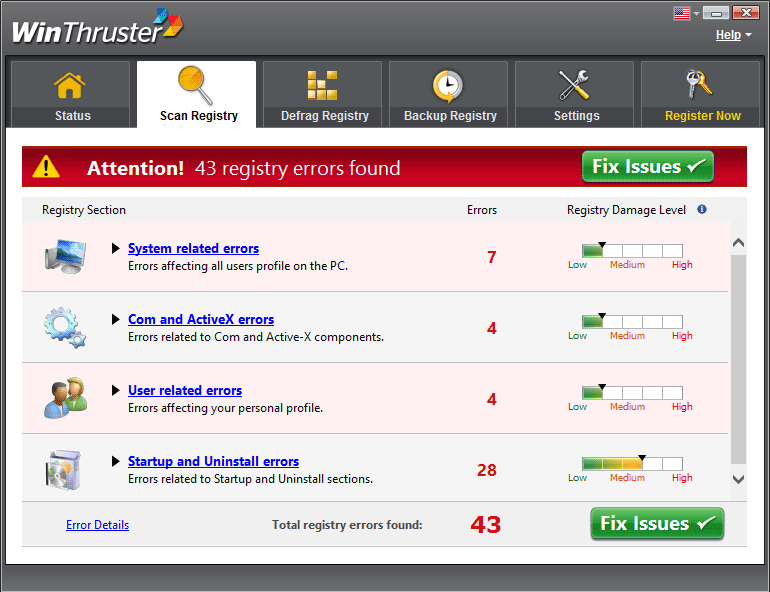
Once WinThruster has been installed in your PC it will start scans when least expected, specially just after the start process has completed; in this way their results (completely fake results we might add) can be shown as quickly as possible. While in out testing phase, we used a brand new Windows 8 installation and it found no less than 43 supposedly urging bugs: 7 system bugs, 7 com and ActiveX bugs, 4 issues around users accounts and 25 errors related to the start process and uninstall mistakes.
If we try to use the option included to fix these so called problems, oh surprise… they ask us to pay for it!
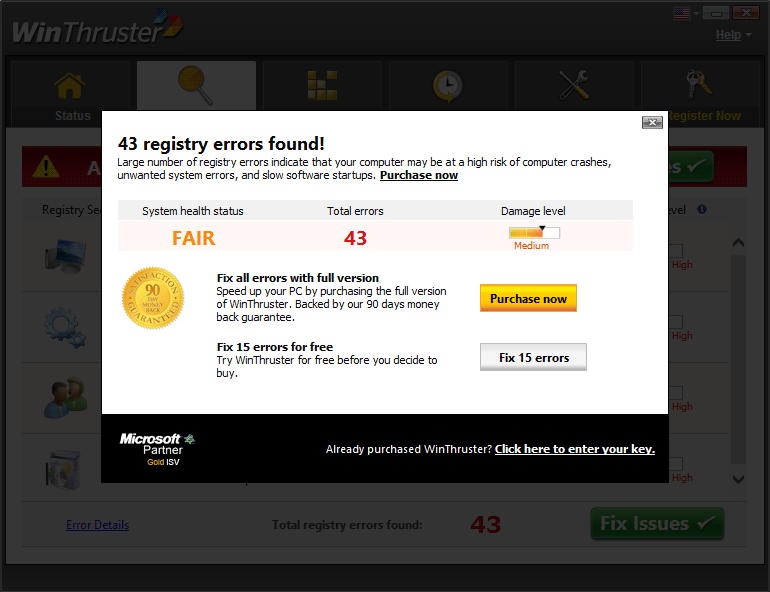
If you don’t pay the software will stalk you all the time with pressing alerts related to exposure to system breakdowns, system errors and performance issues among others.
If you try to uninstall it, you’ll find yourself in a though spot, because it has been developed to stay in your computer as long as possible so they can make you yield!
Execute every step in the following guide including free tools to remove WinThruster.
For your information please know that WinThruster is detected as suspicious by 49 anti-viruses.
WinThruster Unwanted Application
 Written by Tomas Meskauskas on October 14, 2021 (updated)
What is WinThruster?
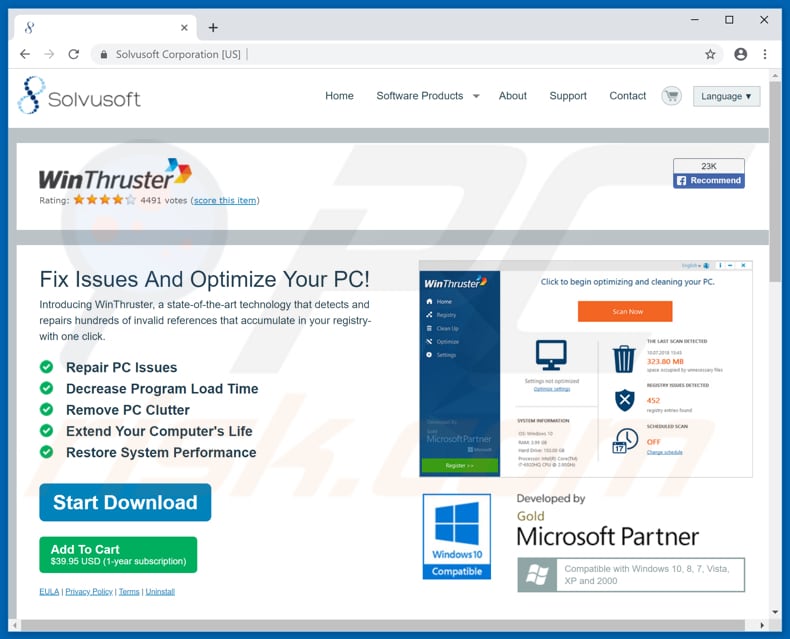
WinThruster is presented as a program that fixes issues by making other programs load faster and optimizing computers in one click. WinThruster’s developers promote it by ‘bundling’ this program into other software set-ups. This increases the possibility that most people will download and install it unintentionally.
For this reason, WinThruster is categorized as a potentially unwanted application (PUA).
When WinThruster finishes scanning the system, it displays a list of ‘issues’. Fixing these detected problems will supposedly improve computer performance, however, the program must first be registered (in effect, purchasing the ‘full version’). Many such apps solve none of the detected problems free of charge and, in fact, the problems are fake anyway.
These rogue apps give the impression that there are many issues on the computer and can be fixed using a particular program, however, users are encouraged to purchase them first. There is no information as to whether WinThruster is one of these apps, however, apps promoted by bundling them into set-ups of other software are usually rogue.
Furthermore, developers often bundle more than one app — in many cases, these are adware-type apps, browser hijackers, and so on. PUAs of this kind usually gather information relating to users’ browsing activities. For example, geolocations, entered search queries, URLs of visited websites, IP addresses, and so on.
Developers share the information with other parties, potentially cyber criminals, who misuse it to generate revenue. Another common issue with PUAs is intrusive ads. They display coupons, banners, surveys, pop-up ads, etc. If clicked, they open dubious websites. In some cases, these ads execute scripts designed to download and install unwanted apps.
PUAs should be removed immediately, since they can lead to problems relating to privacy, browsing safety, or even identity theft.
To eliminate possible malware infections, scan your Mac with legitimate antivirus software. Our security researchers recommend using Combo Cleaner.
▼ Download Combo Cleaner for Mac
To use full-featured product, you have to purchase a license for Combo Cleaner. Limited seven days free trial available. Combo Cleaner is owned and operated by Rcs Lt, the parent company of PCRisk.com read more.
The internet is full of apps similar to WinThruster. Some examples are Qbit Speedup Pro, Nero TuneItUp, and Qbit PC Speedup. Do not use apps that are downloaded and installed inadvertently. They usually provide none of the promoted features, tools, and so on.
How did potentially unwanted applications install on my computer?
WinThruster has a download website, however, most users download and install it unintentionally. As we mentioned, this app is promoted by bundling it into other software set-ups, however, developers do not properly provide information about it. They hide bundled applications in «Custom, «Advanced» settings (or other sections) of software download or installation set-ups.
Many users leave these settings unchecked and unchanged, thereby allowing PUAs to be downloaded and installed together with other, regular downloaded/installed software. In some cases, unintentional downloads and installations occur when people click intrusive ads designed to run rogue scripts.
How to avoid installation of potentially unwanted applications?
Be cautious when browsing the web and downloading and installing software (especially if it is free). Do not finish any download or installation without checking all available «Custom» or «Advanced» (or other similar) settings and dismissing offers to download/install unwanted applications. Download software from official/trustworthy websites and use direct download links.
Tools such as Peer-to-Peer networks (torrent clients, eMule etc.), unofficial websites and other similar sources should not be used to download software. Do not click intrusive advertisements, especially if they are displayed on pages relating to gambling, pornography, adult dating, and other dubious sites.
If unwanted redirects and ads occur regularly, check installed programs on the operating system and applications (extensions, plug-ins, and add-ons) on the browser. Remove all unwanted, unknown entries immediately. If your computer is already infected with PUAs, we recommend running a scan with Combo Cleaner Antivirus for macOS to automatically eliminate them.
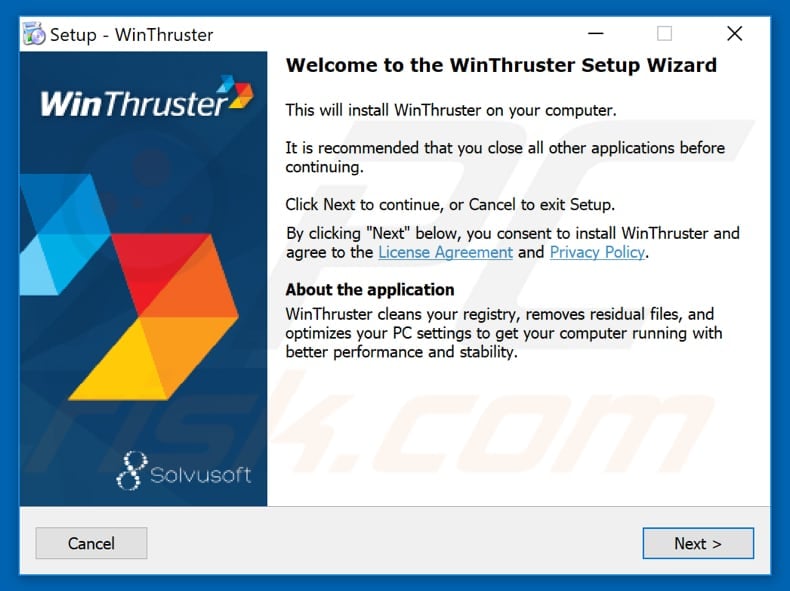
WinThruster installation setup:
Screenshot of notification displayed by WinThruster:
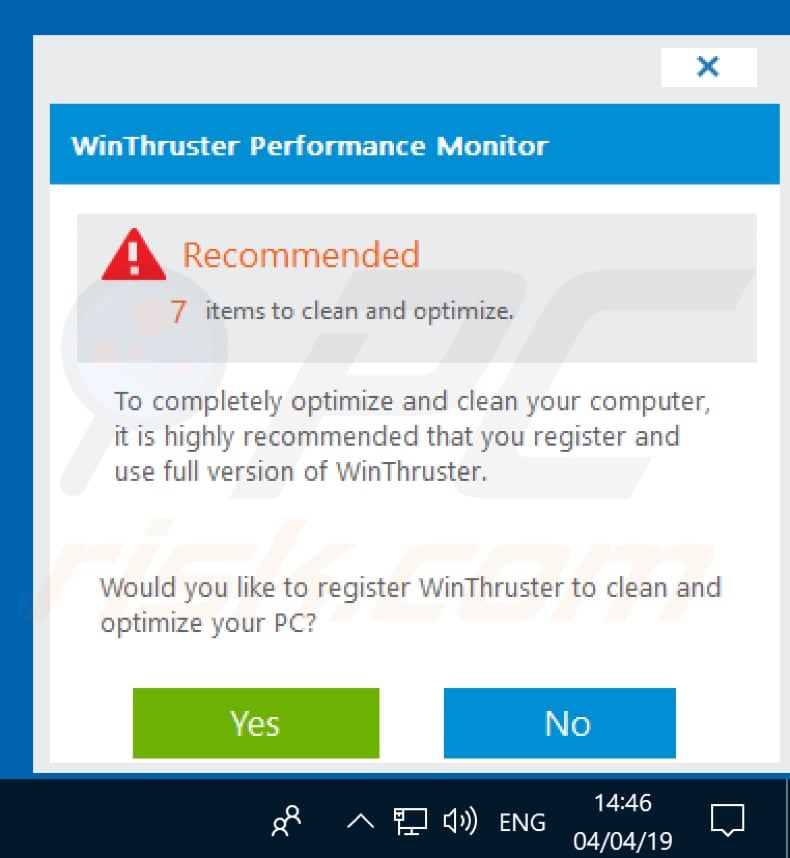
Appearance of the WinThruster application (GIF):
Instant automatic Mac malware removal: Manual threat removal might be a lengthy and complicated process that requires advanced computer skills. Combo Cleaner is a professional automatic malware removal tool that is recommended to get rid of Mac malware. Download it by clicking the button below:
▼ DOWNLOAD Combo Cleaner for Mac By downloading any software listed on this website you agree to our Privacy Policy and Terms of Use. To use full-featured product, you have to purchase a license for Combo Cleaner. Limited seven days free trial available. Combo Cleaner is owned and operated by Rcs Lt, the parent company of PCRisk.com read more.
Quick menu:
Removal of potentially unwanted applications:
Windows 11 users:
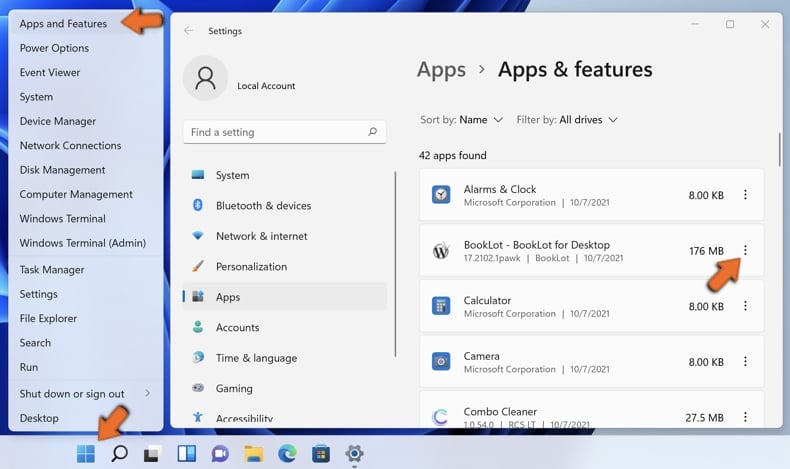
Right-click on the Start icon, select Apps and Features. In the opened window search for the application you want to uninstall, after locating it, click on the three vertical dots and select Uninstall.
Windows 10 users:
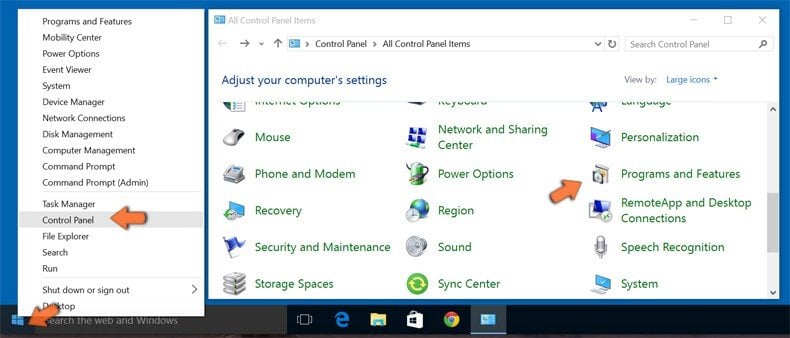
Right-click in the lower left corner of the screen, in the Quick Access Menu select Control Panel. In the opened window choose Programs and Features.
Windows 7 users:
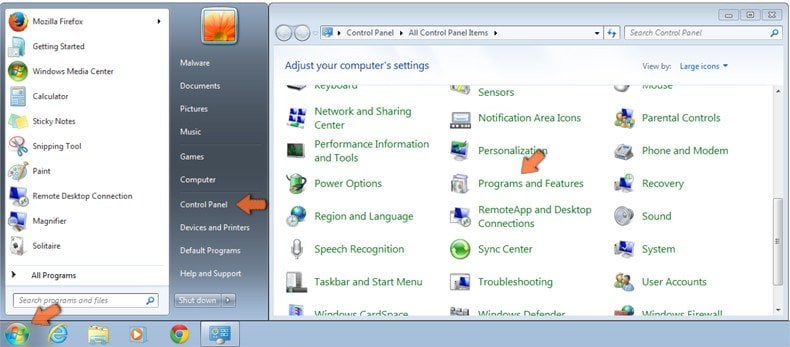
Click Start (Windows Logo at the bottom left corner of your desktop), choose Control Panel. Locate Programs and click Uninstall a program.
macOS (OSX) users:
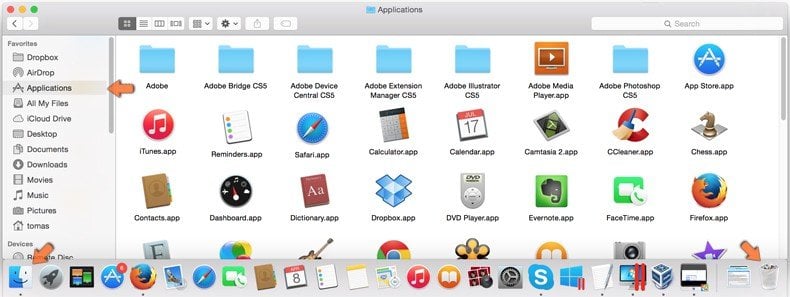
Click Finder, in the opened screen select Applications. Drag the app from the Applications folder to the Trash (located in your Dock), then right click the Trash icon and select Empty Trash.
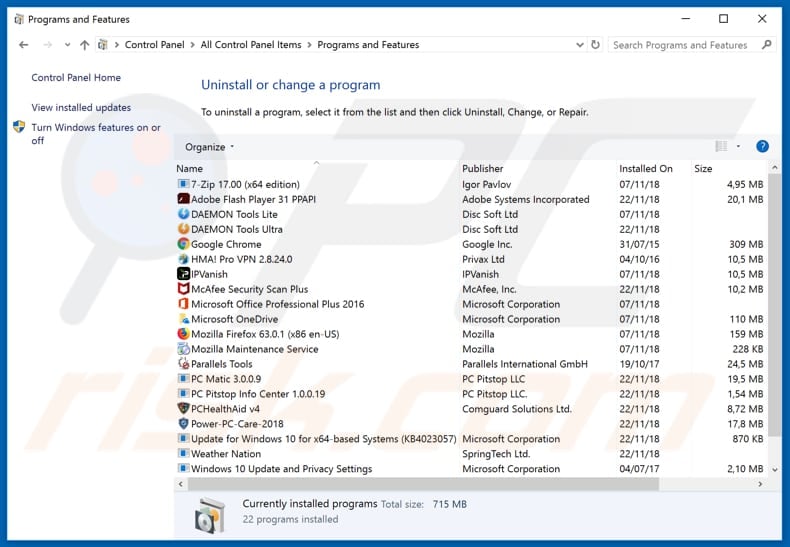
In the uninstall programs window, look for «WinThruster» and other suspicious/recently-installed applications, select these entries and click «Uninstall» or «Remove«.
After uninstalling the potentially unwanted application, scan your computer for any remaining unwanted components or possible malware infections. To scan your computer, use recommended malware removal software.
Combo Cleaner checks if your computer is infected with malware. To use full-featured product, you have to purchase a license for Combo Cleaner. Limited seven days free trial available. Combo Cleaner is owned and operated by Rcs Lt, the parent company of PCRisk.com read more.
Remove rogue extensions from Internet browsers:
At time of research, WinThruster did not install any unwanted browser extensions, however, note that some unwanted applications can be installed together with adware and browser hijackers. If you experience unwanted ads or redirects when browsing the internet, continue with the removal guide below.
Video showing how to remove potentially unwanted browser add-ons:
Remove malicious add-ons from Internet Explorer:
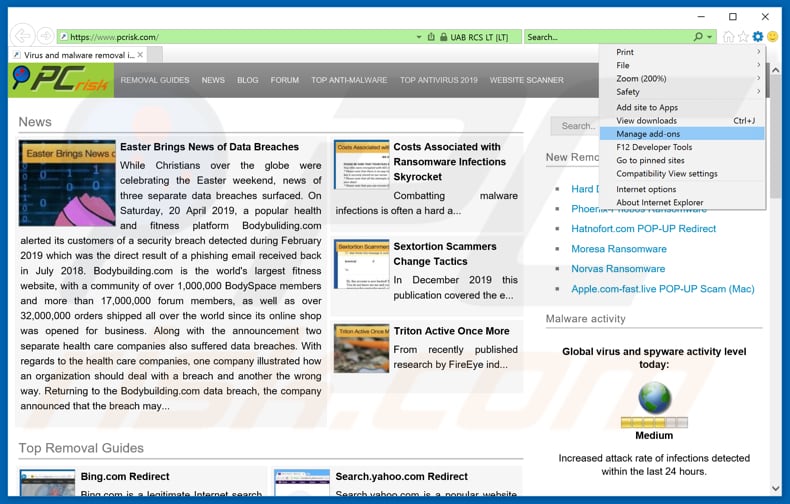
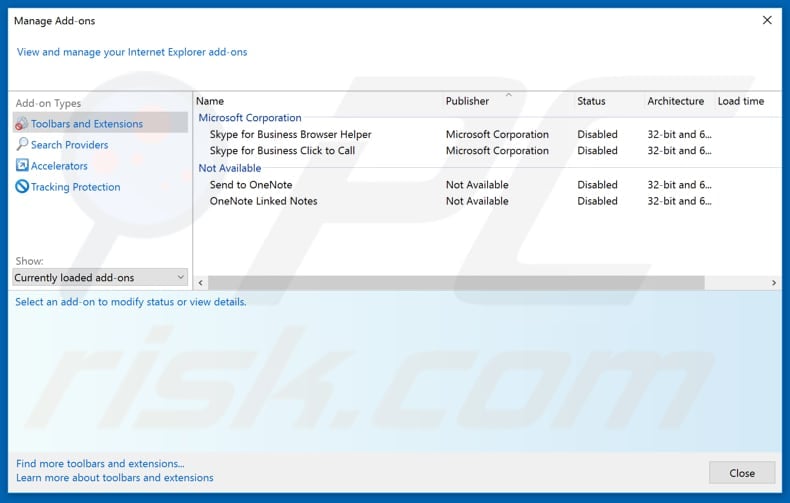
Click the «gear» icon (at the top right corner of Internet Explorer), select «Manage Add-ons». Look for any recently-installed suspicious browser extensions, select these entries and click «Remove».
Optional method:
If you continue to have problems with removal of the winthruster potentially unwanted application, reset your Internet Explorer settings to default.
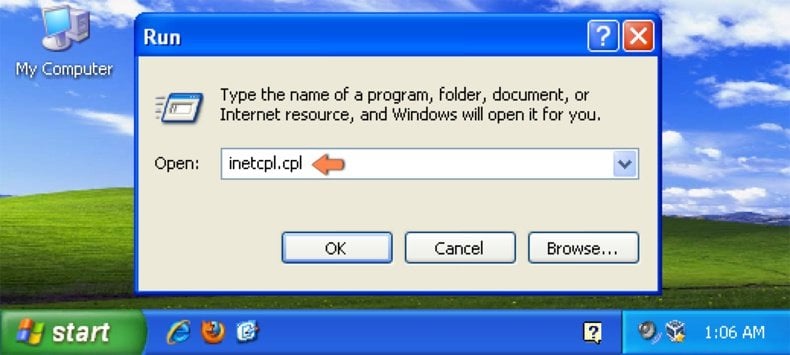
Windows XP users: Click Start, click Run, in the opened window type inetcpl.cpl In the opened window click the Advanced tab, then click Reset.
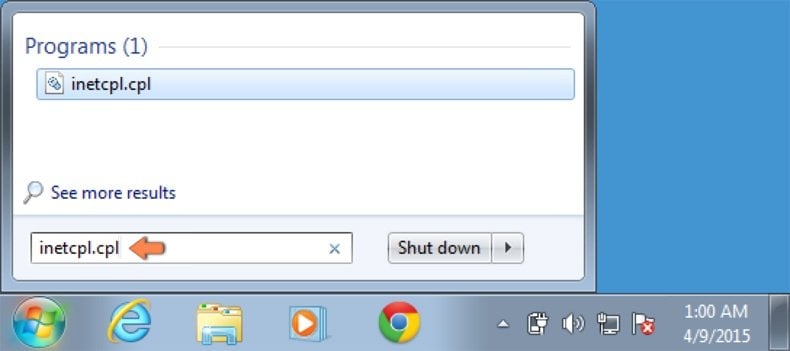
Windows Vista and Windows 7 users: Click the Windows logo, in the start search box type inetcpl.cpl and click enter. In the opened window click the Advanced tab, then click Reset.
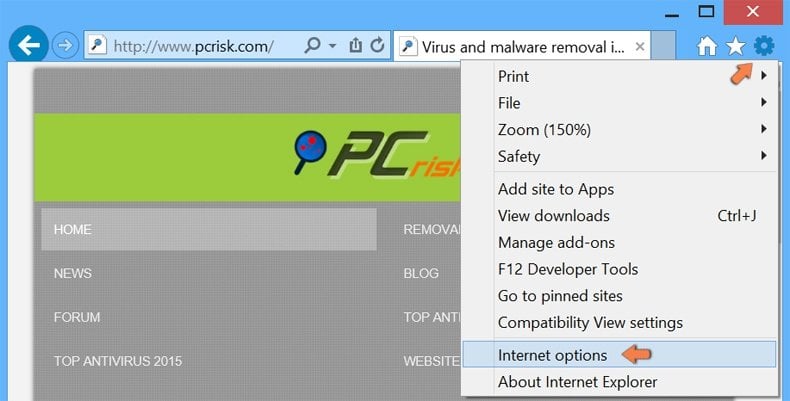
Windows 8 users: Open Internet Explorer and click the gear icon. Select Internet Options.
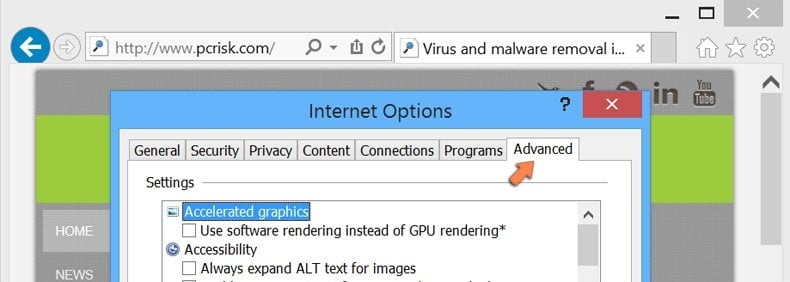
In the opened window, select the Advanced tab.
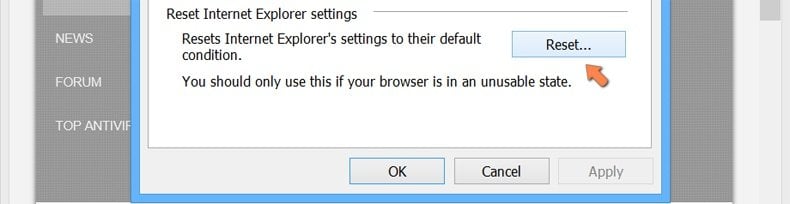
Click the Reset button.
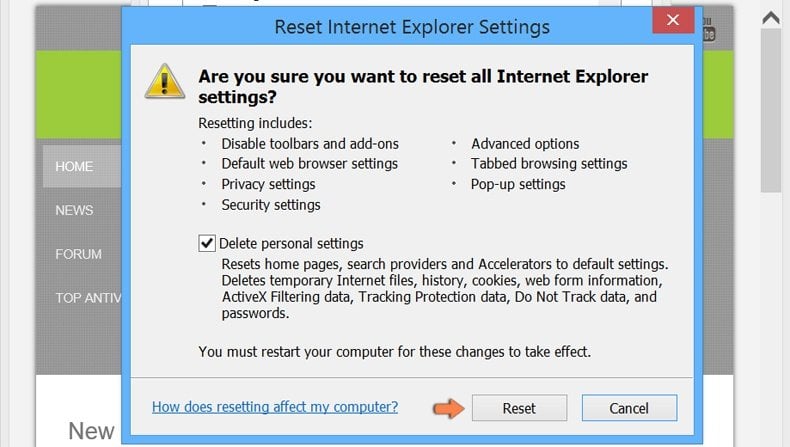
Confirm that you wish to reset Internet Explorer settings to default by clicking the Reset button.
Remove malicious extensions from Google Chrome:
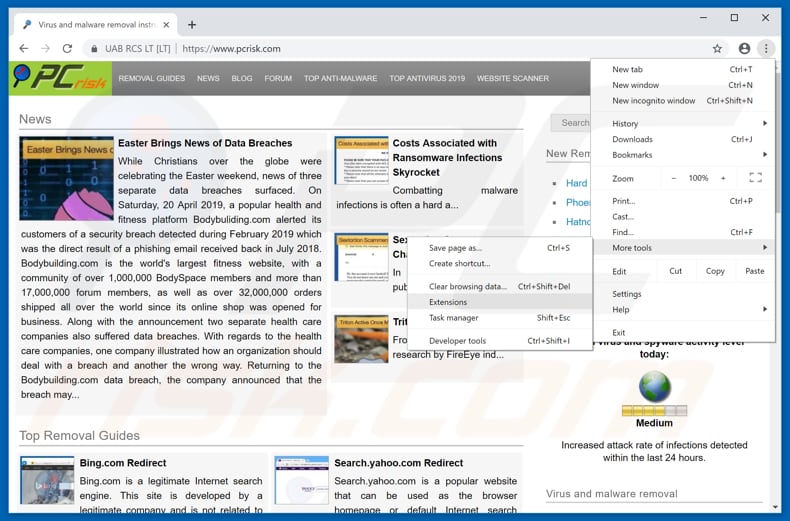
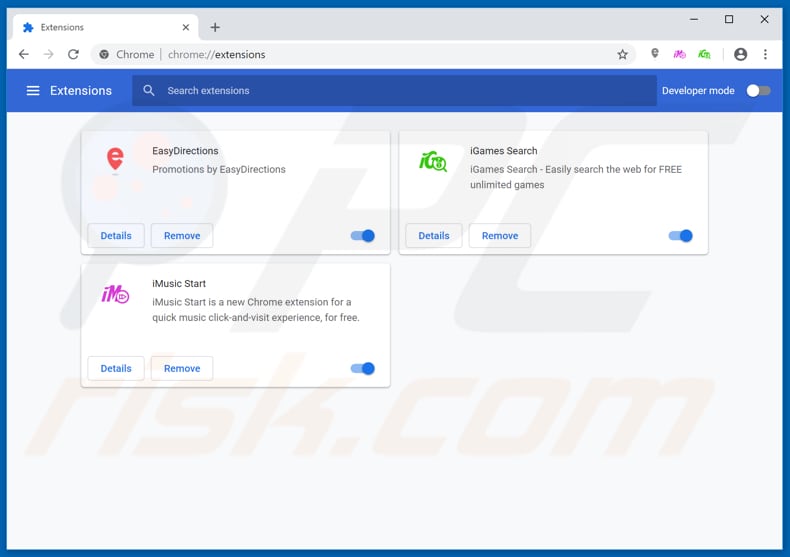
Click the Chrome menu icon (at the top right corner of Google Chrome), select «More tools» and click «Extensions». Locate all recently-installed suspicious browser add-ons and remove them.
Optional method:
If you continue to have problems with removal of the winthruster potentially unwanted application, reset your Google Chrome browser settings. Click the Chrome menu icon (at the top right corner of Google Chrome) and select Settings. Scroll down to the bottom of the screen. Click the Advanced… link.
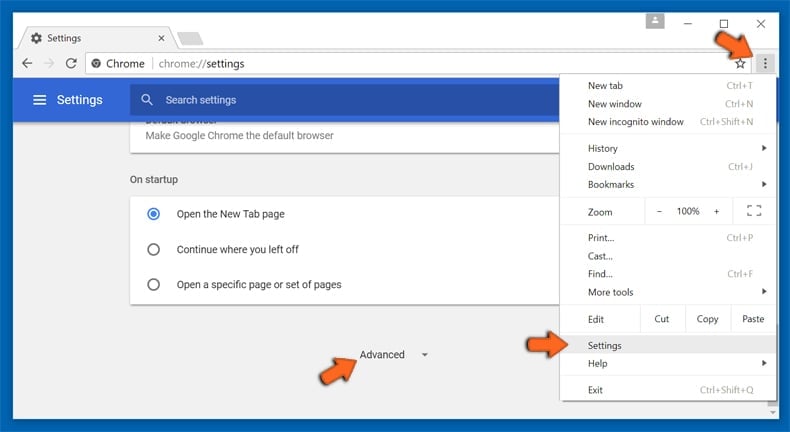
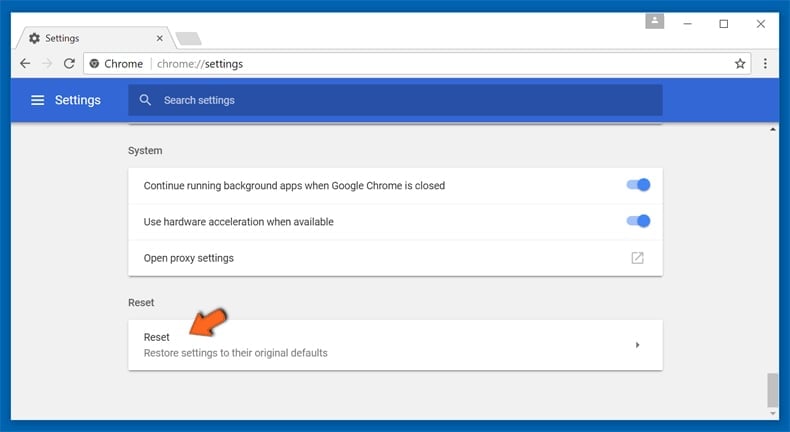
After scrolling to the bottom of the screen, click the Reset (Restore settings to their original defaults) button.
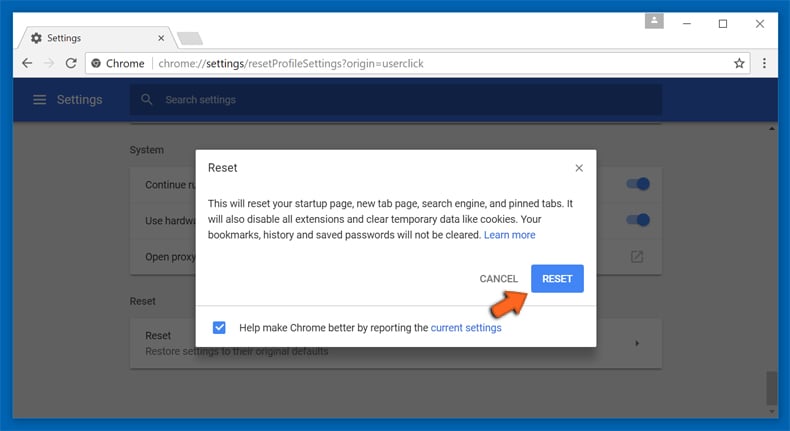
In the opened window, confirm that you wish to reset Google Chrome settings to default by clicking the Reset button.
Remove malicious plug-ins from Mozilla Firefox:
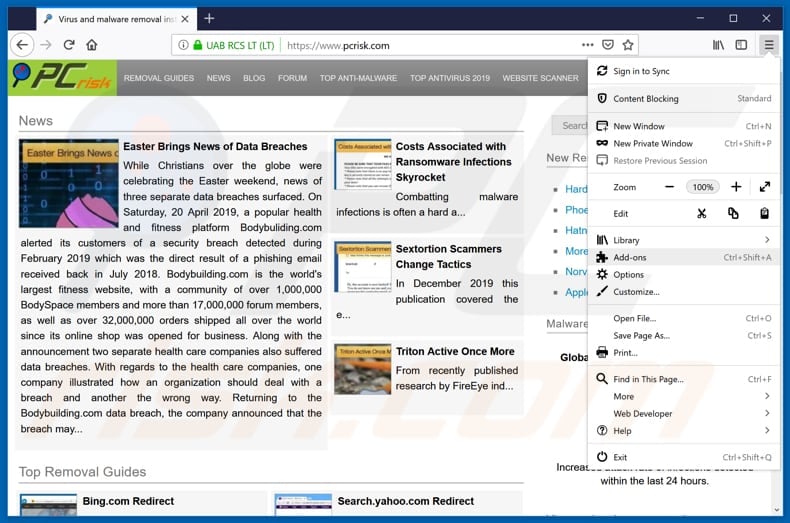
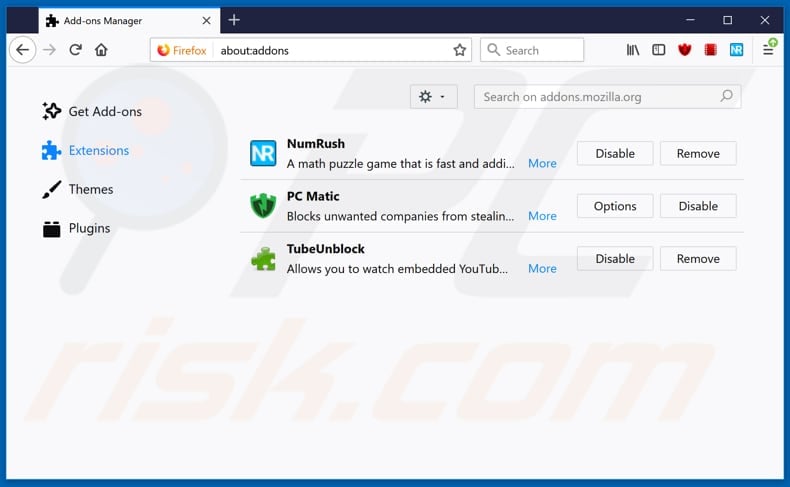
Click the Firefox menu  (at the top right corner of the main window), select «Add-ons». Click on «Extensions», in the opened window, remove all recently-installed suspicious browser plug-ins.
Optional method:
Computer users who have problems with winthruster potentially unwanted application removal can reset their Mozilla Firefox settings.
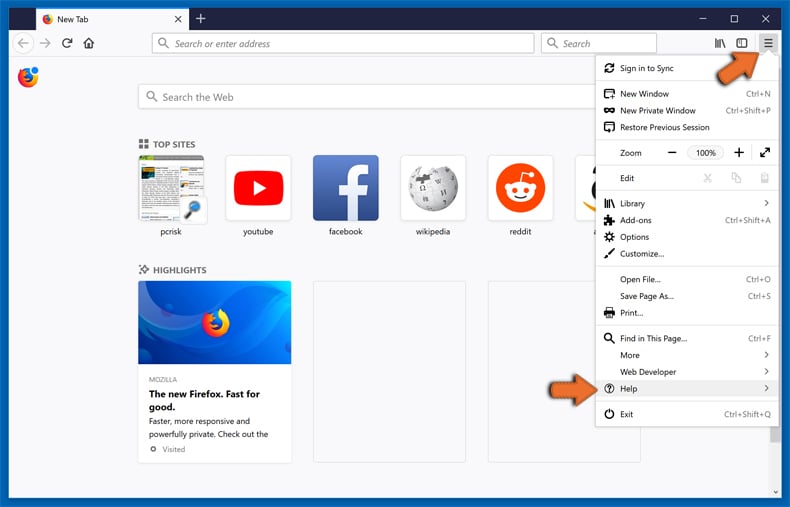
Open Mozilla Firefox, at the top right corner of the main window, click the Firefox menu, in the opened menu, click Help.
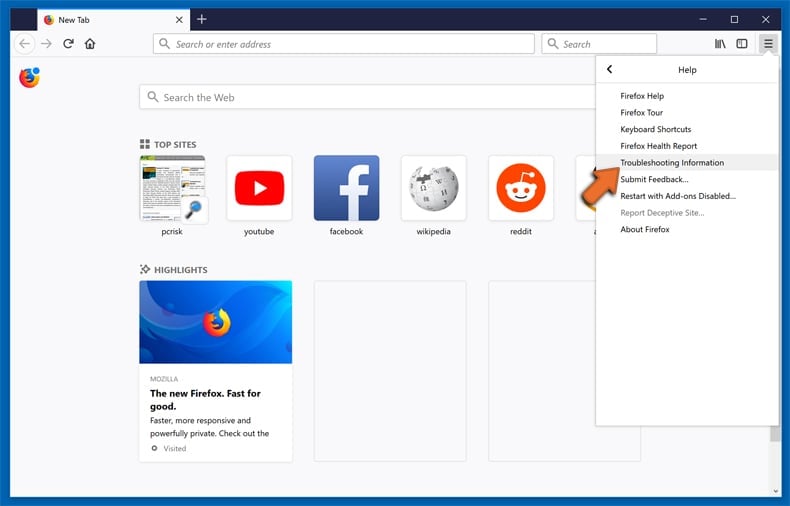
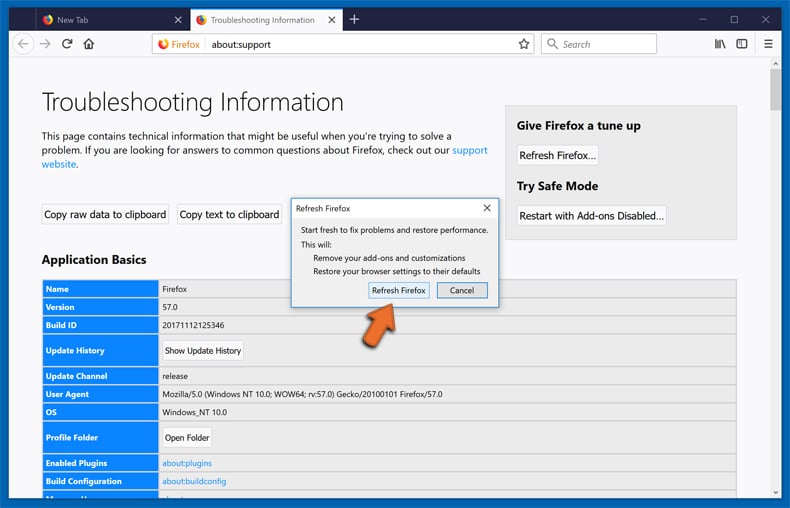
Select Troubleshooting Information.
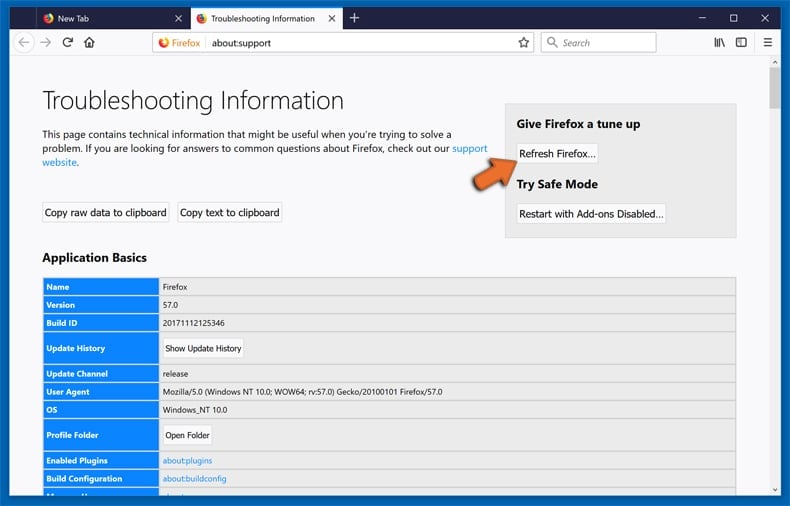
In the opened window, click the Refresh Firefox button.
In the opened window, confirm that you wish to reset Mozilla Firefox settings to default by clicking the Refresh Firefox button.
Remove malicious extensions from Safari:
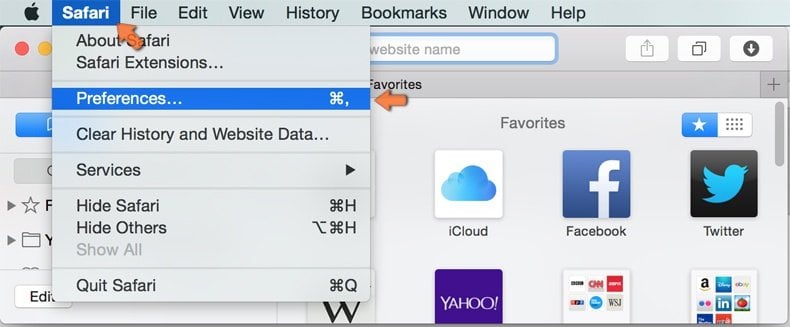
Make sure your Safari browser is active, click Safari menu, and select Preferences. .
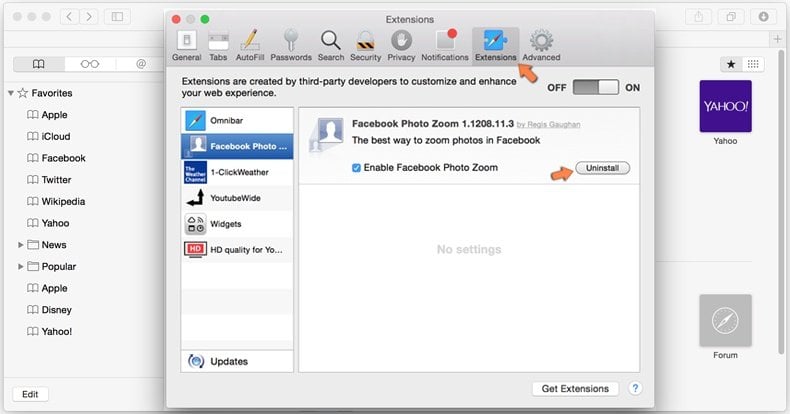
In the opened window click Extensions, locate any recently installed suspicious extension, select it and click Uninstall.
Optional method:
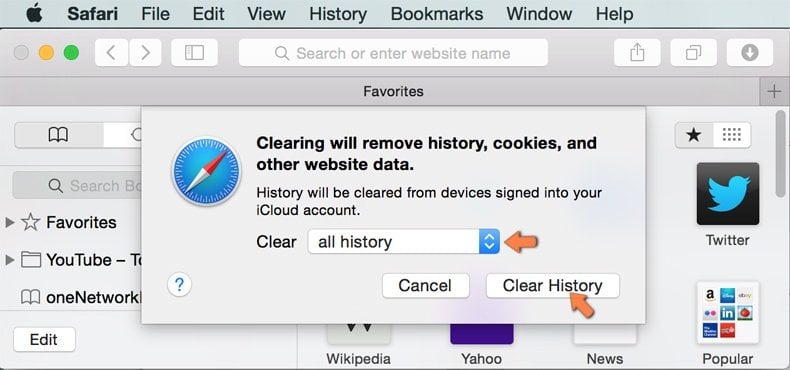
Make sure your Safari browser is active and click on Safari menu. From the drop down menu select Clear History and Website Data.
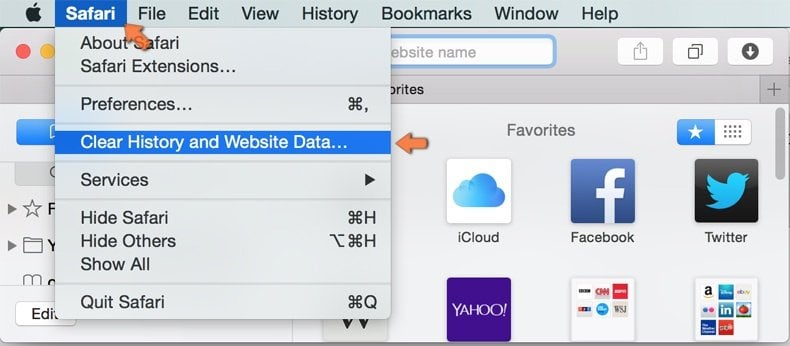
In the opened window select all history and click the Clear History button.
Remove malicious extensions from Microsoft Edge:
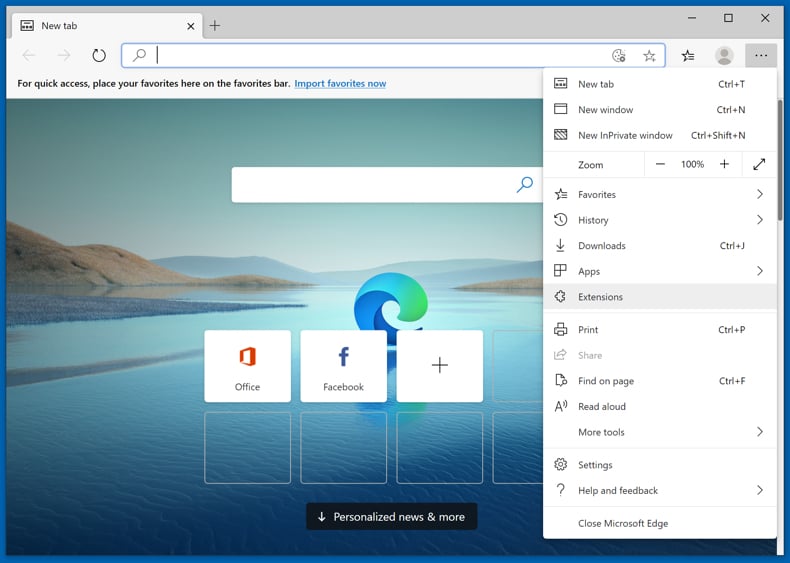
Click the Edge menu icon (at the upper-right corner of Microsoft Edge), select «Extensions«. Locate all recently-installed suspicious browser add-ons and click «Remove» below their names.
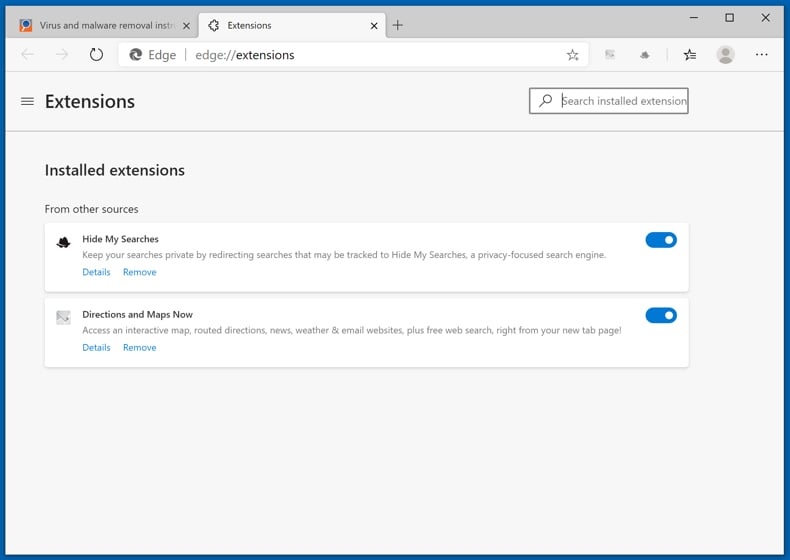
Optional method:
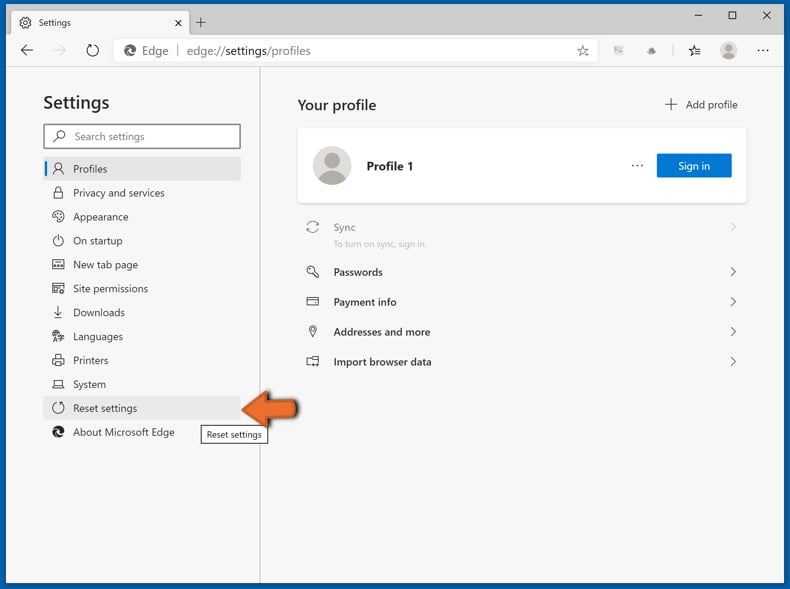
If you continue to have problems with removal of the winthruster potentially unwanted application, reset your Microsoft Edge browser settings. Click the Edge menu icon (at the top right corner of Microsoft Edge) and select Settings.
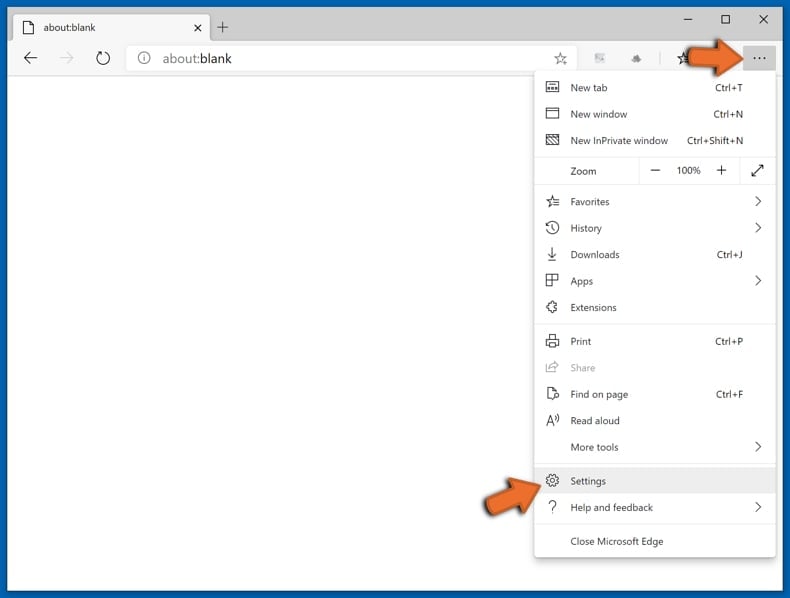
In the opened settings menu select Reset settings.
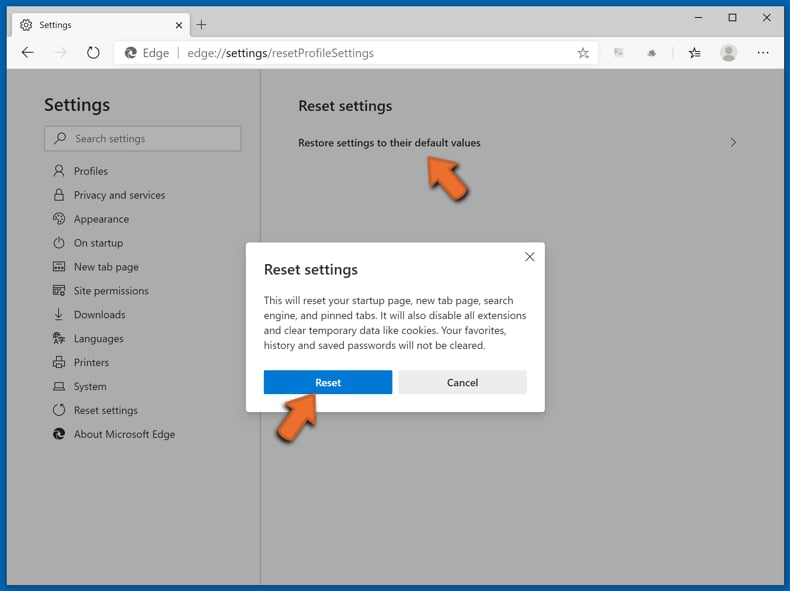
Select Restore settings to their default values. In the opened window, confirm that you wish to reset Microsoft Edge settings to default by clicking the Reset button.
- If this did not help, follow these alternative instructions explaining how to reset the Microsoft Edge browser.
Summary:
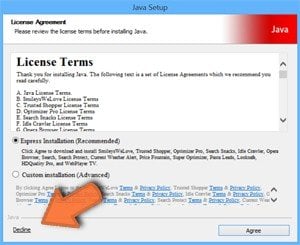
Commonly, adware or potentially unwanted applications infiltrate Internet browsers through free software downloads. Note that the safest source for downloading free software is via developers’ websites only. To avoid installation of adware, be very attentive when downloading and installing free software. When installing previously-downloaded free programs, choose the custom or advanced installation options – this step will reveal any potentially unwanted applications listed for installation together with your chosen free program.
Post a comment:
If you have additional information on winthruster potentially unwanted application or it’s removal please share your knowledge in the comments section below.
About the author:

Tomas Meskauskas — expert security researcher, professional malware analyst.
I am passionate about computer security and technology. I have an experience of over 10 years working in various companies related to computer technical issue solving and Internet security. I have been working as an author and editor for pcrisk.com since 2010. Follow me on Twitter and LinkedIn to stay informed about the latest online security threats. Contact Tomas Meskauskas.
PCrisk security portal is brought by a company RCS LT. Joined forces of security researchers help educate computer users about the latest online security threats. More information about the company RCS LT.
Our malware removal guides are free. However, if you want to support us you can send us a donation.
PCrisk is a cyber security portal, informing Internet users about the latest digital threats. Our content is provided by security experts and professional malware researchers. Read more about us.