Tkinter Window
Summary: in this tutorial, you’ll learn how to manipulate various attributes of a Tkinter window.
Let’s start with a simple program that consists of a window:
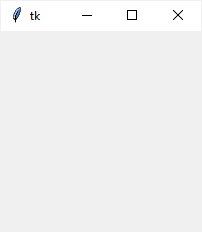
The root window has a title that defaults to tk . It also has three system buttons including Minimize, Maximize, and Close.
Let’s learn how to change the attributes of the root window.
Changing the window title
To change the window’s title, you use the title() method like this:
For example, the following changes the title of the root window to ‘Tkinter Window Demo’ :
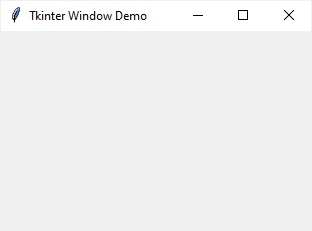
To get the current title of a window, you use the title() method with no argument:
Changing window size and location
In Tkinter, the position and size of a window on the screen is determined by geometry.
The following shows the geometry specification:
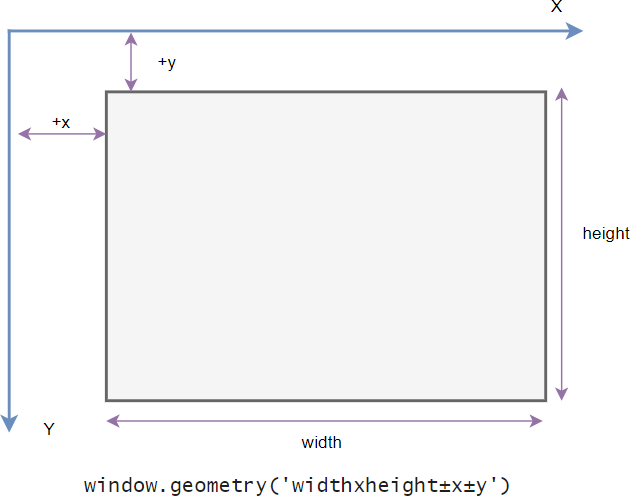
In this specification:
- The width is the window’s width in pixels.
- The height is the window’s height in pixels.
- The x is the window’s horizontal position. For example, +50 means the left edge of the window should be 50 pixels from the left edge of the screen. And -50 means the right edge of the window should be 50 pixels from the right edge of the screen.
- The y is the window’s vertical position. For example, +50 means the top edge of the window should be 50 pixels below the top of the screen. And -50 means the bottom edge of the window should be 50 pixels above the bottom of the screen.
To change the size and position of a window, you use the geometry() method:
The following example changes the size of the window to 600×400 and the position of the window to 50 pixels from the top and left of the screen:
Sometimes, you may want to center the window on the screen. The following program illustrates how to do it:
- First, get the screen width and height using the winfo_screenwidth() and winfo_screenheight() methods.
- Second, calculate the center coordinate based on the screen and window width and height.
- Finally, set the geometry for the root window using the geometry() method.
If you want to get the current geometry of a window, you can use the geometry() method without providing any argument:
Resizing behavior
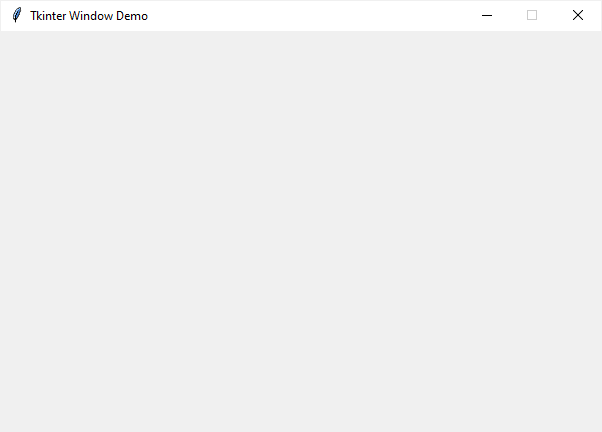
By default, you can resize the width and height of a window. To prevent the window from resizing, you can use the resizable() method:
The resizable() method has two parameters that specify whether the width and height of the window can be resizable.
The following shows how to make the window with a fixed size:
When a window is resizable, you can specify the minimum and maximum sizes using the minsize() and maxsize() methods:
Transparency
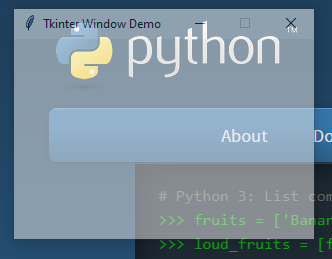
Tkinter allows you to specify the transparency of a window by setting its alpha channel ranging from 0.0 (fully transparent) to 1.0 (fully opaque):
The following example illustrates a window with 50% transparent:
Window stacking order
The window stack order refers to the order of windows placed on the screen from bottom to top. The closer window is on the top of the stack and it overlaps the one lower.
To ensure that a window is always at the top of the stacking order, you can use the -topmost attribute like this:
To move a window up or down of the stack, you can use the lift() and lower() methods:
The following example places the root window on top of all other windows. In other words, the root window is always on top:
Changing the default icon
Tkinter window displays a default icon. To change this default icon, you follow these steps:
- Prepare an image in the .ico format. If you have the image in other formats like png or jpg , you can convert it to the .ico format. There are many online tools that allow you to do it quite easily.
- Place the icon in a folder that can be accessible from the program.
- Call the iconbitmap() method of the window object.
The following program illustrates how to change the default icon to a new one:
Как изменить название окна в tkinter
Блог веб разработки статьи | видеообзоры | исходный код


- Главная /
- PYTHON /
- tkinter создание окна
tkinter создание окна
Всем привет. Продолжим изучение библиотеки tkinter в python которая позволяет писать нам графический интерфейс. Тема сегодняшней статьи работа с окнами программы.
Рассмотрим следующий код:
Здесь мы создали главное окно программы. Заметьте что оно имеет определенные размеры и заголовок Tk.
Допустим мы хотим чтобы наше главное окно имело заголовок 'main' и размеры 400×400.
Для этого в библиотеке tkinter существует метод title() который устанавливает заголовок и minize(), устанавливает ширину и высоту окна.
Для того чтобы окну задать определенный фон мы можем воспользоваться элементом frame:
здесь через класс Frame мы создали элемент frame.
В класс мы передали следующие аргументы:
window — объект главного окна
width и height — ширина и высота(совпадают с параметрами главного окна)
bg — цвет фона(green — зеленный)
В результате цвет фона нашего главного окна стал зеленым. Сам по себе виджет frame представляет собой рамки с помощью которых мы можем более гибко структурировать данные в окне.
Мы нарисовали флаг Российской Федерации в самом центре нашего главного окна используя виджет Frame. Помимо всего прочего мы можем в фрейм помещать другие элементы.
Например здесь мы текстовое поле поместили в frame2
И напоследок мы рассмотрим как создавать дополнительные(дочерние окна).
Дочерние окна создаются с помощью класса Toplevel которому передается в качестве аргумента объект главного окна.
В данном примере мы создали дополнительное окно с размерами 400×200 и заголовком 'Дочернее окно'. Теперь мы можем обращаться и работать с ним через объект children. Отмечу что дочерних окон мы можем создавать сколько угодно.
Однако стоит помнить, что если мы закрываем наше главное окно, то все дочерние элементы закроются вместе с ним.
На этом данная статья подошла к концу. Надеюсь она была для вас полезной.
Желаю удачи и успехов! Пока!
Оцените статью:
Статьи
Комментарии
Внимание. Комментарий теперь перед публикацией проходит модерацию
Все комментарии отправлены на модерацию
Запись экрана
Данное расширение позволяет записывать экран и выводит видео в формате webm
Python Tkinter Title (Detailed Tutorial)
In this Python tutorial, we will learn everything about Python Tkinter Title. This blog is going to be an exploratory blog wherein we will answer the frequently asked questions. Also, we will cover these topics.
- Python Tkinter title
- How to change Python Tkinter title font size
- Python Tkinter title bar color
- Python Tkinter title bar text
- Python Tkinter title center
- Python Tkinter title color
- Python Tkinter frame title
- How to remove title bar in Python Tkinter
If you are new to Python TKinter or GUI programming, check out, Python GUI Programming.
Python Tkinter title
- Python Tkinter ‘title‘ refers to the name provided to the window. It appears on the top of the window & mostly found on the top left or center of the screen.
- In the below picture you can notice that ‘PythonGuides’ is a title for the application.
- It set the title of this widget

Syntax:
Here is the syntax of Python Tkinter ‘Title’.
Code Snippet:
Here is the simple code to create title of the window. ws.title(‘PythonGuides’)
Output:
In this output, PythonGuides is displayed as the title of the screen. If you are windows you will see it on the left side of the window.
The above code we can use to set a title in Python Tkinter.
Python tkinter title font size
- Python Tkinter ‘Title’ does not allow to change the font size of the window. The solo purpose of ‘title’ is to provide a name or short description of the window.
- This is a frequently asked question so we went through the official documentation & various other websites to find if there is any possibility to do that.
- The official website provides no function to change the font size. Other websites are showing label as title.
- This error we received while experimenting with font on the title.

Python tkinter title bar color
- Title function offers one function that is to set a string on the top of the window. There is no official documentation to support the color implementation on the title bar.
- Since this is a frequently asked question so we performed various experiments to discover tip for the user but none worked..
- code on other website displays the placement & modification on widgets. They do no work on title bar that is on the top of the window.
- type help(ws.title) to read the official documentation. Here ws is the name of the window.
Python tkinter title bar text
Title bar is used to set the name or description of the window. In this section we will learn how to set the title of the window in python tkinter.
Syntax:
Here is the syntax for adding title to the window.
Code Snippet:
Here is the code to add title to the application window.
Output:
Here is the output of the above code. You can notice ‘PythonGuides’ as the title.
Python tkinter title center
- There is no official way of setting the title of application window to the center. But if you are a linux or mac os user then text will automatically appear in center of the title bar.
- Windows user can apply some extra space to bring text to the center.
Python tkinter title color
- Python tkinter title bar do not provide any option to set the color. Neither foreground color nor background color can be added.
- Look and feel on Linux, Mac, and Windows may vary from each other.
Python Tkinter frame title
- In this section, we will learn how to set title on the Tkinter frame. Also, we will share the common error messages & their fix.
- Tkinter has provided two types of frame
- Frame
- LabelFrame

The right way of adding title to the frame is by using Label Frame. Here is the demonstration.
Code Snippet:
Here is the code snippet to add title on the LabelFrame. You can notice in the output ‘PythonGuides’ is the title for the frame.
Output:
Here is the output of the above code snippet. You can notice there is PythonGuides written as the title of the frame.

Python tkinter remove title bar
To remove title bar all you need to do is either delete the line ws.title(‘Any title’) or You can simply remove the text ‘Any title’. Here, any title is the title of the window.
You may like the following Python Tkinter tutorials:
In this tutorial, we have learned everything about Python Tkinter Title. Also, we have covered these topics.
- python tkinter title
- python tkinter title font size
- python tkinter title bar color
- python tkinter title bar text
- python tkinter title center
- python tkinter title color
- python tkinter frame title
- python tkinter remove title bar

Entrepreneur, Founder, Author, Blogger, Trainer, and more. Check out my profile.