Импорт CSV-файла в таблицу MySQL
В этой статье мы расскажем вам, как использовать оператор LOAD DATA INFILE для импорта CSV-файла в таблицу MySQL.
Оператор LOAD DATA INFILE позволяет считывать данные из текстового файла и очень быстро импортировать их в таблицу базы данных.
Перед импортом файла, вам необходимо подготовить следующее:
- Таблицу базы данных, в которую будут импортированы данные из файла;
- CSV-файл с соответствующим числом столбцов и соответствующим форматом данных в каждом столбце;
- Учетную запись пользователя, который подключается к серверу базы данных MySQL и имеет привилегии FILE и INSERT .
Предположим, что мы имеем таблицу, которая называется discounts со следующей структурой:

Мы используем оператор CREATE TABLE , чтобы создать таблицу discounts :
Файл discounts.csv в первой строке содержит заголовки столбцов, в трех других строках — данные:

Следующий оператор импортирует данные из файла c:tmpdiscounts.csv в таблицу discounts :
Поля файла завершаются запятой, относящейся к FIELD TERMINATED BY ‘,’ , которая заключена в двойные кавычки, предусмотренные форматом ENCLOSED BY ‘»‘ .
Каждая строка CSV файла завершается символом новой строки, обозначающим TERMINATED BY ‘n’ .
Поскольку первая строка файла содержит заголовки столбцов, которые не должны быть импортированы в таблицу, мы игнорируем ее, указав опцию IGNORE 1 ROWS .
Теперь мы можем проверить, импортированы ли данные в таблицу discounts :
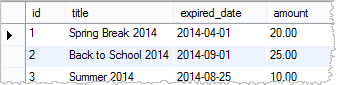
Преобразование данных при импорте
Иногда формат данных не соответствует целевым столбцам таблицы. В простых случаях, вы можете преобразовать их с помощью условия SET в операторе LOAD DATA INFILE .
Предположим, что столбец данных срока действия скидок в файле discount_2.csv имеет формат мм / дд / гггг:

При импорте данных в таблицу discounts мы должны преобразовать их в формат даты MySQL с помощью функции str_to_date() :
Импорт файла клиента для замещения на сервере базы данных MySQL
Можно импортировать данные от клиента (локального компьютера) на удаленный сервер базы данных MySQL, с помощью оператора LOAD DATA INFILE .
При использовании опции LOCAL в LOAD DATA INFILE клиентская программа считывает файл на стороне клиента и отправляет его на сервер MySQL. Файл будет загружен во временную папку базы данных сервера операционной системы, например, C: Windows Temp для ОС Windows или / TMP для Linux .
Эта папка не настраивается и не задается MySQL.
Давайте рассмотрим следующий пример:
Разница заключается только в опции LOCAL оператора. Если вы загружаете большой CSV файл, вы увидите, что с опцией LOCAL загрузка осуществляется немного медленнее, потому что требуется определенное время, чтобы передать файл серверу базы данных.
Учетная запись пользователя, под которым мы подключается к серверу MySQL для импорта данных, может не иметь привилегию FILE , если используется опция LOCAL .
При импорте файла от клиента на удаленный сервер базы данных с помощью LOAD DATA LOCAL могут возникнуть некоторые проблемы с безопасностью , о которых вы должны знать, чтобы избежать потенциальных рисков.
Импорт CSV файла с помощью MySQL Workbench
MySQL Workbench предоставляет инструмент для импорта данных в таблицу БД. Он позволяет редактировать данные перед внесением изменений.
Ниже приведены этапы импорта данных в таблицу БД:
Откройте таблицу, в которую будут загружаться данные:

Нажмите кнопку Import , выберите CSV файл и нажмите кнопку Open :

Просмотрите данные, нажмите кнопку Apply :


В MySQL Workbench появится диалоговое окно « Apply SQL Script to Database », нажмите кнопку Apply , чтобы добавить данные в таблицу БД.
Мы рассказали вам, как импортировать CSV в таблицу MySQL с помощью LOAD DATA LOCAL , а также с использованием MySQL Workbench .
С помощью этих методов можно загружать данные и из других файлов текстовых форматов, таких, например, как текстовый файл с разделителями табуляции.
Вадим Дворников автор-переводчик статьи « Import CSV File Into MySQL Table »
How to Import CSV File into MySQL Table in 5 Different Ways
In this article, we shall have a glance at five different ways of importing csv files into the MySQL tables. All of them have different methodologies to import the .csv files into the MySQL tables. The users can choose any one of them based upon their feasibility and familiarity with using these methods. One of these methods will make your lives much simpler by automatically importing the csv files without human intervention as per the schedule.
Table Of Contents
How to Import CSV Files to MySQL Tables
Importing csv into MySQL or other relational databases has been an integral part of data maintenance for many organizations as most tools allow exporting the data into .csv format. Different departments in an organization make use of different import tools to maintain the data. Some organizations also make use of php scripts to import the csv files into the MySQL database. Exporting the data into csv files and importing them in MySQL allows the organizations to store the organizational-level data in one place. For example, the ERP system of each store can maintain information related to the store. Each of the stores can export their data into a csv file and import the csv files in MySQL that can act as a consolidated database. The organization can use this consolidated data to make informed and data-driven decisions. The organizations also use visualization tools that connect with different databases. Importing the csv files into MySQL will help the organization in analyzing the data using these visualization tools.
Importing CSV into MySQL Using Command Line
This method will allow us to import csv file to mysql command line interface of the MySQL database. It is most suitable for the database developers as accessing and using the DB is their forte and they will feel familiar with using the MySQL command-line interface. We can also import the large csv files into the table using this methodology. We can import the data into the MySQL table as follows:
Accessing the MySQL CLI (command-line interface). Once MySQL is installed on the machine, we can access its terminal by entering the below command. It will prompt you for a password and you will gain access to the database upon successful authentication.
Creating a table in the database. To store the data, we first need to create a table in the database that corresponds to the data in the csv file. This step requires a bit more attention as the order of the columns in the table should exactly match the order in the csv. This needs to be performed as when creating a table, we specify the type of data that should be stored in the columns. Incorrect table creation will lead to failure in importing the csv through the MySQL command line.
Importing the CSV file into a table. Once the table has been created, we can import table with the contents of the csv files. We can either mention the file path or store the file in the default directory of the MySQL server.
Upon the completion of these steps, the data will be successfully imported into the table. To check the sample contents of the table, we can use the below query. Remember to use the LIMIT keyword as it will only show a limited number of records and would not impact the system if the table is very huge.

Importing CSV into MySQL Using Workbench
This method will instruct you on how to import csv file in MySQL workbench. MySQL Workbench is a graphical user interface provided by MySQL to manage the database, write the SQL queries, etc. It provides a wizard that allows us to export or import the data in a csv or json format. If you want to import an excel sheet into a table through MySQL workbench or a standard text file, make sure that the data is in .csv format for a successful import. The methodology is pretty straightforward as we need to open the wizard and complete the steps as mentioned in the wizard. Before proceeding with the instructions, make sure both MySQL and MySQL Workbench have been installed on your machine.
Opening the Import wizard in MySQL workbench. To open the Import wizard, draw your attention to the navigator panel that is usually on the left-hand side of MySQL workbench. The navigator panel includes a schemas section that enlists all of the databases and tables. Right-click on any of the tables and you shall see two different options for choosing the wizard, one for exporting the data and another for importing the data. Choose the latter to open the import wizard.

Selecting the source of data. After opening the import wizard, it will ask you for the path of the csv file. You can either explicitly mention it or use the browse option to assist you through it.

Selecting/creating a table. After selecting the file, it will provide two options, to import the data in an existing table or create a new one. If selecting an existing table, then select one of the tables where you want to import the data. For importing csv into a new table, mention the name of the table.

Filling in the advanced settings. The wizard will provide the options to fill in additional details like the line separator, field separator, encoding, etc. Make sure the value of the encoding field in the wizard matches the encoding of the csv file. It will also mention the list of columns that the wizard has detected from the csv. You can select the field type of each of the columns. Clicking on Next will start the importing process and the csv file will be imported into MySQL.


Importing CSV Using phpMyAdmin
phpMyAdmin is an open-source tool that is used for the administration of the MySQL and MariaDB databases. Along with the administration of the databases, it also allows us to import csv to MySQL phpadmin. By default, it allows importing csv files sized up to 2MB into MySQL. But with some configuration changes, it can be used for importing large files into MySQL.
Selecting/creating a table. After launching phpMyAdmin, the users will be able to see the list of databases and tables in the left panel of the GUI. Select the table or use the New option to create a new table for importing the csv file. While creating a new table, we need to mention the columns and their data types that correspond to the columns in the file. You can also create the table and database while importing the csv file.
Selecting Import menu. After selecting the table, several options will be displayed at the top of your screen. Select the import menu to import the file in the selected table.
Browsing to the file and selecting format. Use the ‘Choose file’ button to browse to the csv file. Select the encoding of the file that is usually UTF-8. In the Format list, select CSV.

Changing format-specific options. If the csv file is delimited by a character other than a comma or if there are other specifications to the csv files, we can change it in this portion. Click Go to start importing the csv file and the data will be successfully imported into MySQL.


Importing CSV Using dbForge Studio for MySQL
There is one more product that you can use to import .csv files into MySQL tables — dbForge Studio for MySQL.
dbForge Studio for MySQL is a powerful tool, designed to develop, manage, and administer MySQL and MariaDB databases. It allows you to import MySQL data from .csv files to an existing database, schema, as well as to a new table in a few click.
Import options can be customized to your requirements, such as:
- Encoding: you can select different types of data encoding.
- Skip lines: you can specify the number of lines that must be skipped during import.
- Header position: you can set a certain line as your table header.
- Field Separator: you can choose either an auto-defined or a custom character to separate fields.
While applying any option, you can see the result in the Preview field. You can also configure import to the target table by selecting one of the available import modes (Append, Update, Append/Update, Delete, Repopulate).

Additionally, you can specify the actions that should be performed if an error occurs and choose whether you want to create a log file. This feature really saves time that you may spend on investigating issues and fixing them.
To automate recurring import operations, dbForge Studio for MySQL lets you save customized import options as templates. You can use these templates as many times as you need or easily share them with your colleagues.
Importing CSV into MySQL Automatically
The above three methods are the most popular methods to import CSV into MySQL. But these methods lack automation and thus require human efforts to complete the importing. This can be a very tedious task as we are dealing with a huge volume of datasets and on a daily basis. Scheduled imports are very essential in such scenarios.
Skyvia allows automatically import CSV into MySQL without any human intervention on a scheduled basis.
Skyvia Import is a wizard-based ETL tool that will automatically import csv into MySQL without writing any code. You can connect with the cloud servers and import the data or can import a locally saved csv file. It also offers additional features like importing data from one source to another, transferring data between the cloud applications and databases, performing joining of the related tables, performing the transformation on the datasets, importing only those records that match certain criteria, and much more. The process for importing the data is very easy as it provides several connectors that connect with the data sources and perform operations on them. We also get notified with emails when a certain task is completed and can monitor the tasks with detailed logging.
Summary
This article demonstrated five different ways to import a csv file into MySQL. While all these methods suffice the requirements for importing a csv file into MySQL, Skyvia Import provides many more features than the first three methods. Comment your preferred method amongst the five listed above and feel free to add any more tools that can help in importing the csv files into MySQL.
How do I import CSV file into a MySQL table?
I have an unnormalized events-diary CSV from a client that I’m trying to load into a MySQL table so that I can refactor into a sane format. I created a table called ‘CSVImport’ that has one field for every column of the CSV file. The CSV contains 99 columns , so this was a hard enough task in itself:
No constraints are on the table, and all the fields hold VARCHAR(256) values, except the columns which contain counts (represented by INT), yes/no (represented by BIT), prices (represented by DECIMAL), and text blurbs (represented by TEXT).
I tried to load data into the file:
The whole table is filled with NULL .
I think the problem is that the text blurbs contain more than one line, and MySQL is parsing the file as if each new line would correspond to one databazse row. I can load the file into OpenOffice without a problem.
The clientdata.csv file contains 2593 lines, and 570 records. The first line contains column names. I think it is comma delimited, and text is apparently delimited with doublequote.
I added some information to the LOAD DATA statement that OpenOffice was smart enough to infer, and now it loads the correct number of records:
But still there are lots of completely NULL records, and none of the data that got loaded seems to be in the right place.