Microsoft Text input Application — что это за процесс? (WindowsInternal.ComposableShell.Experiences.TextInput.InputApp.exe)
 Приветствую! Обновление Windows 10 обеспечивает не только безопасность, исправление уязвимостей/багов — также вносятся новые функции, компоненты, приложения.
Разбираемся
Microsoft Text input Application — процесс в Windows10, один из внутренних, отвечает за управление вводом с клавиатуры. Не во всех версиях Windows 10 присутствует — возможно появляется после обновления до билда 16215.
Процесс в диспетчере задач — оперативки кушает немного, нагрузки нет — так и должно быть


Сам процесс предположительно имеет длинное название — WindowsInternal.ComposableShell.Experiences.TextInput.InputApp.exe.
Запускается из этой папки:

Последнее название папки — возможно является уникальным для каждой Windows.
Процесс может запускаться при использовании графического планшета и выводить экранную клавиатуру/область ввода пером, поддерживается свайп-ввод. Пользователи отмечают — не всегда получается закрыть окно ввода, приходится завершать процесс через диспетчер:
- На вкладке Подробности находим процесс.
- Нажимаем правой кнопкой.
- Выбираем Завершить работу.
- Подтверждаем.
Один пользователь обнаружил Microsoft Text input Application в списке установленного ПО, при попытке открыть — пустое окно. Один из способов открыть окно с установленном софтом:
- Зажимаем Win + R.
- Пишем команду appwiz.cpl.
- Нажимаем ОК.
- Откроется окно Программы и компоненты — будут названия приложения, дата установки, издатель, размер, версия. На заметку — в окне также будет кнопка открытия списка установленных обновлений.
Создание точки восстановления


Как отключить?
По поводу отключения процесса — пользователь Lunatik9009 предложил свой вариант на форуме Руборде. Перед применением — создать точку восстановления:
- Зажимаем Win + R.
- Пишем control sysdm.cpl, нажимаем ОК.
- Переходим на вкладку Защита системы.
- Выбираем системный диск > кнопка Создать.
Заключение
Мы выяснили, Microsoft Text input Application — системный компонент Windows 10, отвечающий за ввод текста с клавиатуры.
Отключать/удалять не стоит, вряд ли процесс способен нагружать ПК. В крайнем случае — перед отключением сделать точку восстановления/бэкап.
Microsoft Text Input Application: Is it necessary to turn it off??

Windows is an unshakable operating system with a user-friendly interface that supports the efficient performance mechanism. However, each system has its limitations that tell the story. The same goes for the various Windows system processes like the Microsoft Text Input Application that consume most of the system performance. In short, sometimes it causes high CPU consumption to reduces the efficiency of the system processes.
As we all know, Windows has been a significant player in the advanced technological world. Thanks to its constant innovative product improvement, it tremendously supports the users’ comfort. Since its inception worldwide, the Windows operating system bagged almost 70% of the market share, comfortably meeting consumers’ demands at different levels. After the brief overview, we will have a comprehensive discussion on this process.
Defining the MS Text Input Application will be our attempt to further elaboration. Then comes the mechanism to remove it comfortably. Let’s get to our discussion without any further elaboration.

Table of Contents
What is the Microsoft Text Input Application?
The MS Text Input Application is one of the processes in the Windows system files intended for keyword input in the touch and software format. It is one of the fundamental processes that has been since the 1903 version of the Windows 10 software. You can commonly get them as “InputApp.exe” and “TextInputHost.exe” in the system processes.
Disable the Text Input Application
Software always uses this process for efficient touch keyboard or text input. That’s why it is one of the fundamental processes you always need. You can’t disable the process as well. However, it sometimes restricts the performance of the software by using high CPU consumption during the process. People consequently call it a virus or keylogger. Considering executable files or processes as viruses brings a lot of other technical issues that will need your attention. Precisely explaining whether it is harmful to your system is still a quizzical myth.
Of course, the Microsoft Text Input App is certified under Microsoft Digital Ownership. So, it is relatively safe and typically runs in the background. However, you can check for its authenticity before classifying it as a secure Keylogger process, as it should not consume much CPU.
Ways to Disable Microsoft Text Input Application Process
You can disable or suspend the application after verifying its authenticity as a secured process rather than any virus or keylogger. You could also try disabling the “Inking & Typing Personalization.” Having tried setting modifications in Windows display, there was no significant result. Now, you can attempt the following methods.
Root Folder Rename
Start with a temporary solution to disable the MS Text Input Application via renaming the Root Folder. You can find its location using Task Manager. However, the root folder may also vary depending on the Windows version.
- You can easily open the Task Manager in the Search menu. Then navigate the Processes tab.
- The next step is to look for the “Microsoft Text Input Application.” Then open its ‘Properties’ by right-clicking on it.
- To rename the Root Folder of the process, you need to note the Folder Name and its Location in the Generaltab as you get it.
- Click Ok to confirm the renamed folder, then close the MS Text Input Application by clicking “End Task.”
- Now, as you have already noted the location of the MS Text Input Application, paste it into the Address Search Bar. Then locate the folder “MicrosoftWindows.Client.CBS_cw5n1h2txyewy” as you find its exact path in the “System App.”
- Then rename the folder by right-clicking on the folder name described above. Now it’s all done. You can rename it with an easy-to-remember Folder Name. In case you want to replace it with its original folder name.
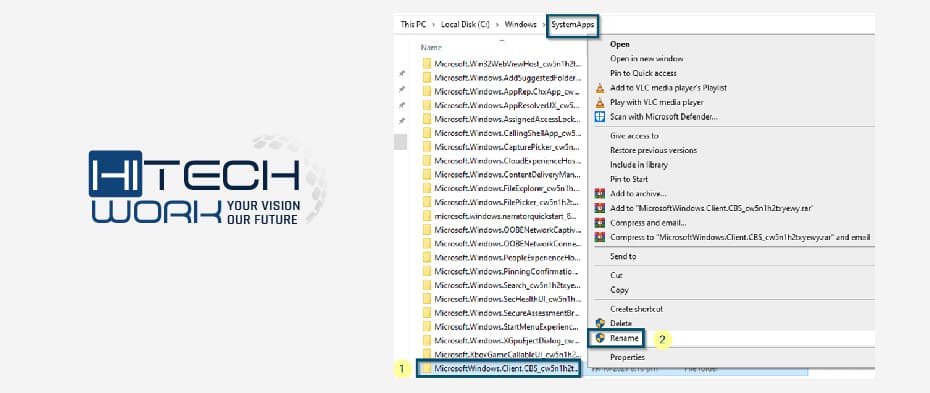
This method works for the time being to disable the “Microsoft Text Input Application.” However, it will undoubtedly revert all the modifications when installing the Windows updates. It will then be advisable to rename the folder. In another case, you can try another method if you encounter issues in renaming the folder with the Event Manager.
Run Scripts in the Command Prompt
The following method is to run the scripts in the Command Prompt. It helps disable the MS Text Input Application primarily recommended in the Windows 10 (1903 build). It is noteworthy that Windows scripts vary significantly depending on their relevant version. You need to grab the method before implementing the script in your Windows version. Sometimes it’s “TextInputHost.exe,” while you can get it differently in another version like “InputApp.exe.” So, let’s learn its step; if you have Windows 10 (build 1903) and running it in a newer build will display the DCOM error 10001. The given instruction recommended the build (1903) rather than other builds.
Steps to Modify the Scripts for Microsoft Text Input Application
- As you have learned to search for Task Manager and Text Input Application, follow this step initially.
- Then navigate to the “Go to Details” by right-clicking on the MSText Input Application. It leads to the “Details” tab.

- Now, it is time to apply the script according to the type of Application Process. ‘TextInputHost.exe’ and ‘InputApp.exe’are two types that require different ways to use scripts on them, respectively.
- Open the Run dialog box by pressing +R. Type “CMD” in the typing box then press ‘Ctrl + Shift + Enter’.As another window appears, it asks for confirmation to open the Command Prompt window. It lets you insert your command as an Administrator.
- The next step is to put the command in the Command Prompt menu. Then you can conveniently execute it by hitting Enter.
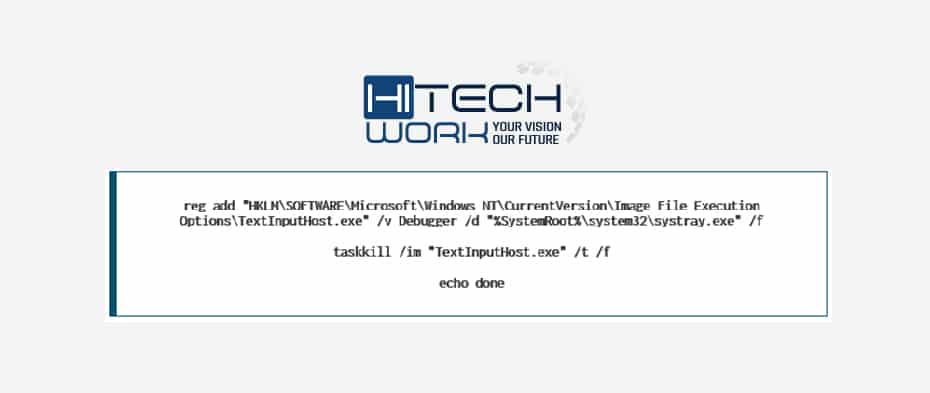
- You can use the following script for ‘InputApp.exe.’ Execute it as you paste the command in CMD Windows.
As you get the DCOM error, you must initially disable the ‘InputService’ startup, denying all permissions for ‘InputService’ in ‘DCOMcnfg.exe.’ However, modifications must be done in DCOMcnfg.exe sometimes breaks the system leading to Windows re-installation. Therefore, it’s not advisable to alter ‘DCOMcnfg.exe.’
FAQs
Q1. Is it acceptable to disable the Microsoft text input application?
Ans. It is essential to disable the text input application for the accurate working of software or touch keyboards. Although sometimes the procedure contains high CPU resources, people assume the Microsoft text input is a threat or a keylogger. Hence, we are not suggesting you stop the process.
Q2. Can Windows security Perceive Keyloggers?
Ans. A keylogger is a device that logs passwords, social security numbers, credit card numbers, and other important information. In most antivirus software, keylogging is automatically noticed by default. Microsoft security essentials, which are built-in to Windows 7, can be used to detect keylogging.
Conclusion
In wrapping up our discussion, temporarily disabling the Text Input Application is advisable to execute rather than alterations in processes scripts that will lead to other issues in other application services.
microsoft text input application как отключить
Приветствую! Обновление Windows 10 обеспечивает не только безопасность, исправление уязвимостей/багов — также вносятся новые функции, компоненты, приложения.
Разбираемся
Microsoft Text input Application — процесс в Windows10, один из внутренних, отвечает за управление вводом с клавиатуры. Не во всех версиях Windows 10 присутствует — возможно появляется после обновления до билда 16215.
Процесс в диспетчере задач — оперативки кушает немного, нагрузки нет — так и должно быть
Сам процесс предположительно имеет длинное название — WindowsInternal.ComposableShell.Experiences.TextInput.InputApp.exe.
Запускается из этой папки:
Последнее название папки — возможно является уникальным для каждой Windows.
Процесс может запускаться при использовании графического планшета и выводить экранную клавиатуру/область ввода пером, поддерживается свайп-ввод. Пользователи отмечают — не всегда получается закрыть окно ввода, приходится завершать процесс через диспетчер:
- На вкладке Подробности находим процесс.
- Нажимаем правой кнопкой.
- Выбираем Завершить работу.
- Подтверждаем.
Один пользователь обнаружил Microsoft Text input Application в списке установленного ПО, при попытке открыть — пустое окно. Один из способов открыть окно с установленном софтом:
- Зажимаем Win + R.
- Пишем команду appwiz.cpl.
- Нажимаем ОК.
- Откроется окно Программы и компоненты — будут названия приложения, дата установки, издатель, размер, версия. На заметку — в окне также будет кнопка открытия списка установленных обновлений.
Создание точки восстановления
Как отключить?
По поводу отключения процесса — пользователь Lunatik9009 предложил свой вариант на форуме Руборде. Перед применением — создать точку восстановления:
- Зажимаем Win + R.
- Пишем control sysdm.cpl, нажимаем ОК.
- Переходим на вкладку Защита системы.
- Выбираем системный диск > кнопка Создать.
Заключение
Мы выяснили, Microsoft Text input Application — системный компонент Windows 10, отвечающий за ввод текста с клавиатуры.
Отключать/удалять не стоит, вряд ли процесс способен нагружать ПК. В крайнем случае — перед отключением сделать точку восстановления/бэкап.

Следует отметить, что при входе в систему цвет и размер индикатора текстового курсора могут не сохраняться. Чтобы обойти эту проблему, просто выключите и снова включите индикатор текстового курсора
Также, иногда вы можете видеть, что индикатор текстового курсора остается на экране или появляется снова после закрытия приложения или прокрутки содержимого страницы.
Операционная система Windows 10 может запоминать все слова, которые пользователи набирают на клавиатуре, в том числе и сенсорной. Она делает это автоматически и передает все данные на сервера Microsoft. Однако сразу бить тревогу не стоит, ведь эту функцию можно отключить в настройках.
Об этом сообщает akket.com .
Windows 10 , по официальным данным , установлена на более чем 150 000 000 компьютера по всему миру. В этой операционной системе есть сотни различных функций и настроек, о большинстве из которых никто даже не знает.
Так , например, Windows 10 сразу после первого запуска на компьютере запоминает все слова , которые пользователь набирает на клавиатуре , в том числе и сенсорной . Она делает это автоматически и все данные передает на серверы Microsoft. Однако , скрытое отслеживания можно отключить.
Компания Microsoft уверяет , что она использует алгоритм запоминания букв , слов и предложений, вводимых исключительно ради функции “Улучшение распознавания рукописного ввода и печати ” . Она предназначена для автоматического прогнозирования слов и делает это благодаря контексту и ранее введенным словам. Как показывает практика, подобной функцией в Windows 10 пользуются единицы. Поэтому , если вы не используете эту функцию , то целесообразнее будет выключить отслеживание ввода.
Ранее в Windows 10 не было возможности отключить сохранение информации о набранных словах и предложениях , однако соответствующая настройка появилось в сборнике Spring Creators Update ( 1803).
Чтобы избавиться слежения за тем, что вводит пользователь , нужно открыть приложение “Настройки” .

Как отключить отслеживание ввода в Windows 10
Затем перейти в раздел «Конфиденциальность» .
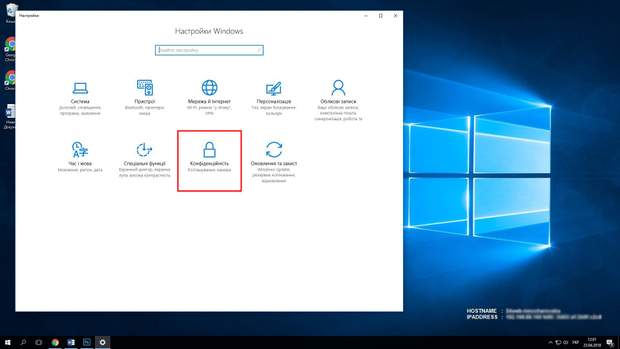
Как отключить отслеживание ввода в Windows 10
Далее на экране отобразится окно ” Изменение параметров конфиденциальности ” . Затем вам следует найти пункт ” Передача корпорации Microsoft информации о моем написании для улучшения ввода текста и написания ” и потянуть ползунок влево и отключить передачу данных.

Как отключить отслеживание ввода в Windows 10
После таких легких манипуляций Windows 10 перестанет собирать данные о набранных слова х, как на физической клавиатуре , так и на виртуальной . Теоретически , это повышает безопасность всей операционной системы . Ведь при запоминании любых данных создается дополнительная угроза в случае хакерской атаки.