VGA Driver что это за драйвер?
 Привет ребята! Ну что, изучаете комп? А я в этом помогу, сегодня я расскажу простыми словами о том то такое VGA Driver! Значит у вас есть монитор? Ну наверно есть, но вот чтобы на монитор вывести картинку, то нужен видеоадаптер. Так вот ребята, чтобы винда нормально общалась с видеоадаптером, посылала ему команды, чтобы менять разрешение, то для этого всего и нужен видеодрайвер. Именно драйвер помогает винде общаться с графическим адаптером, короче просто с видюхой!
Ну окей, ну а вот именно VGA Driver, вот что это значит? Ну как я уже писал это драйвер. Но может быть не простая ситуация! Может быть такое что винда не смогла сама взять и поставить драйвера на вашу видюху, вроде бы она вообще их не ставит на отдельные видеокарты, нужно вручную самому ставить. На встроенное в процессор видеоядро винда дрова точно ставит, это я проверил на собственном опыте. А вот на отдельные видюхи вроде нет, но что делает винда в таком случае? Она ставит свой простючий драйвер VGA, который хоть и обеспечивает изображение, но оно не особо хорошее.. Да и винда тормозить может малеха с таким драйвером…
Что тогда делать? Нужно узнать модель видеокарты (например при помощи программы AIDA64) и пойти в поисковик, написать там что-то вроде вот как я написал, смотрите:

И еще, мой совет: качайте драйвера только с официального сайта, с других сайтов не качайте, ибо помимо драйверов вы можете и вирусяку хапануть!
Если у вас Windows XP, ну мало ли, то эта винда вообще не умеет сама качать и ставить драйвера, ну нет такого в ней. В плане видео то сама она может поставить как раз только VGA Driver, нормальные драйвера нужно ставить только вручную!
Смотрите, вот например программа Catalyst Control Center:

Эта программа является фирменной прогой, которая идет в комплекте с драйверами для видеокарт ATI Radeon.
Так, стоп, а может не нужно ставить драйвера, может быть пусть будет как есть? Опять же, если у вас встроенное графическое ядро в процессоре (например Intel HD) и при этом у вас стоит Windows 7, Windows 10, то эти виндовсы должны сами поставить драйвера, тут ничего трогать не нужно. Во всех остальных случаях нужно брать модель видюхи и искать дрова в поисковике, ну то есть так как я показал выше на картинке, без этих драйверов не нужно использовать видеокарту!
И еще кое что, у меня вот процессор Intel со встроенной видюхой, винда сама ставит дрова. Это я к тому что у меня НЕ AMD, я не могу на 100% быть уверенным что там все также со встроенным ядром, но думаю что также!
Если у вас стоит отдельная видюха, то можете попробовать поставить драйвера, которые шли на диске вместе с видеокартой.
Если в Windows XP не поставить драйвера на видео то будет такое неопознанное устройство:

Тут написано Standard VGA Graphics Adapter, но может быть и другое написано, но примерно в таком же стиле. Кстати похожее пишется и в Windows 7/10, а вот я даже картинку нашел, смотрите:

Вот видите там еще есть внизу Video Controller, не знаю что это, но видимо тоже видюха! И это все отображается в Диспетчере устройство, но как его вызвать? А вот как: зажимаете кнопки Win + R и потом пишите команду mmc devmgmt.msc и нажимаете ОК. Вот какое это окно у меня:

Видите тут у меня написано Intel(R) HD Graphics? Ну вот это и есть встроенное ядро в процессор, это винда сама мне поставила
Ну и еще кое что напишу вам. Вообще VGA расшифровывается как Video Graphics Array и является по себе интерфейсом передачи видео, кстати оч старым. Сегодня на смену ему пришел уже DVI, это цифровой интерфейс. Разница особо заметна на больших диагоналях. Но вот в названии встроенных драйверов на видео до сих пор сохранилось слово VGA
Еще можете для обновления драйверов использовать какую-то программу, вот DevID Agent (devid.info), вроде неплохая прога, я ней как-то обновлял драйвера, но это было давно.
Все ребята, я вам рассказал вроде все, теперь вы должны знать что такое VGA Driver! Удачи
Nvidia выпустила первый драйвер, оптимизированный не для игр
Для владельцев видеокарт Nvidia (да и для любого другого энтузиаста мира ПК) не секрет, что каждый месяц разработчики выпускают один-два драйвера под лейблом “Game Ready”. Эти драйверы предназначены для видеокарт мейнстримного сегмента, вроде GTX, RTX, GT и TITAN. Для видеокарт профессионального сегмента у Nvidia есть свои отдельные драйверы, которые оптимизированы для соответствующих задач. Game Ready-драйверы ориентируются на игры, но их более чем достаточно для работы в профессиональных приложениях. Nvidia решила немного изменить это. Теперь «зеленый» лагерь предлагает отдельную категорию драйверов под названием Creator Ready. Они будут выпускаться параллельно с Game Ready и будут доступны на тех же видеокартах GTX, RTX и TITAN на архитектурах Pascal, Volta и Turing.
Разница между Game Ready и Creator Ready заключается в том, что последние оптимизируются под задачи, связанные не с играми, а с графикой. 419.67 оптимизирует работу видеокарт GTX 1050 и выше для работы с приложениями наподобие Lightroom, Photoshop, Premiere, Cinema 4D и так далее. Nvidia утверждает, что RTX 2080 работает на 13% лучше с новым драйвером в Blender Cycles, на 9% в Photoshop / Premiere Pro и 8% в Cinema 4D.
Релизы драйвера Creator Ready Driver напрямую связаны с обновлениями популярных приложений для контент-мейкеров, обеспечивая самой лучшей совместимостью и производительностью тех, кто использует свой ПК для творчества.
Примечательно, что в заметках к обновлению упоминаются также и игры. Иными словами, вы все еще сможете играть с Creator Ready-драйвером, но все же самая лучшая производительность будет обеспечиваться соответствующим Game Ready-драйвером.
Исправленные баги:
- DaVinci Resolve: возникают просадки производительности.
- Ghost Recon: Wildlands / Ansel: в игре наблюдаются просадки производительности, подергивания и вылеты при работе с Ansel.
- HDR / Far Cry: New Dawn / DirectX 11: на рабочем столе наблюдается завышенное экспонирование и некорректное отображение цветов при использовании Alt + Tab, если в системе включен Windows HDR и в самой игре включен расширенный динамический диапазон.
- Total War: Warhammer 2: при использовании сглаживания возникают просадки производительности.
- Adobe: в приложениях Adobe возникают артефакты. Исправлено на системах с одной видеокартой.
- Apex Legends: на экране возникают артефакты при переключении с режима работы в окне в полноэкранный режим с включенным Windows HDR.
- GeForce Experience: части экрана обрезаются при записи видео с помощью Shadowplay.
- Turing / Star Citizen: игра мерцает, а затем падает.
- GeForce GTX 980: обращения к NVAPI потребляют слишком много ресурсов процессора.
- Titan RTX: температура видеокарты вырастает на 20 градусов при исполнении команды NVLINK на включение режима TCC.
- GeForce RTX 2080 / Ноутбуки / Resolume Arena 6: в игре наблюдается низкая производительность.
- GeForce RTX 2070: возникают мерцания на втором мониторе.
Известные баги:
- SLI / Adobe: с включенным SLI возникают артефакты в приложениях Adobe.
- SLI / HDR / Tom Clancy’s The Division II: экран перестает отвечать при переключении параметров HDR внутри игры.
- ARK Survival: возникают многочисленные ошибки и синие экраны смерти при работе с игрой.
- Shadow of the Tomb Raider / Ansel: активация Ansel в игре приводит к снижению производительности и вылету игры.
- Ghost Recon Wildlands: игра падает при работе с меню инвентаря.
- На экране возникают случайные мерцания при работе с несколькими мониторами.
Скачать драйвер Nvidia Creator Ready можно на официальном сайте. Он опубликован параллельно с обычными Game Ready-драйверами.
Nvidia Game Ready vs Creator Ready or Studio Driver Difference [GRD vs CRD]
(*This post may contain affiliate links, which means I may receive a small commission if you choose to purchase through the links I provide (at no extra cost to you). Thank you for supporting the work I put into this site!)
Recently, Nvidia has introduced a new set of drivers for their consumer-level graphics cards that include select GeForce series and TITAN series graphics cards. These drivers are called Creator Ready Drivers, which are aimed toward content creators. Now, when you try to download the drivers for your GeForce or TITAN graphics card then you will get an option to choose either Game Ready Driver (GRD) or Creator Ready Driver (CRD). It was not present previously because there was only one driver that you have to download for consumer-level or gaming graphics cards, but now there is a choice.
This has created a lot of confusion in the minds of some users that which driver they should download, and which is best for their needs and requirements. Also, they also want to know what is the major difference between these two drivers and which graphics cards they support. So, to clear out this confusion, here I am going to tell you about these GRD and CRD drivers, and how they differ from each other.
Important Update: Creator Ready Drivers has been renamed to Studio Drivers.
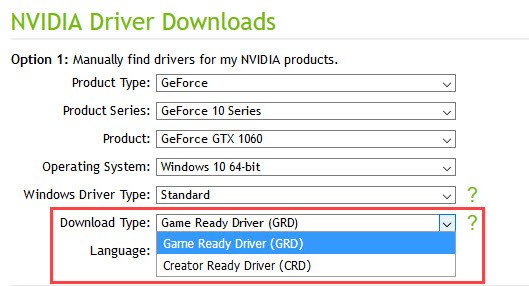
Game Ready vs Creator Ready Drivers Comparison
Here is a comparison between the Game Ready Driver (GRD) and Creator Ready Driver (CRD) based on different factors.
Applications or Usage
Game Ready Drivers are the regular gaming drivers for Nvidia gaming graphics cards that we have been downloading from the past until these new Creator Ready Drivers came out. These Game Ready Drivers or GRD are optimized for gaming and every new version of these drivers includes the support for the latest AAA or popular games. They may contain various bug fixes, performance tweaks, and optimization for the latest games (including Virtual Reality Games), and may include the support for any new feature that a new game has to offer.
On the other hand, Creator Ready Drivers are designed to deliver optimum performance and stability in various creative applications that include Adobe Premiere Pro CC, Adobe After Effects CC, Autodesk Maya, 3DS Max, Autodesk Arnold, Unreal Engine 4.22, REDCINE-X PRO, Adobe Lightroom, Substance Designer by Adobe, etc. These drivers are meant for content creators who are into video editing, online streaming, live streaming, 3D animation, photo editing, graphics designing, etc. These drivers are claimed to be tested extensively by Nvidia for such workstation applications and tasks.
GPU Support
Game Ready Drivers support a variety of graphics cards or GPUs starting from GeForce 600 series and going to as high as the RTX 20 series. It supports graphics cards based on Kepler, Maxwell, Pascal, Volta, and Turing GPU architectures. The support for older Fermi GPUs is strangely not included in the Game Ready Drivers.
On the other hand, Creator Ready Drivers support graphics cards based on Pascal, Volta, and Turing GPU architectures. However, it does not support GeForce GT 1030, which is an entry-level Pascal-based graphics card. This card is really not meant for content creation because it does not have that amount of power for heavy-duty tasks, so its exclusion is quite understandable. This reflects that Game Ready Drivers supports a wider range of graphics cards compared to Creator Ready Drivers. So, if you have an older Nvidia graphics card then you don’t have to worry about its driver support because most probably, these drivers will cover it. However, I really don’t recommend using a newer graphics driver for a really old graphics card, because most of the time, it will not do any good, and in some cases, you may get lower performance and stability issues because of it. Below, you can complete a list of graphics cards that are supported by Game Ready and Creator Ready Drivers.
Game Ready Driver (GRD) GPU Support
NVIDIA TITAN Series: NVIDIA TITAN RTX, NVIDIA TITAN V, NVIDIA TITAN Xp, NVIDIA TITAN X (Pascal), GeForce GTX TITAN X, GeForce GTX TITAN, GeForce GTX TITAN Black, GeForce GTX TITAN Z.
GeForce RTX 20 Series: GeForce RTX 2080 Ti, GeForce RTX 2080, GeForce RTX 2070, GeForce RTX 2060.
GeForce 16 Series: GeForce GTX 1660 Ti, GeForce GTX 1660.
GeForce 10 Series: GeForce GTX 1080 Ti, GeForce GTX 1080, GeForce GTX 1070 Ti, GeForce GTX 1070, GeForce GTX 1060, GeForce GTX 1050 Ti, GeForce GTX 1050, GeForce GT 1030.
GeForce 900 Series: GeForce GTX 980 Ti, GeForce GTX 980, GeForce GTX 970, GeForce GTX 960, GeForce GTX 950.
GeForce 700 Series: GeForce GTX 780 Ti, GeForce GTX 780, GeForce GTX 770, GeForce GTX 760, GeForce GTX 760 Ti (OEM), GeForce GTX 750 Ti, GeForce GTX 750, GeForce GTX 745, GeForce GT 740, GeForce GT 730, GeForce GT 720, GeForce GT 710.
GeForce 600 Series: GeForce GTX 690, GeForce GTX 680, GeForce GTX 670, GeForce GTX 660 Ti, GeForce GTX 660, GeForce GTX 650 Ti BOOST, GeForce GTX 650 Ti, GeForce GTX 650, GeForce GTX 645, GeForce GT 640, GeForce GT 635, GeForce GT 630.
Creator Ready Driver (CRD) GPU Support
NVIDIA TITAN Series: NVIDIA TITAN RTX, NVIDIA TITAN V, NVIDIA TITAN Xp, NVIDIA TITAN X (Pascal).
GeForce RTX 20 Series: GeForce RTX 2080 Ti, GeForce RTX 2080, GeForce RTX 2070, GeForce RTX 2060.
GeForce 16 Series: GeForce GTX 1660 Ti, GeForce GTX 1660.
GeForce 10 Series: GeForce GTX 1080 Ti, GeForce GTX 1080, GeForce GTX 1070 Ti, GeForce GTX 1070, GeForce GTX 1060, GeForce GTX 1050 Ti, GeForce GTX 1050.
Performance
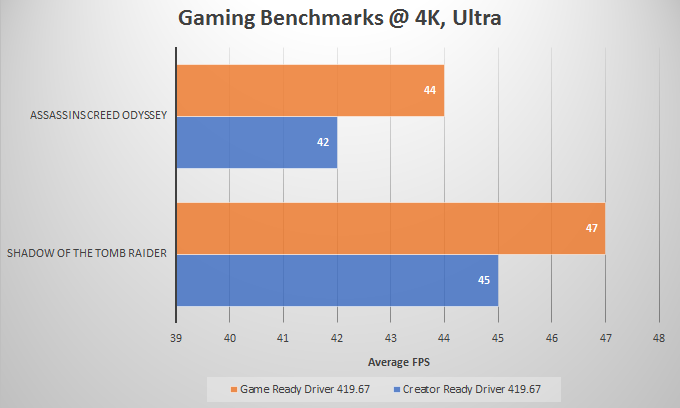
When it comes to gaming, then Game Ready Drivers perform slightly better than Creator Ready Drivers. In creative applications, there may or may not be a substantial difference between the two, but when it comes to stability and compatibility with newer software updates or releases, then Creator Ready Drivers will make a difference.
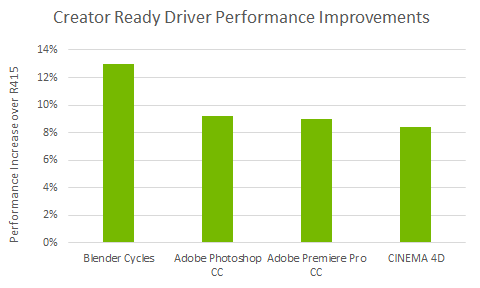
According to Nvidia, Creator Ready Drivers has increased performance in popular creative applications vs. the previous driver branch. In the below graph, you can see performance gain for Creator Ready Driver version 419.67 over R415 drivers in Blender Cycles (up to 13%), Adobe Photoshop CC (up to 9%), Adobe Premiere Pro CC (up to 8%), CINEMA 4D (up to 8%).
Update: The latest version of Nvidia Studio Drivers now support 10-bit color for GeForce graphics cards for programs like Adobe Photoshop and Premiere. Earlier, only Nvidia Quadro graphics cards support 10-bit color and Quadro RTX cards can support only 30-bit color (10-bits per channel), but it is now possible on GeForce series and TITAN cards too.
Features
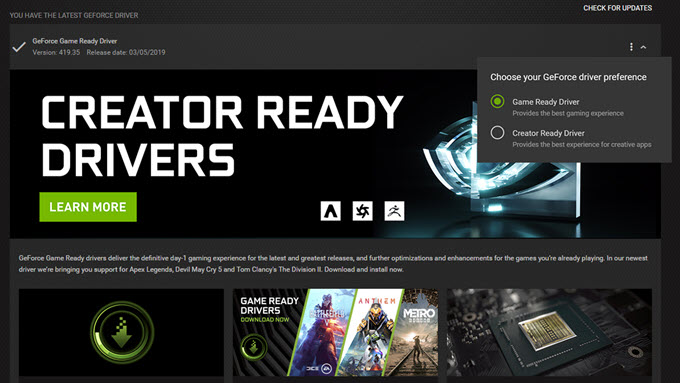
Both these drivers come with the same feature set, and you can switch between them from GeForce Experience. You will get the same interface and control panel for both GeForce Game Ready and Creator Ready drivers.
Cross Compatibility
Both these drivers can be used for gaming as well as for creative applications. However, they do perform better and offer higher stability for tasks they are designed for. This means Creator Ready Driver can be used for gaming as well, but you may not get the highest FPS using it, and Game Ready Driver can be used with Creative Applications, but you may not get that much stability or performance increase when using it. So, it is better to use the right driver for the specific task it is optimized for.
Update Frequency / Releases
It is pretty obvious that Game Ready Drivers will have more frequent releases compared to Creator Ready Drivers because new games are released more often as compared to software updates or releases. Game Ready Drivers are released in accordance with the game calendar and Creator Ready Drivers will be released in accordance with the creative app calendar. The first Creator Ready Driver release is version 419.67, which is optimized for various creative apps that include Blender, Adobe Premiere, Adobe Photoshop, Adobe After Effects, Autodesk Arnold, Unreal Engine 4.22, REDCINE-X PRO, Adobe Lightroom, and Substance Designer by Adobe.
Which one should you use?
If you are primarily a gamer who wants the best support for the latest games, patches, and DLCs and want to have the highest performance in games along with stability, then Game Ready Drivers are for you, but if you are a content creator whose work involves video editing, animation, photography, graphic design, and live-streaming, but occasionally enjoys a little bit of gaming too, then Creator Ready Driver must be your main choice. I think for mining, both of these drivers will perform the same but maybe Creator Ready Drivers can be slightly better for it.
Also, when downloading drivers from the Nvidia page, always select Standard drivers in the “Windows Driver Type” drop-down list, because DCH drivers cannot be installed over a standard system and are mainly meant for OEMs implementing the Microsoft Universal Driver paradigm or Universal Windows Platform (UWP). DCH drivers are only available for Windows 10, and the term DCH stands for (Declarative, Componentized, Hardware Support Apps).
Important Tip: Always use Display Driver Uninstaller (DDU) to remove a previously installed driver for installing a new driver for your Nvidia or AMD-based graphics card.
| Game Ready Driver (GRD) | Creator Ready Driver (CRD) | |
| GPU Support | NVIDIA TITAN Series, GeForce RTX 20 Series, GeForce 16 Series, GeForce 10 Series, GeForce 900 Series, GeForce 700 Series, GeForce 600 Series | NVIDIA TITAN Series, GeForce RTX 20 Series, GeForce 16 Series, GeForce 10 Series (excluding GT 1030) |
| Applications / Usage | For Gaming | For Creative Applications for video editing, animation, photography, graphic design, and live streaming |
| Releases / Updates | More often (according to the game release calendar) | Less often (according to the creative app calendar) |
| Cross Compatibility | Can be used for Creative Apps too | Can be used for Gaming too |
| Performance | Optimized for Best Gaming Performance & Experience | Optimized for Best Creator Apps Performance and Stability |
See also:
Final Thoughts
Creator Ready Driver (CRD) program is definitely a great move from Nvidia for content creators & professionals, who use consumer or gaming graphics cards for their work, and cannot afford an expensive Quadro workstation graphics card. I think the main reason why Nvidia has come up with two different sets of drivers is that it is difficult for one driver to deliver the best of both worlds. Also, these drivers are not strictly limited to one area of usage, because you can game pretty well on Creator Ready Drivers and can also use Game Ready Drivers for creative applications too, but you can face compatibility and stability issues with some of these professional creative software. However, you have been given a free choice to install anyone you like, and you can switch between them at any time, according to your requirements and liking. If you want to express your views on this topic or have some great insights regarding it, then tell us in the comment section below.