Scan Valid Interval — что это? (сколько ставить)
Приветствую друзья! Сегодня рассмотрим опцию, которую можно встретить в дополнительных параметрах беспроводного адаптера. Постараюсь написать все простыми словами, чтобы было понятно каждому. Поехали разбираться!
Описание
Scan Valid Interval — настройка позволяет указать интервал сканирования на наличие новых компьютеров в сети.
Также на одном зарубежном сайте нашел информацию, что это время, через которое адаптер проверяет наличие новых беспроводных сетей.
Особой пользы нет. Часто отключить нельзя — поэтому вместо
Разбираемся
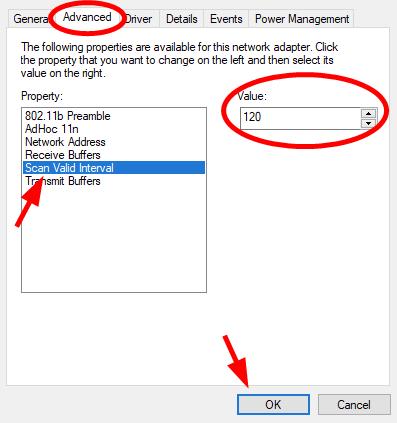
- Опция Scan Valid Interval позволяет установить временный интервал сканирования сети на наличие новых компьютеров, подключенных к сети, к которой подключены и вы. Простыми словами — в сети с вами могут быть еще ПК. Но чтобы об этом устройство узнало — нужно просканировать сеть. Вот как часто сканировать на наличие новых ПК — задается в опции в секундах. Сразу скажу, что в большинстве случаев от этой опции обычному пользователю пользы мало, поэтому лучше оставить значение по умолчанию. Или просто установить максимальное значение, например на ТП Линке это 120.
- Также существует адаптер Dell Wireless 1515 Wireless-N WLAN, в нем тоже есть данная функция, так вот минимальное значение можно ставить 20 секунд, по умолчанию идет 60, а максимальное 120. Если опция вам не нужна, а отключить нельзя — ставим макс значение.
- Также нашел интересный комментарий — у человека были проблемы с поиском Wi-Fi сетей. Поиск работал только при подключении адаптера или после загрузки Windows. Решением оказалось выставление в Scan Valid Interval минимального значение, то есть 20 сек.
- Найдена информация, что функция Scan Valid Interval позволяет указать время, через которое беспроводной адаптер ищет новые точки доступа. Возможно имеется ввиду новые беспроводные сети.
Собственно сама опция в свойствах адаптера:

Так сколько ставить? Выяснили — часто пользы от этой опции нет. Поэтому чтобы меньше нагружать адаптер — ставим 120. Но если вдруг адаптер не ловит сети — попробуйте выставить минимальное значение в 20 сек, некоторым это помогло.
Laptop Keeps Disconnecting from WiFi [FIXED]
If your laptop keeps disconnecting from your WiFi network, you’re not the only one! Many laptop users are reporting that their Internet connection breaks frequently when their laptop is connected to a wireless network.
This is very annoying. It’s very inconvenient that you can’t connect your laptop to WiFi. But don’t worry, your issue can be fixed…
Try these fixes!
The following are a few methods that have helped many laptop users. You may not have to try them all; just work your way down the list until you find the one that works for you.
Method 1: Restart your laptop and network devices
When your laptop keeps dropping out from your wireless network, the first thing you should try is to restart your laptop and router/modem. This helps you reset your network settings and fix your network issues.
1) Shut down your laptop, then disconnect the power cable from it.
2) Turn off your router/modem, and then unplug the power cable from them.
3) Leave all your devices for about one minute.
4) Plug the power cables to your laptop and your router/modem.
5) Turn on your router/modem, then your laptop.
Now try connecting your laptop to your wireless network. Hopefully, this fixes your disconnecting issue. But if not, don’t worry. There are still three fixes you can try.
Method 2: Disable your network adapter power saving setting
Your wireless network issue may occur because your system turns off your wireless network adapter to save power. You should disable this setting to see if this fixes your issue.
To check your network adapter power saving setting:
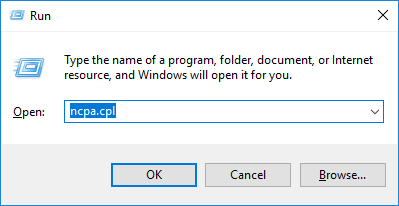
1) On your laptop, press the Windows logo key and R on your keyboard to open the Run box. Then type “ncpa.cpl” and press Enter.
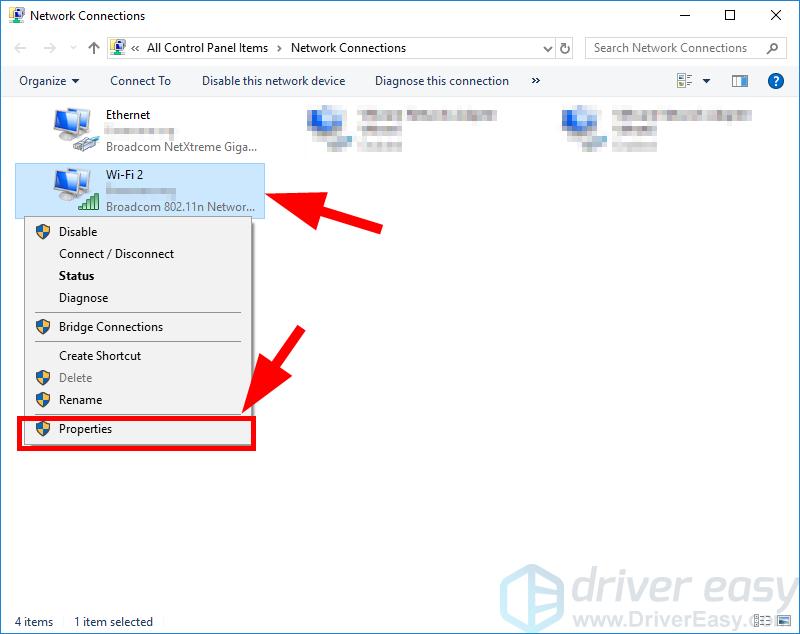
2) Right click your Wireless/WiFi network adapter, then click Properties.
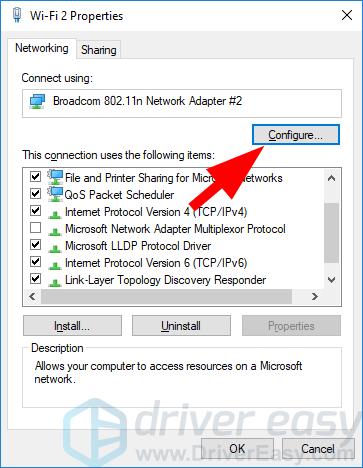
3) Click the Configure button.
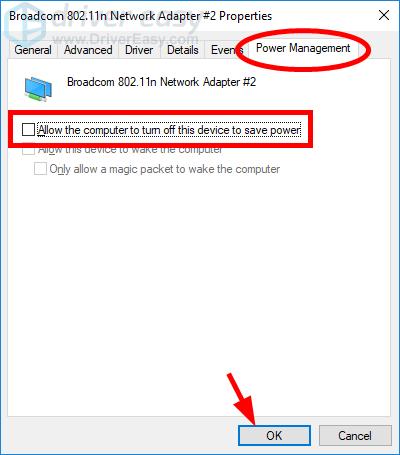
4) Select the Power Management tab, make sure Allow the computer to turn off this device to save power is not checked, and then click OK.
Hopefully, this fixes your wireless connection issue. But if not, you may need to try other fixes listed below.
Method 3: Update your network driver
Your laptop may keep disconnecting from WiFi because you’re using a wrong network driver or it’s out of date. You should update this driver to see if that’s the case for you.If you don’t have the time, patience or skills to update your drivers yourself, you can do it automatically with Driver Easy.
Driver Easy will automatically recognize your system and find the correct drivers for it. You don’t need to know exactly what system your computer is running, you don’t need to be troubled by the wrong driver you would be downloading, and you don’t need to worry about making a mistake when installing.
You can update your drivers automatically with either the FREE or the Pro version of Driver Easy. But with the Pro version it takes just 2 steps (and you get full support and a 30-day money back guarantee):
1) Download and install Driver Easy.
2) Run Driver Easy and click the Scan Now button. Driver Easy will then scan your computer and detect any problem drivers.

3) Click the Update button next to your network adapter to automatically download the correct driver for your computer, then you can manually install it. Or click Update All to automatically download and install the correct version of all the drivers that are missing or out of date on your system (this requires the Pro version – you’ll be prompted to upgrade when you click Update All).
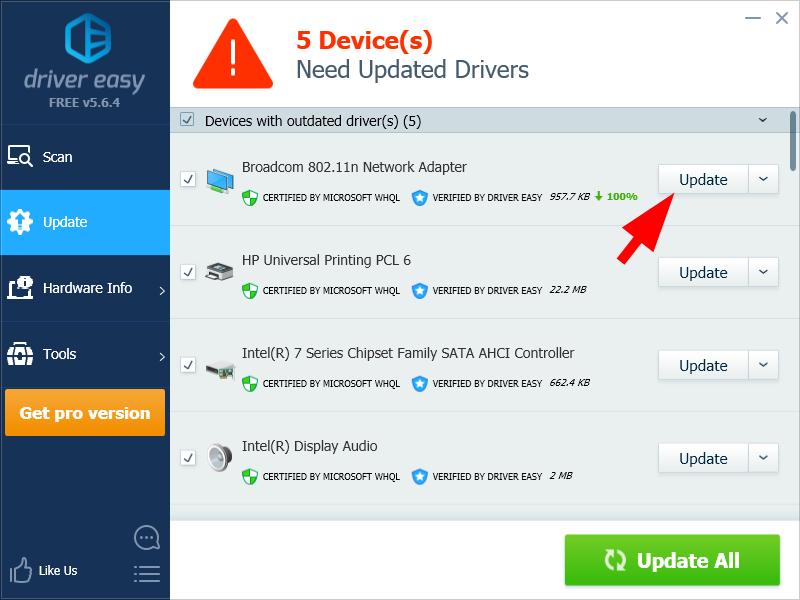 You can do it for free if you like, but it’s partly manual.
Method 4: Change Scan Valid Interval
You can also increase your Scan Valid Interval to fix your wireless network issue.
To increase your Scan Valid Interval:
1) On your laptop, press the Windows logo key and R on your keyboard to open the Run box. Then type “ncpa.cpl” and press Enter.
2) Right click your Wireless/WiFi network adapter, then click Properties.
3) Click the Configure button.
4) Select the Advanced tab, then click Scan Valid Interval. Change its value to 120, and click OK.
We hope one of these fixes works for you. If you have any questions, leave us a comment below.
Приемный буфер, Буфер передачи, Scan valid interval – Инструкция по эксплуатации Dell Wireless 1515 Wireless-N WLAN Card Users Guide
Страница 50: Схема регистров, Энергосберегающий режим

адреса из EEPROM
(по умолчанию)
Ограничение текста 12 алфавитных символов
Приемный буфер
Число приемных буферов, используемых драйвером.
256(по умолчанию)
Буфер передачи
Число буферов передачи, используемых драйвером.
512(по умолчанию)
Scan Valid Interval
Результаты сканирования сохраняют значение для Scan Valid Interval. Если результат предшествует периоду времени,
то производится новое сканирование.
60 секунд (по умолчанию)
минимальное значение — 20 секунд
максимальное значение — 120 секунд
Схема регистров
Число схем регистров NDIS, используемых драйвером.
256 (по умолчанию)
Находясь в активном режиме, защита группы данных управления (MFP) обеспечивает максимальное использование
механизма защиты, определяемого IEEE 802.11i, для защиты группы данных управления Class 3 (например:
идентифицирована и связь установлена).
Отключить (по умолчанию)
Энергосберегающий режим
Свойство режима энергосбережения используется для вывода компьютера беспроводного клиента в энергосберегающий
режим спецификации IEEE 802.11. В режиме максимальной мощности предусматривается буферизация входящих
сообщений в точке доступа до их передачи на беспроводной адаптер. Адаптер периодически опрашивает точку доступа