Downloading and Installing Unity
You can download and install the Unity Editor from the Unity Website; unity3d.com/download.
The installer uses a Download Assistant and has detailed instructions to follow. (If you want to download the Unity editor using a torrent or install several versions of Unity at once, you can find out about this via Torrent Download below.)
Unity Download Assistant
From Unity version 5.0 onwards, the Unity Download Assistant, a small executable program (approximately 1 MB in size), lets you select which components of the Unity editor you want to download and install. If you are not sure which components you want to install, leave the default selections and click on Continue, following the installer’s instructions.
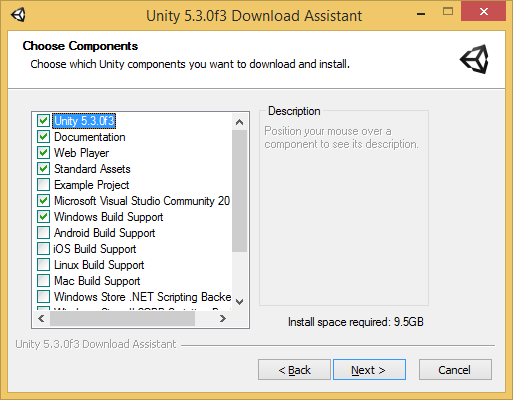 Unity Download Assistant — Leave the default selections if you’re not sure which to choose
Note that on PC there is Microsoft Visual Studio Community 2015.
Installing Unity without the Download Assistant
If you prefer, you can download and install all the components separately, without using the Download Assistant. The components are normal installer executable programs and packages, so you may find it simpler, especially if you are a new Unity user, to use the Download Assistant. Some users, such as those wishing to automate deployment of Unity in an organization, may prefer to install from the command line.
Installing Unity on Windows from command line
The following options can be used when installing the Unity Editor and other components from command line on Windows. Note that installer command line arguments are case-sensitive.
Unity Editor install
| /S | Performs a silent (no questions asked) install. |
| /D=PATH | Sets the default install directory. Useful when combined with the silent install option. Default folder is C:\Program Files (x86)\Unity\ (32-bit) or C:\Program Files\Unity\ (64-bit) |
Example:
UnitySetup64.exe /S /D=E:\Development\Unity
Install Unity silently to the folder E:\Development\Unity, which will be the root of the Unity installation. The Unity editor executable will in this case be installed in E:\Development\Unity\Editor\Unity.exe. “/D” argument must be last and without quotes, even if path contains spaces.
Unity Editor uninstall
Silent uninstall can be performed using the following steps:
- Run Uninstall.exe /S e.g. from command line or a script
Note, although the process will finish right away, it takes a few seconds before the files actually have been removed. The reason for this is that the uninstaller is copied to a temporary location, in order to be able to remove itself. Also make sure the working directory is not inside the Unity install location, as it won’t be able to remove the folder in that case.
Web Player install
Silently install webplayer (No option to specify install folder):
Standard Assets install
Silently install Standard Assets. If specifying folder, use the Unity “root” folder, i.e. the folder containing Editor folder and not where Unity.exe is installed into.
UnityStandardAssetsSetup.exe /S /D=E:\Development\Unity
Example Project install
Silently install Example Project. Default folder is C:\Users\Public\Documentation\Unity Projects\Standard Assets Example Project
UnityExampleProjectSetup.exe /S /D=E:\Development\Unity
Installing Unity on OS X from command line
The individual Unity installers are provided as .pkg files, which can be installed using installer as described below.
Unity Editor install
Installs into folder /Applications/Unity on the specified target volume:
sudo installer [-dumplog] -package Unity.pkg -target /
Web Player install
The Unity Web Player is installed in /Library/Internet Plug-ins/Unity Web Player.plugin on Mac.
sudo installer [-dumplog] -package WebPlayer.pkg -target /
Standard Assets install
Installs into folder /Applications/Unity/Standard Assets on the specified volume:
sudo installer [-dumplog] -package StandardAssets.pkg -target /
Example Project install
Install into folder /Users/Shared/Unity/Standard-Assets on the specified volume:
sudo installer [-dumplog] -package Examples.pkg -target /
Torrent Download
If you’d prefer to download Unity via a BitTorrent client, you can download get a Torrent link from our download archive page. Not all versions have a torrent download. If a version is available to download as a torrent, the option will be present in the “downloads” dropdown menu.
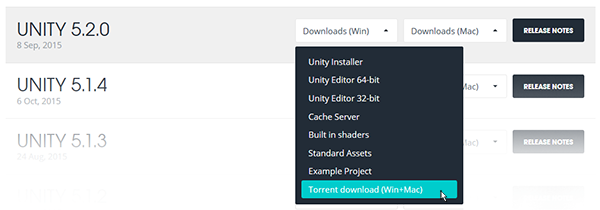 Downloading Unity via a Torrent
Installing Several Versions at Once
You can install as many versions of Unity as you like on the same computer. The installer on a Mac will always create a folder called “Unity” and will overwrite any existing folder with this name. However, if you rename the folder to something else before installing then both versions can happily live on the same computer. On a PC the install folder is always named “Unity X.Y.Z[fp]W”, where the ‘f’ is for an official release, and ‘p’ is used to mark a patch release.
We strongly recommend that you choose the new folder name carefully (eg, add the version number to the end of the name, “Unity4”, etc). Also, be aware that any existing shortcuts, aliases and links to the offline docs will no longer point to the old version of Unity. This can be particularly confusing with the offline docs; if you suddenly find that browser bookmarks to the offline docs no longer work then check that they have the right folder name in the URL.
Установка модуля платформы
Доступ к платформам Xbox One и Xbox Series X/S осуществляется через@Xbox программу Microsoft ID.
PlayStation®
Доступ к платформам PlayStation осуществляется через ®партнерский сайт PlayStation.
Nintendo
Доступ к платформам Nintendo осуществляется с помощью портала Nintendo Developer.
Unity Learn
Бесплатные учебные материалы, проекты и онлайн-занятия под вашими руками.
Документация Unity
Посмотрите руководства по компонентам Unity и справочные материалы по скриптовому API.
Сообщество Unity
Находите ответы, советы и вдохновение в сообществе Unity.
Мы используем cookie-файлы, чтобы вам было удобнее работать с нашим веб-сайтом. Подробнее об этом можно узнать на странице, посвященной политике использования cookie-файлов.
Как скачать и установить Unity 5
Уроки Unity 5
Скачиваем Unity 5
Одной из популярной программ для создания игр является игровой движок Unity 5. О распространенности и популярности этого движка в данной статье мы рассказывать не будем, перейдем сразу к установке и запуску Unity 5 на Windows 7 х64.
Для начала, перейдем на сайт разработчика и скачаем дистрибутив Unity, вернее так называемый web установщик. На главной странице сайта вам необходимо нажать на кнопку ПОЛУЧИТЕ Unity 5.
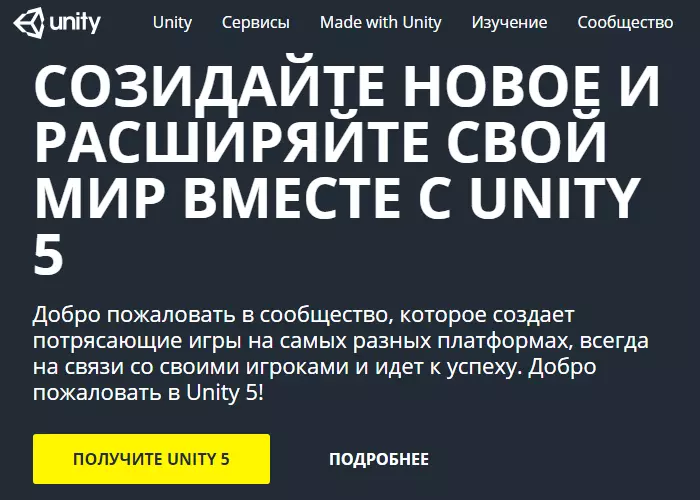
Далее вы увидите возможности бесплатной версии Unity и возможности версии Pro. Мы будем использовать бесплатную версию, поэтому нажимаем БЕСПЛАТНАЯ ЗАГРУЗКА. На следующей странице как раз и находится заветная кнопочка ЗАГРУЗИТЬ УСТАНОВЩИК. Так же здесь можно увидеть версию последнего релиза, дату выпуска, размер установщика и выбрать платформу Windows или MacOS.
Итак, загружаем и запускаем установщик.
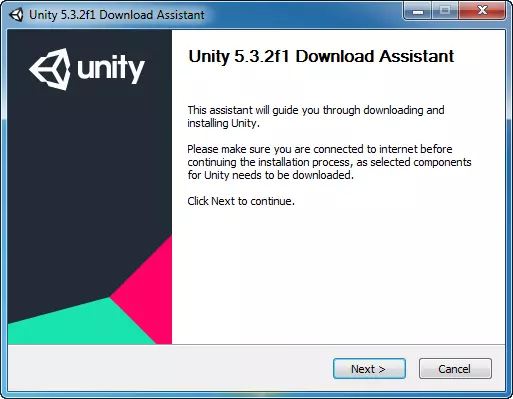
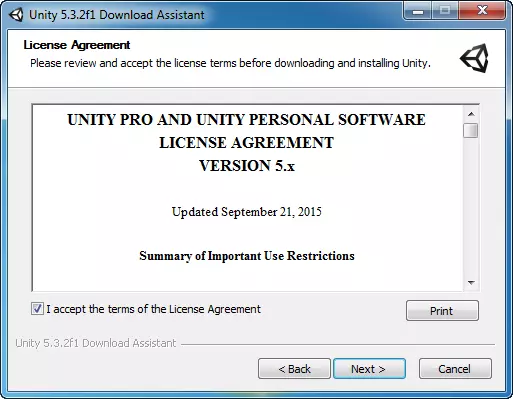
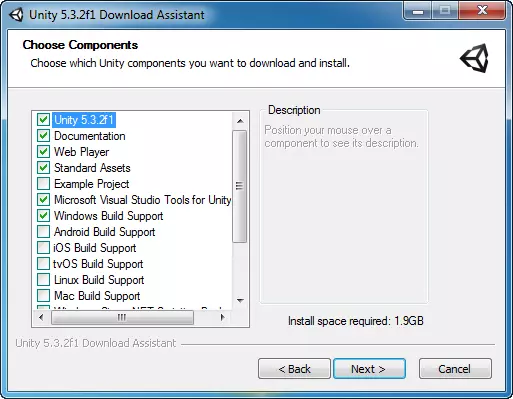
В этом окне веб установщик предлагает выбрать какие пакеты необходимо скачать для удобной работы в Unity. Изначально стоят галочки некоторых пунктах:
Unity 5.3.2 — это собственно сама среда разработки,
Documentation — здесь находятся достаточно подробный материал по работе с Unity,
Web Player — инструмент для создания браузерных приложений и игр, размер не большой, всего 7 мегабайт, оставим, а вообще если вы не собираетесь создавать игры или приложения для браузера это вам не нужно,
Standart Assets — так называемых стандартный ассет, в нем находятся примеры использования скриптов, физических объектов, текстуры, материалы и многое другое,
Microsoft Visual Studio Tools for Unity — в Unity есть встроенный редактор скриптов это Mono Develop, но если вам больше подходит Microsoft Visual Studio можете оставить галочку на этом пункте,
Windows Build Support — служит для компиляции вашего проекта под ОС Windows, собственно если вы собираетесь создавать игры и под другие операционные системы, следует поставить галочку в установщике в соответствующих пунктах.
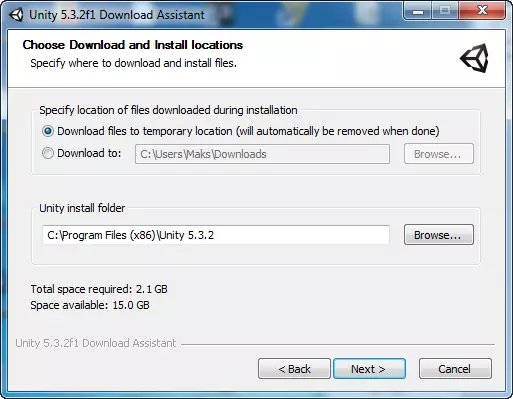
Если определились с выбором компонентов, выбираем место куда установится Unity и ждем пока все это загрузится.
После всех пройденных этапов загрузки и установки, на рабочем столе появится ярлык Unity, установщик можно закрывать.
Запустим движок и посмотрим что он из себя представляет. Как написано на официальном сайте , системные требования для запуска Unity не достаточно велики, из поддерживаемых операционных систем это « Windows 7 SP1+, 8, 10; Mac OS X 10.8+. Windows XP и Windows Vista не поддерживаются; серверные версии Windows и OS X не тестировались. Графический процессор: графическая карта с поддержкой DX9 (шейдерная модель 2.0). Должны работать любые карты, выпущенные с 2004 года. Остальное зависит, главным образом, от сложности ваших проектов».
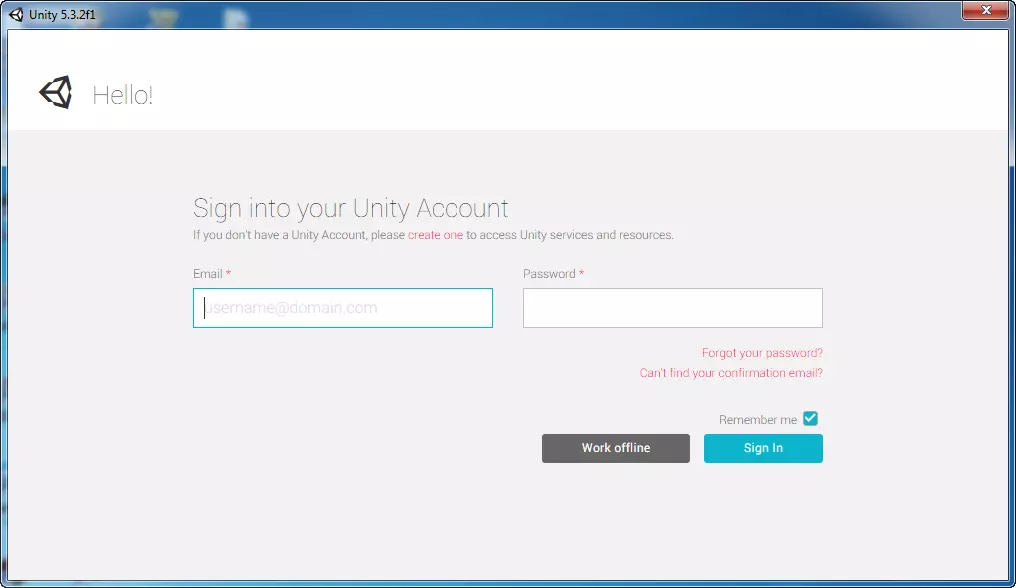
Итак пробуем, первым делом запускается окно с вводом логина и пароля, если у вас есть учетная запись созданная на сайте Unity можете смело вводить свои данные, если нет, можете зарегистрироваться или работать offline, нажав на кнопку work offline.
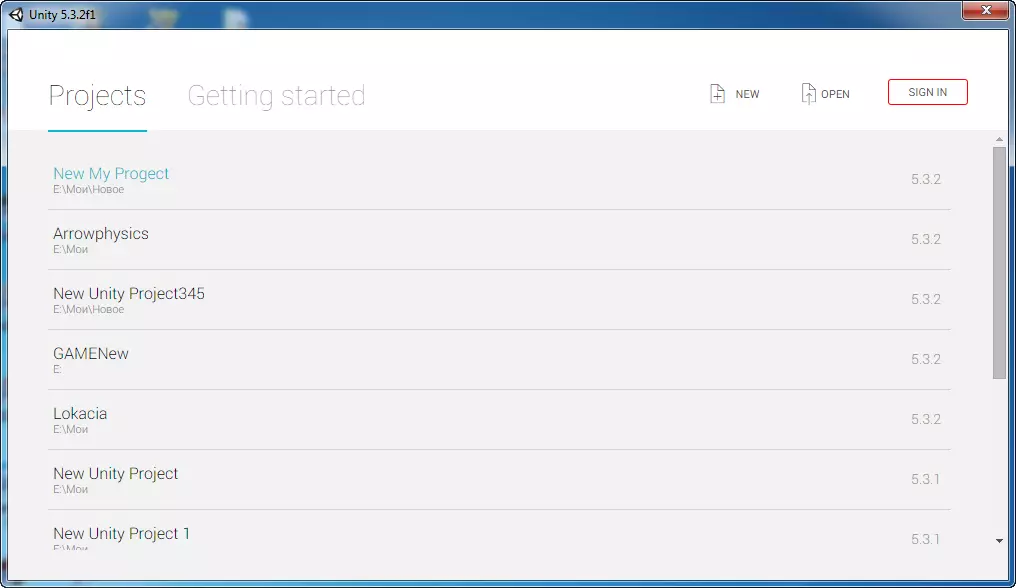
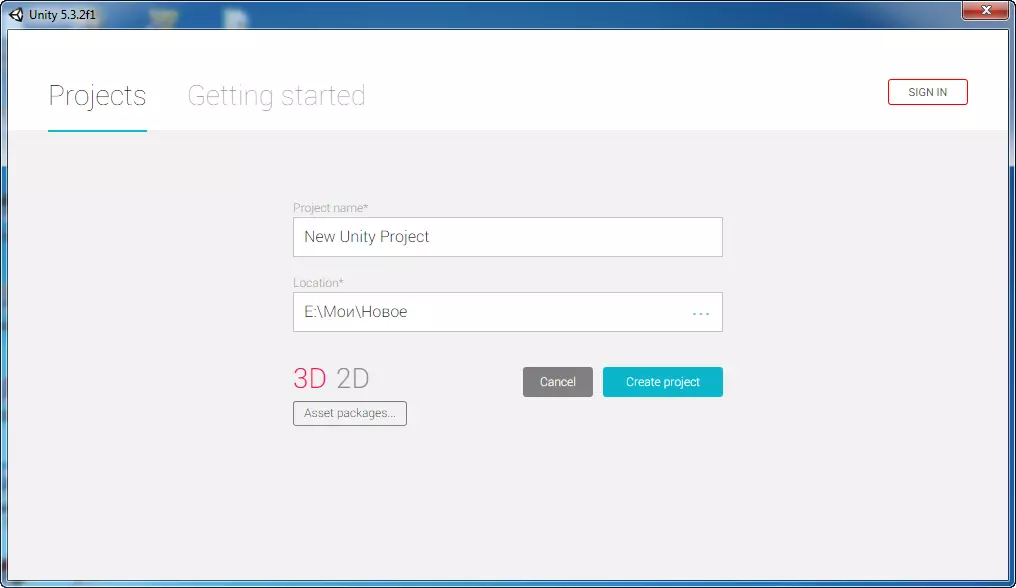
Далее окно выбора проекта, как токовых проектов у вас еще не создано, его необходимо создать, нажав на кнопку NEW. Вводим название проекта и место его расположения, так же выбрать 3D или 2D (по умолчанию стоит 3D) и нажать Create project. Созданный вами новый проект появится в окне Project, для его запуска достаточно нажать на него и у вас запустится Unity.