Java Versions and Features
You can use this guide to get practical information on how to find and install the latest Java, understand the differences between Java distributions (Adoptium, AdoptOpenJdk, OpenJDK, OracleJDK etc.), as well as get an overview of Java language features, including version Java versions 8-17.
Practical Information
First, let’s have a look at some common, practical questions that people have when trying to choose the right Java version for their project.
TL;DR I only want a download link and know about everything else. Where should I go?
Go to the Adoptium site, chose the latest Java version, download and install it. Then come back to this guide to maybe still learn a thing or two about Java versions.
What is the latest Java version?
As of September 2021, Java 17 is the latest released Java version. It is also the next long-term support version (LTS) after Java 11.
What Java version should I use?
Newer Java versions now follow every 6 months. Hence, Java 18 is scheduled for March 2022, Java 19 for September 2022 and so on. In the past, Java release cycles were much longer, up to 3-5 years. This graphic demonstrates that:

With that many new versions coming out, there’s basically these real-world(™) usage scenarios:
Legacy projects in companies are often stuck with using Java 8 (see Why are companies still stuck with Java 8?) . Hence you will be forced to use Java 8 as well.
Some legacy projects are even stuck on Java 1.5 (released 2004) or 1.6 (released 2006) — sorry, pals!
If you are making sure to use the very latest IDEs, frameworks and build tools and starting a greenfield project, you can, without hesitation, use Java 11 (LTS) or even the latest Java 17 LTS.
There’s the special field of Android development, where the Java version is basically stuck at Java 7, with a specific set of Java 8 features available. Or you switch to using the Kotlin programming language.
Why are companies still stuck with Java 8?
There’s a mix of different reasons companies are still stuck with Java 8. To name a few:
Build tools (Maven, Gradle etc.) and some libraries initially had bugs with versions Java versions > 8 and needed updates. Even today, with e.g. Java >=9, certain build tools print out «reflective access»-warnings when building Java projects, which simply «feels not ready», even though the builds are fine.
Up until Java 8 you were pretty much using Oracle’s JDK builds and you did not have to care about licensing. Oracle changed the licensing scheme In 2019, though, which led the internet go crazy with a ton of articles saying «Java is not free anymore» — and a fair amount of confusion followed. This is however not really an issue, which you’ll learn about in the Java Distributions section of this guide.
Some companies have policies to only use LTS versions and rely on their OS vendors to provide them these builds, which takes time.
To sum up: you have a mix of practical issues (upgrading your tools, libraries, frameworks) and political issues.
Why are some Java versions, like 8 also called 1.8?
Java versions before 9 simply had a different naming scheme. So, Java 8 can also be called 1.8, Java 5 can be called 1.5 etc. When you issued the ‘java -version’ command, with these versions you got output like this:
Which simply means Java 8. With the switch to time-based releases with Java 9 the naming scheme also changed, and Java versions aren’t prefixed with 1.x anymore. Now the version number looks like this:
What is the difference between the Java versions? Should I learn a specific one?
Coming from other programming languages with major breakages between releases, like say Python 2 to 3, you might be wondering if the same applies to Java.
Java is special in this regard, as it is extremely backwards compatible. This means that your Java 5 or 8 program is guaranteed to run with a Java 8-17 virtual machine — with a few exceptions you don’t need to worry about for now.
It obviously does not work the other way around, say your program relies on Java 17 features, that are simply not available under a Java 8 JVM.
This means a couple of things:
You do not just «learn» a specific Java version, like 12.
Rather, you’ll get a good foundation in all language features up until Java 8. This serves as a good base.
And then learn, from a guide like this, what additional features came in Java 9-17 and use them whenever you can.
What are examples of these new features between Java versions?
Have a look at the Java Features 8-17 section.
But as a rule of thumb: The older, longer release-cycles (3-5 years, up until Java 8) meant a lot of new features per release.
The 6-month release cycle means a lot less features, per release, so you can catch up quickly on Java 9-17 language features.
What is the difference between a JRE and a JDK?
Up until now, we have only been talking about «Java». But what is Java exactly?
First, you need to differentiate between a JRE (Java Runtime Environment) and a JDK (Java Development Kit).
Historically, you downloaded just a JRE if you were only interested in running Java programs. A JRE includes, among other things, the Java Virtual Machine (JVM) and the «java» command line tool.
To develop new Java programs, you needed to download a JDK. A JDK includes everything the JRE has, as well as the compiler javac and a couple of other tools like javadoc (Java documentation generator) and jdb (Java Debugger).
Now why am I talking in past tense?
Up until Java 8, the Oracle website offered JREs and JDKs as separate downloads — even though the JDK also always included a JRE in a separate folder. With Java 9 that distinction was basically gone, and you are always downloading a JDK. The directory structure of JDKs also changed, with not having an explicit JRE folder anymore.
So, even though some distributions (see Java Distributions section) still offer a separate JRE download, there seems to be the trend of offering just a JDK. Hence, we are going to use Java and JDK interchangeably from now on.
How do I install Java or a JDK then?
Ignore the Java-Docker images, .msi wrappers or platform-specific packages for the moment. In the end, Java is just a .zip file, nothing more, nothing less.
Therefore, all you need to do to install Java onto your machine, is to unzip your jdk-<5-17>.zip file. You don’t even need administrator rights for that.
Your unzipped Java file will look like this:
The magic happens in the /bin directory, which under Windows looks like this:
So all you need to do is unzip that file and put the /bin directory in your PATH variable, so you can call the ‘java’ command from anywhere.
(In case you are wondering, GUI installers like the one from Oracle or Adoptium will do the unzipping and modifying the PATH variable for you, that’s about it.)
To verify you installed Java correctly, you can then simply run ‘java -version’. If the output looks like the one below, you are good to go.
Now there’s one question left: Where do you get that Java .zip file from? Which brings us to the topic of distributions.
Java Distributions
There’s a variety of sites offering Java (read: JDK) downloads and it is unclear «who offers what and with which licensing». This section will shed some light on this.
The OpenJDK project
In terms of Java source code (read: the source code for your JRE/JDK), there is only one, living at the OpenJDK project site.
This is just source code however, not a distributable build (think: your .zip file with the compiled java command for your specific operating system). In theory, you and I could produce a build from that source code, call it, say, MarcoJDK and start distributing it. But our distribution would lack certification, to be able to legally call ourselves Java SE compatible.
That’s why in practice, there’s a handful of vendors that actually create these builds, get them certified (see TCK) and then distribute them.
And while vendors cannot, say, remove a method from the String class before producing a new Java build, they can add branding (yay!) or add some other (e.g. CLI) utilities they deem useful. But other than that, the original source code is the same for all Java distributions.
OpenJDK builds (by Oracle) and OracleJDK builds
One of the vendors who builds Java from source is Oracle. This leads to two different Java distributions, which can be very confusing at first.
OpenJDK builds by Oracle(!). These builds are free and unbranded, but Oracle won’t release updates for older versions, say Java 15, as soon as Java 16 comes out.
OracleJDK, which is a branded, commercial build starting with the license change in 2019. Which means it can be used for free during development, but you need to pay Oracle if using it in production. For this, you get longer support, i.e. updates to versions and a telephone number you can call if your JVM goes crazy.
Now, historically (pre-Java 8) there were actual source differences between OpenJDK builds and OracleJDK builds, where you could say that OracleJDK was ‘better’. But as of today, both versions are essentially the same, with minor differences.
It then boils down to you wanting paid, commercial support (a telephone number) for your installed Java version.
Adoptium (formerly AdoptOpenJDK)
In 2017, a group of Java User Group members, developers and vendors (Amazon, Microsoft, Pivotal, Redhat and others) started a community, called AdoptOpenJDK. Note: As of August 2021, the AdoptOpenJDK project moved to a new home and is now called the Eclipse Adoptium project.
They provide free, rock-solid OpenJDK builds with longer availibility/updates and even offer you the choice of two different Java virtual machines: HotSpot and OpenJ9.
Highly recommended if you are looking to install Java.
Azul Zulu, Amazon Corretto, SAPMachine
You will find a complete list of OpenJDK builds at the OpenJDK Wikipedia site. Among them are Azul Zulu, Amazon Corretto as well as SapMachine, to name a few. To oversimplify it boils down to you having different support options/maintenance guarantees.
But make sure to check out the individual websites to learn about the advantages of each single distribution.
A Complete OpenJDK Distribution Overview
Rafael Winterhalter compiled a great list of all available OpenJDK builds, including their OS, architecture, licensing, support and maintenance windows.
Recommendation
To re-iterate from the beginning, in 2021, unless you have very specific requirements, go get your jdk.zip (.tar.gz/.msi/.pkg) file from https://adoptium.net or choose a package provided by your OS-vendor.
Java Features 8-17
As mentioned at the very beginning of this guide: Essentially all (don’t be picky now) Java 8 language features also work in Java 17. The same goes for all other Java versions in between.
Which in turns means that all language features from Java 8 serve as very good Java base knowledge and everything else (Java 9-17) is pretty much additional features on top of that baseline.
Here’s a quick overview of what the specific versions have to offer:
— Java 8 —
Java 8 was a massive release and you can find a list of all features at the Oracle website. There’s two main feature sets I’d like to mention here, though:
Language Features: Lambdas etc.
Before Java 8, whenever you wanted to instantiate, for example, a new Runnable, you had to write an anonymous inner class like so:
With lambdas, the same code looks like this:
You also got method references, repeating annotations, default methods for interfaces and a few other language features.
Collections & Streams
In Java 8 you also got functional-style operations for collections, also known as the Stream API. A quick example:
Now pre-Java 8 you basically had to write for-loops to do something with that list.
With the Streams API, you can do the following:
If you want more Java 8 practice
Obviously, I can only give a quick overview of each newly added Stream, Lambda or Optional method in Java 8 in the scope of this guide.
If you want a more detailed, thorough overview — including exercises — you can have a look at my Java 8 core features course.
— Java 9 —
Java 9 also was a fairly big release, with a couple of additions:
Collections
Collections got a couple of new helper methods, to easily construct Lists, Sets and Maps.
Streams
Streams got a couple of additions, in the form of takeWhile,dropWhile,iterate methods.
Optionals
Optionals got the sorely missed ifPresentOrElse method.
Interfaces
Interfaces got private methods:
Other Language Features
And a couple of other improvements, like an improved try-with-resources statement or diamond operator extensions.
JShell
Finally, Java got a shell where you can try out simple commands and get immediate results.
HTTPClient
Java 9 brought the initial preview version of a new HttpClient. Up until then, Java’s built-in Http support was rather low-level, and you had to fall back on using third-party libraries like Apache HttpClient or OkHttp (which are great libraries, btw!).
With Java 9, Java got its own, modern client — although in preview mode, which means subject to change in later Java versions.
Project Jigsaw: Java Modules and Multi-Release Jar Files
Java 9 got the Jigsaw Module System, which somewhat resembles the good old OSGI specification. It is not in the scope of this guide to go into full detail on Jigsaw, but have a look at the previous links to learn more.
Multi-Release .jar files made it possible to have one .jar file which contains different classes for different JVM versions. So your program can behave differently/have different classes used when run on Java 8 vs. Java 10, for example.
If you want more Java 9 practice
Again, this is just a quick overview of Java 9 features and if you want more thorough explanations and exercises, have a look at the Java 9 core features course.
— Java 10 —
There have been a few changes to Java 10, like Garbage Collection etc. But the only real change you as a developer will likely see is the introduction of the «var»-keyword, also called local-variable type inference.
Local-Variable Type Inference: var-keyword
Feels Javascript-y, doesn’t it? It is still strongly typed, though, and only applies to variables inside methods (thanks, dpash, for pointing that out again).
— Java 11 —
Java 11 was also a somewhat smaller release, from a developer perspective.
Strings & Files
Strings and Files got a couple new methods (not all listed here):
Run Source Files
Starting with Java 10, you can run Java source files without having to compile them first. A step towards scripting.
Local-Variable Type Inference (var) for lambda parameters
The header says it all:
HttpClient
The HttpClient from Java 9 in its final, non-preview version.
Other stuff
Flight Recorder, No-Op Garbage Collector, Nashorn-Javascript-Engine deprecated etc.
— Java 12 —
Java 12 got a couple new features and clean-ups, but the only ones worth mentioning here are Unicode 11 support and a preview of the new switch expression, which you will see covered in the next section.
— Java 13 —
You can find a complete feature list here, but essentially you are getting Unicode 12.1 support, as well as two new or improved preview features (subject to change in the future):
Switch Expression (Preview)
Switch expressions can now return a value. And you can use a lambda-style syntax for your expressions, without the fall-through/break issues:
Всё про язык программирования Java в 2021 году

Исходя из исследований JetBrains, Java — один из самых востребованных языков программирования 2020 года и в 2021 году сдавать свои позиции явно не собирается. Конечно, как и многие долгоиграющие языки программирования, Java терпел и упадки, и подъемы. Но Java крепко обосновался почти во всех сферах современной жизни и активно применяется в разработке многих продуктов.
По данным аналитических агентств, мировой рынок Java-поддержки оценивается сейчас в $2,6 млрд. Также аналитики отмечают, что рынок продуктов на Java стабильно растет каждый год.
Рассказываем, почему java-разработчики чувствуют себя спокойно на рынке труда, где они применяют свои навыки, а также делимся, почему профессия разработчика остается востребованной и высокооплачиваемой.
Что такое Java
Java — строго типизированный объектно-ориентированный язык программирования общего назначения, который был разработан еще в начале 1990-х компанией Sun Microsystems. Позже эту компанию купила Oracle.
Хорошо реализована мультипоточность (процесс в операционной системе состоит из нескольких потоков, которые выполняются параллельно);
Многоплатформенность (ваша программа работает на всех операционных системах);
Большое и активное Java-сообщество — все ошибки уже кем-то совершены и описаны, на все вопросы можно найти решение;
Большое разнообразие библиотек и фреймворков буквально на все случаи жизни;
Из минусов можно выделить несколько моментов:
Объектно-ориентированный подход реализован не совсем по канонам;
Код довольно многословный;
Не предназначен крупных игровых проектов (MineCraft не в счет — это скорее феномен, чем данность).
Одно из преимуществ Java — кроссплатформенность. Например, вы написали код для одной платформы, а воспроизвести его можно уже на любой другой, даже на старых телефонах-«звонилках». Этот принцип называют «пишем один раз, запускаем где угодно». Звучит просто, но на практике молодому специалисту этому еще предстоит обучиться.
Java — консервативный язык. Во многих языках программирования те или иные решения выполнены намного проще и эффективнее, по сравнению с размеренным и подробным описанием в Java.
Однако Java по-прежнему остается одним из самых надежных, удобных и простых в освоении языков, который с каждым обновлением становится только лучше. Тот самый случай, когда года только красят.
Сферы применения Java
Чтобы молодые специалисты имели представление, куда пойти после получения новых знаний и навыков, выделим лишь некоторые сферы:
Разработки enterprise-приложений — большие и сложные корпоративные приложения с высоким уровнем надежности, которые используют крупные компании для зарабатывания денег.
Корпоративные серверные ПО также нуждаются в постоянной заботе java-программистов. Например, трейдинговые системы, программы Eclipse, IntelliJ Idea и Netbeans IDE.
Финансовая сфера — инвестиционные банки применяют для офисных электронных систем, систем регулирования и конфирмации, проектов обработки данных.
Электронная коммерция и в области веб-приложений — RESTful сервисов созданы с использованием фреймворков Spring MVC, Struts 2.0. Куча приложений на основе Servlet, JSP и Struts
Веб-приложения государственных, оздоровительных, страховых, образовательных, оборонительных и других отделений также написаны на Java.
BigData — хоть Java и не доминирует в этой области (преимущественно используются технологии на основе С++), однако у Java есть потенциал получить большую долю этой растущей области в случае, если расширятся Hadoop (ключевая технология хранения и обработки больших данных) или ElasticSearch (поисковый движок по базе документов).
Встраиваемые системы, или Embedded Systems — системы, написанные под определенную платформу. Например, это чипы или пластиковые карточки для банкомата.
Java – все версии программы бесплатно
Для корректной работы многих игр, программ, и даже web-сайтов понадобится актуальная версия Java, установленная на компьютере. Эта программа состоит из набора классов и среды выполнения, в которой запускаются приложения, разработанные на одноименном языке программирования. В материале ниже подробно разберем, что такое Джава, как её скачать, установить и настроить.
Что же такое Java и для чего она нужна?
Во время скачивания приложений или игр возникает необходимость установить или обновить Java, но не все знают, зачем она вдруг понадобилась.
Java – это сильно типизированный язык программирования (Wiki). Приложения, написанные на языке Java, транслируются в промежуточный байт-код и выполняются в среде виртуальной машины. Это позволяет создавать софт, который не будет зависеть от операционной системы.
Для запуска таких приложений необходимо скачать и установить Java Virtual Machine. Это платформа с минимальным набором инструментов без компилятора и среды разработки.
Возможности ПО:
- создание игр, приложений для ПК;
- разработка апплетов (небольшие веб-приложения, которые запускаются и работают в браузере);
- создание программ для Android;
- запуск одного приложения в разных ОС;
- гибкая система безопасности – приложения контролируются виртуальной машиной, запускаются и работают в «песочнице»;
- используется для разработки front-end и back-end офисных электронных систем;
- поддержка 32- и 64-битных операционных систем;
- поддержка ОС Windows, Mac OS, Linux.
В сети существует огромное количество приложений, написанных на Яве. В том числе знаменитая игра Minecraft. Джава используется для программирования различной техники – от холодильников до сим-карт.
Без исключения все приложения для Андроида написаны на Джаве. С ее помощью у пользователя есть возможность просматривать 3D-анимацию, участвовать в различных опросах, форумах, играть в онлайн-игры. Эта технология используется более чем в 3 миллиардах устройств.
Скачать Java бесплатно
Скачать на компьютер последнюю версию Java 8 можно бесплатно на этой странице. А также на официальном сайте, кликнув по кнопке Java download, или через торрент. Также можно загрузить Java для телефона. Кроме последней версии ПО для Windows, Linux или Mac, у нас вы скачаете старые версии для Vista или XP (Java 6, 7 и другие).
Официальный сайт на русском языке, где можно бесплатно скачать компоненты Java – www.java.com/ru/. После загрузки, установка программы происходит на английском.
Регулярно выходят обновления программы, содержащие исправления и дополнения. Поэтому важно следить, чтобы на компьютере была установлена актуальная Джава. В противном случае, программы или игры написанные на новой версии языка, не смогут работать на вашем компьютере с устаревшей версией Java.
Автономная установка значит, что скачивается полный установочный файл и Java распаковывается непосредственно из него на ваш компьютер. Такой файл весит около 80 мегабайт.
Интерактивная установка означает, что на ПК скачивается файл, после запуска которого вы сможете выбрать нужную версию Java и продолжить установку. Выбранные файлы подтягиваются с серверов компании Java. Установочный файл весит 2 мегабайта.
Версии Java
Существуют 32- и 64-битные версии. Нужно скачивать и устанавливать Java на компьютер той же разрядности, что и операционная система, чтобы сайты, игры и приложения корректно работали на устройстве с соответствующей разрядностью ОС.
Как узнать разрядность Windows:
- Откройте «Пуск».
- Выполните правый клик мыши на кнопке «Компьютер» или «Мой компьютер» (для Windows XP, 7,8).
- Выберите в контекстном меню «Свойства». В строке «Тип системы» указана разрядность ОС.
Для Windows 10: откройте проводник, выполните правый клик мыши на ярлыке «Этот компьютер». В контекстном меню выберите «Свойства».
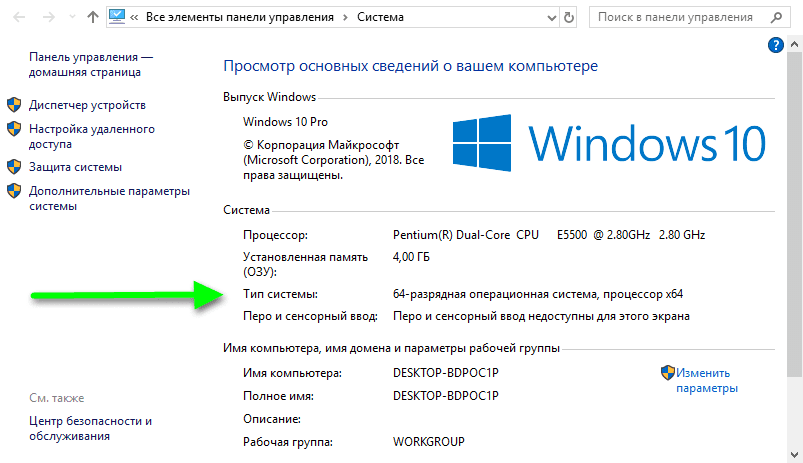
Найдите тип системы в перечне сведений.
Помимо разрядности системы, важно, каким обозревателем вы пользуетесь. Если используете браузеры одновременно x32 и x64 версии на ОС, имеющей разрядность 64 бит, то желательно скачивать и устанавливать обе версии Джавы.
Для скачивания, установки платформы и нормальной работы программного обеспечения Java, компьютер должен соответствовать заданным параметрам.
Системные требования:
| Операционная система | Windows Server, Vista, 7, 8, 10 |
| Mac OS X 10.8.3+, 10.9+ | |
| Linux: Oracle, Red Hat Enterprise, Suse Enterprise Server, Ubuntu | |
| Браузер | Internet Explorer 9 и выше |
| Firefox | |
| 64-битный | |
| Оперативная память | Не менее 128 Мб |
| Свободное место на диске | 124 Мб и 2 Мб для обновления |
Пошаговая инструкция по установке Java на ПК
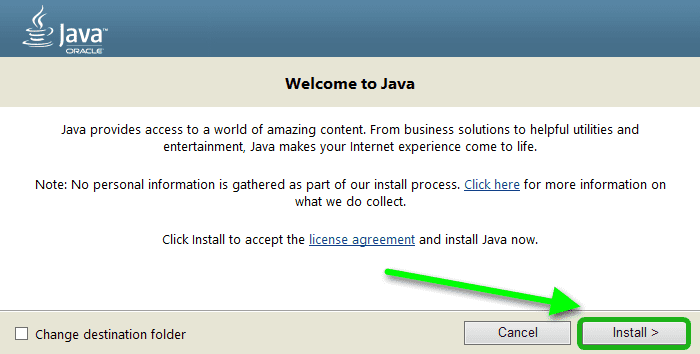
- На нашем сайте выберите необходимую версию, например для Windows, чтобы загрузить Java на компьютер.
- Примите условия лицензионного соглашения для продолжения скачивания.
- После того как скачаете файл, запустите установку двойным кликом по файлу.
- После запуска мастера установки (на английском языке) нажмите Install.
- Щелкните OK.
- Дождитесь окончания установки и нажмите Close.
Чтобы изменения вступили в силу, потребуется перезагрузка ПК. Если у вас была установлена более ранняя версия, то перед тем как скачать и переустановить программу, старую версию удалять не обязательно.
Вместе с Java на ПК может быть установлен другой софт или компоненты от партнёров. Внимательно проверяйте выбранные элементы перед нажатием кнопки Install.
Видео: Установка Java 32 bit и 64 bit на компьютер.
Офлайн-установщик Java
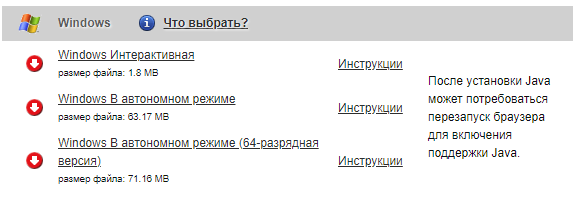
На нашем сайте вы можете загрузить исполняемый файл Java для офлайн-установки на ПК, если нет возможности скачать и установить программу онлайн. Это может понадобится, если требуется установить софт на устройстве, не имеющем доступ в интернет.
- Выберите новую версию Java для 32- или 64-разрядной системы Windows.
- Скачайте Java Offline – автономный установщик.
- Установите его с флешки или диска на любом ПК, независимо от подключения к сети.
Offline Installer – это автономный установщик. С его помощью можно установить программу на ПК без интернета.
Настройка программы
Чтобы настроить Джаву для конкретных целей, откройте панель управления. Во всех редакциях Windows она практически не отличается. Нажмите комбинацию клавиш Win+R и напишите в окне утилиты «Выполнить» команду control.
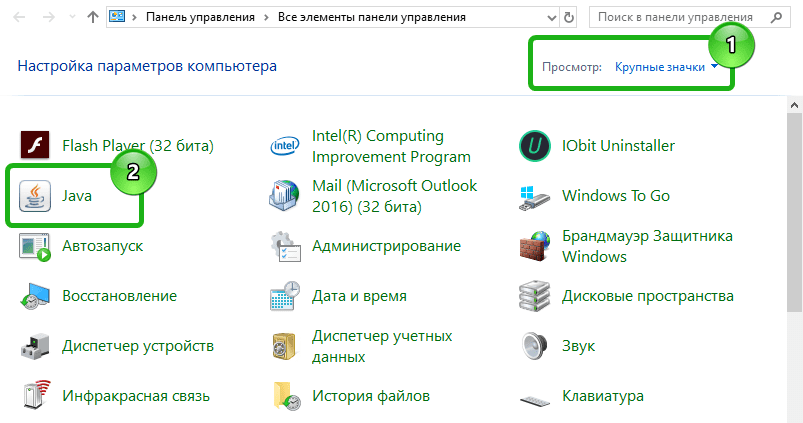
Переключите режим просмотра на «Крупные значки» и выберите интересующую программу.
Откроется окно настроек Java с несколькими вкладками:
- General – информация о платформе, сетевые настройки;
- Update – обновление программы: обновите утилиту сейчас или задайте настройки для обновления по расписанию;
- Java – просмотр и управление модификациями Джава;
- Security – выбор уровня безопасности, при установке очень высокого значения будут блокироваться приложения без специального сертификата;
- Advanced – расширенные настройки.
Рядовому пользователю компьютера настраивать Java нет необходимости. Просто обновите версию, если компьютер выдает ошибку при запуске какой-либо программы, и, скорее всего, проблема исчезнет.