Как удалить приложение debian
Чтобы удалить программу (пакет) в Linux на базе Debian существует два основных способа. Рассмотрим их.
1. Через dpkg
Если мы точно не знаем, какое название у пакета, можно найти его так:
$ dpkg -l | grep browser
Где browser – это часть названия пакета. Ключ -l значит list (вывести список). Допустим, нам нужно удалить пакет chromium. Значит пишем так:
$ sudo dpkg -r chromium
Вот и все, мы удалили барузер Chromium.
2. Через apt
Снова, если мы не знаем точного названия приложения, ищем так:
$ apt search browser
Где browser – это часть названия пакета. И опять же удалим браузер Chromium.
$ sudo apt remove chromium
Можно было бы рассмотреть еще удаление через графический менеджер ПО, но там все индивидуально, для каждого дистрибутива. Да и через консоль интереснее ��
Вот так просто можно удалить из линукс программы, которые Вам больше не нужны.
Удаление пакетов Debian
Мы довольно часто устанавливаем новые пакеты в свою систему, например, нам нужно решить определенную задачу и мы ставим все программы, которые могут помочь и проверяем их по очереди, но будет лучше если в системе не будет ненужных программ.
Это повысит вашу безопасность. В этой статье мы рассмотрим как выполняется удаление пакетов Debian различными способами, рассмотрим как удалить пакет имя которого вы знаете, а также как удалить все ненужные пакеты из системы.
Удаление пакетов Debian
Самый простой способ удалить программу Debian, которая вам больше не нужна — это воспользоваться пакетным менеджером apt. Просто используйте команду apt remove:
$ sudo apt-get remove имя_программы
Или можно удалить все пакеты, которые касаются этой программы, например:
$ sudo apt-get remove имя_программы*
Например, удалим установленный по умолчанию почтовый клиент evolution. Если бы мы использовали звездочку, то были бы удаленны все пакеты, имя которых начинается на evolution, например, evolution-data и evolution-plugins.
sudo apt-get remove evolution

Но при таком способе удаления в системе могут оставаться конфигурационные файлы программы, а также дополнительные пакеты. Чтобы удалить конфигурационные файлы можно использовать опцию —purge или команду purge:
sudo apt-get —purge remove evolution
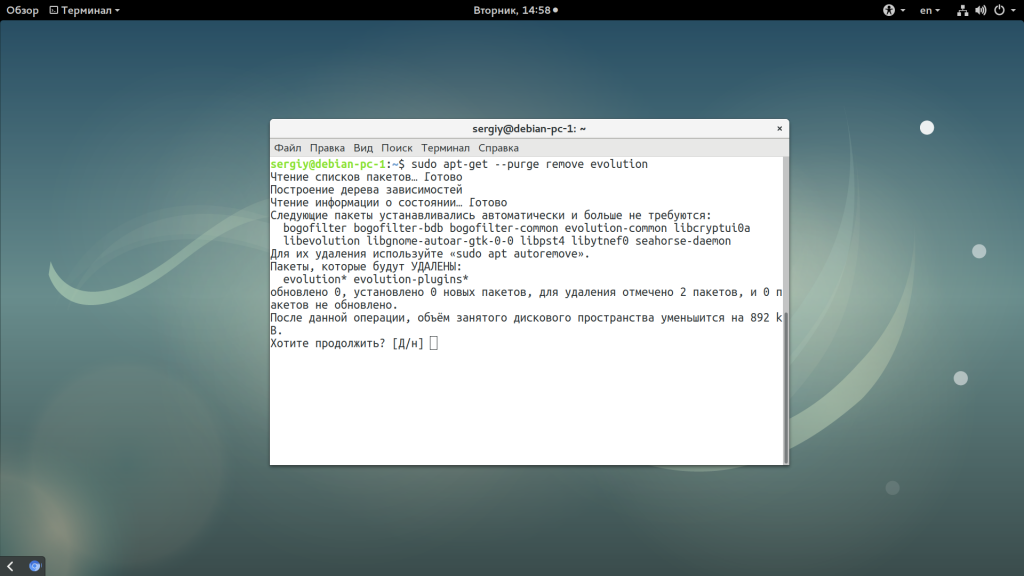 А чтобы выполнить удаление пакетов debian, которые больше не нужны после установки используйте опцию —auto-remove, она аналогична запуску apt с командой autoremove:
sudo apt-get —purge —auto-remove remove evolution

sudo apt-get purge —auto-remove evolution
Последняя команда выполняет полное удаление пакета из системы. Но чтобы удалить пакет вам нужно сначала знать его имя. Имя пакета можно узнать с помощью утилиты dpkg. Сначала ищем какие-либо файлы программы по ее названию, например, тот же evolution:
find / -name evolution

Дальше смотрим имя пакета, которому принадлежит выбранный файл:
sudo dpkg -S /usr/bin/evolution

А дальше, уже на основе полученной информации вы можете удалить лишний пакет. Рассмотрим как удалить пакет Debian с помощью dpkg, для этого есть опция -r или —remove. Но тут вам придется указать все зависимости:
sudo dpkg —remove evolution evolution-plugins

У dpkg есть свой аналог команды purge, это опция -p или —purge, которая позволяет удалить пакет Debian полностью и не оставлять никаких конфигурационных файлов в системе:
sudo dpkg —purge evolution evolution-plugins
Если пакет не удаляется потому что был поврежден или была повреждена база пакетов, а вы считаете что удаление именно этого пакета может спасти ситуацию, то используйте опцию —force-remove-reinstreq:
sudo dpkg —remove —force-remove-reinstreq имя_пакета
Также можно использовать опцию —force-depends, чтобы не удалять пакеты, которые зависят от удаляемого:
sudo dpkg -r —force-depends имя_пакета
Иногда, во время удаления пакетов, некоторые зависимости остаются в системе, например, рекомендованные пакеты. Их тоже можно удалить чтобы освободить место и не держать лишнего на компьютере. Для этого используется программа deborphan. Для начала вам нужно будет ее установить:
sudo apt-get install deborphan
Затем для поиска всех пакетов, которые можно удалить наберите:

Дальше вы можете удалить каждый пакет из списка вручную с помощью apt-get или dpkg. Если вы уже знаете, что все пакеты, которые будут удалены не нужны, то можно объединить команду deborphan с xargs и автоматически их все сразу удалить:
deborphan | xargs sudo apt-get -y remove —purge

Имя каждого пакета будет подставлено в конец строки.
Удаление пакетов в GUI
Пакеты можно удалять не только через терминал, но и через графический интерфейс. В Debian используется окружение рабочего стола Gnome, поэтому там доступен центр приложений Gnome Software. Вы можете запустить его из главного меню системы:
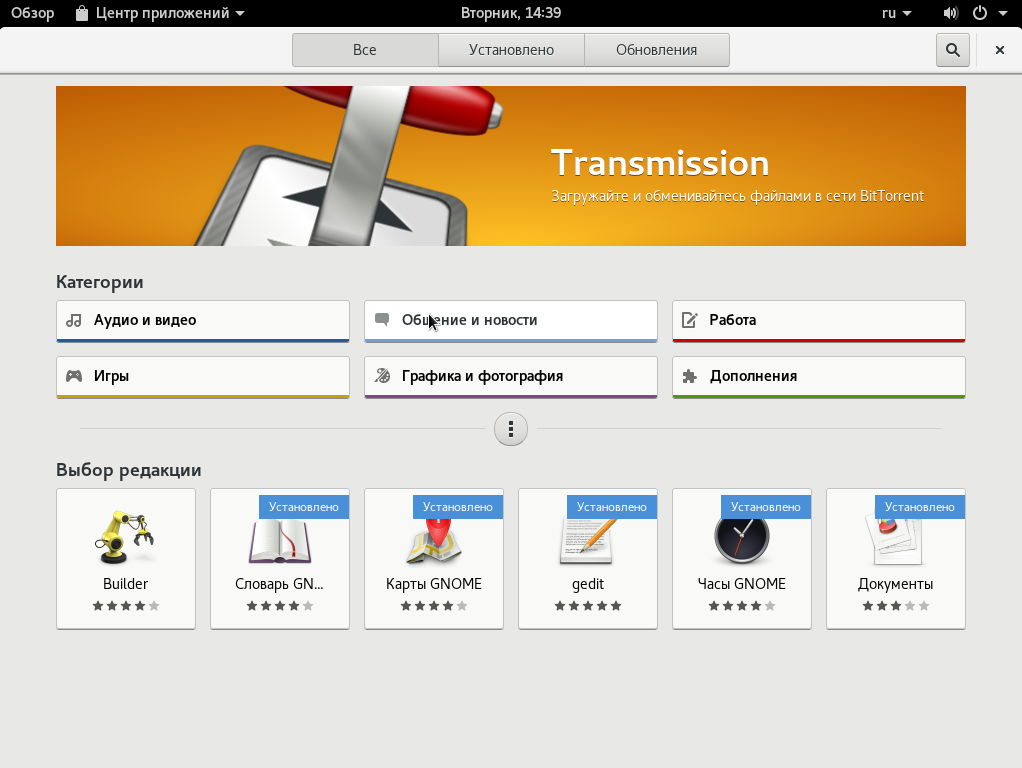
Затем перейдите на вкладку «Установлено»:
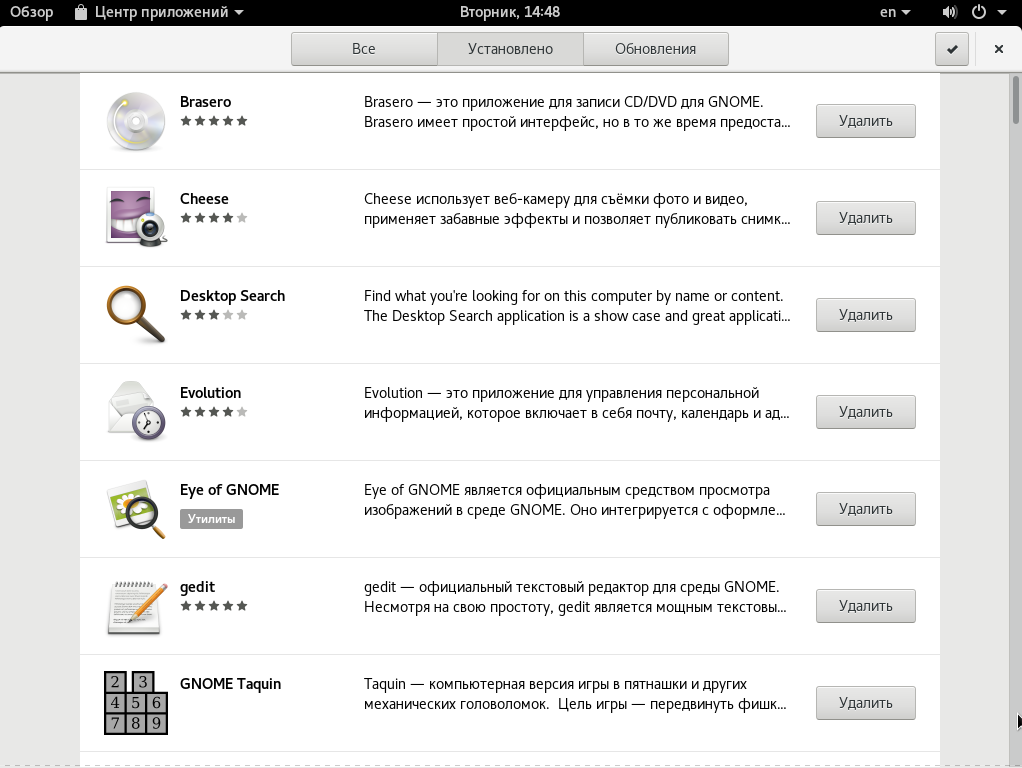
Вам осталось выбрать приложение, которое хотите удалить, а затем нажать кнопку «Удалить»:
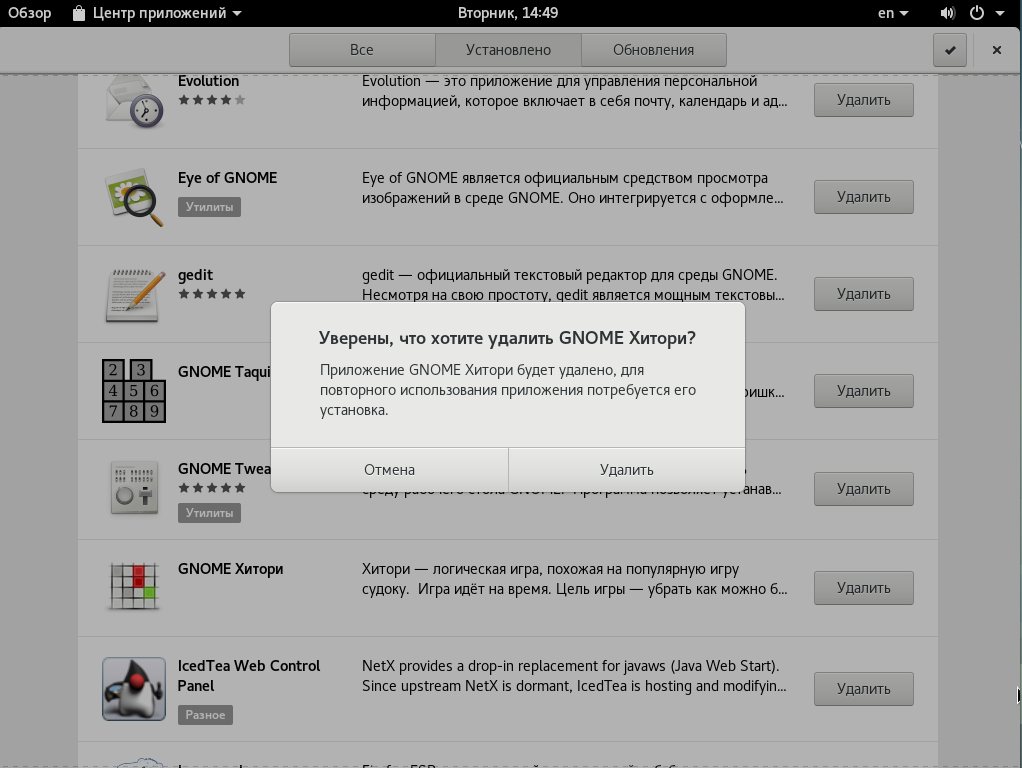
После этого вам нужно будет ввести пароль пользователя, а затем дождаться завершения удаления. Как видите, все очень просто.

Выводы
В этой статье мы рассмотрели как выполняется удаление программ debian несколькими способами. Как видите, это достаточно просто. Если вы имеете немного опыта использования терминала, то сможете получить все его преимущества, в противном же случае можете использовать графический интерфейс. Если у вас остались вопросы, спрашивайте в комментариях!
How to Uninstall Programs on Debian
Unused and unwanted programs should be removed from the system as they take up a large amount of disk space. This article is about removing the programs that are no longer required in a Debian system. We will explain the removal of the program via both the Graphical user interface and the command line Terminal method.
Keep in mind that in order to install/uninstall any application in your Debian OS, you will require administrative rights.
We have used Debian 10 for running the commands and procedures mentioned in this article.
Uninstall Debian Applications Through Debian Software Center
In the following method, we will learn to uninstall applications through the Debian software center. To open the Software center, click on the Activities tab in the top left corner of your Debian desktop. Then search for the Software center using the keyword. When the result appears, click on its icon to open.
When the software center opens, you will see the following view. Go to the Installed tab. It will list all the installed applications in your system. From the list, search for the application you want to uninstall and click the Remove button in front of it.

When you click the Remove button, the following message will appear for you to confirm the decision. If you are sure about deleting the selected application, click Remove.

Then you will be asked to provide a password for authentication. Enter the password and click Authenticate.

Now the selected software will be uninstalled from your system.
Uninstall Debian Applications Through the Command Line
In the following method, we will see how to uninstall any application via the command line. To open the command line Terminal in the Debian system, click on the Activities tab in the top left corner of your desktop. Then search for the Terminal application using the search bar. When the Terminal icon appears, click on it to open.
For uninstalling the applications through the command line, we will use apt-get remove and apt-get purge commands. To list the packages installed in your system, you can use the following command in Terminal:
From the output list, you can copy the exact package name that you want to remove.
Use apt-get remove command
Apt-get remove command will uninstall the package but will keep the data and configuration files along with dependencies that were added at the time of installation.
In order to remove an application, run the following command as sudo in Terminal:
When prompted for the password, enter sudo password.
In the following example, we are removing Dconf editor from our system using the apt-get remove command:

The system might provide you with a Y/n option to confirm the removal process. Hit y to confirm and the software will be removed from your system.
Use apt-get purge command on Debian
Unlike apt-get remove command which just removes the software from the system, the apt-get purge command also removes the data and configuration files related to that software.
In order to remove the software and its configuration file, use the following command syntax in Terminal:
In the following example, we are removing the Playonlinux application from our system. For that, we have used the following command in Terminal:

The system might provide you with a Y/n option to confirm the removal process. Hit y to proceed and the software will be removed from your system.

Bonus: Cleaning up with autoremove
Whenever we install an application, the system also installs some other packages and libraries that this application depends on. When we uninstall the package, these dependencies are not removed and stay on the system. In order to remove those dependencies too, run the following command in Terminal:
It will list all the unused dependencies that are taking a lot of space on your system and provide you with the Y/n option to confirm the removal process. Hit y on your keyboard to remove all unused dependencies on your system.

It is important to remove the unused packages and their dependencies from your system to free up and clean the disk space. From the above-discussed ways, you can choose to use apt-get remove to remove the packages only or apt-get purge to remove packages along with their configuration files too. In the end, you can use apt-get autoremove to make sure no unused dependencies are left behind.
Karim Buzdar
About the Author: Karim Buzdar holds a degree in telecommunication engineering and holds several sysadmin certifications. As an IT engineer and technical author, he writes for various web sites. You can reach Karim on LinkedIn
Advertisement  report this ad