Как установить Oracle XE на Windows 10?
- Переходим на официальный сайт Oracle и выбираем Oracle Database 18c Express Edition for Windows x64
- В появившемся окне нажимаем галочку напротив надписи I reviewed and accept the Oracle License Agreement, затем нажимаем Download

- Вас перекинет на форму авторизации где нужно будет ввести свой логин и пароль.

Регистрируемся, подтверждаем email и только после подтверждения, пробуем скачать повторно.
ВАЖНО: без регистрации скачать базу не получится! - Если с авторизацией проблем не возникло, то должна начаться скачка архива, размером примено 1,9 ГБ
Шаг 2. Устанавливаем СУБД Oracle на компьютер
- Разархивируем в любое удобное для вас место
- Заходим в папку, нажимаем правой кнопкой мыши на файл setup.exe и выбираем Запустить от имени Администратора

- Читаем лицензионное соглашение, соглашаемся с его условиями и нажимаем Next

- Не меняем путь установки, который предлагает установщик
[INS-32010] Oracle home location contains invalid characters.
РЕШЕНИЕ : ваша папка с установкой располагается по пути где есть русские символы, например: C:\Users\Владимир\Downloads\Oracle. Закройте окно установки и переместите папку с файлами установки в корень диска C или любого другого и запустите setup.exe
Скачанный архив разархивируем корень диска C, пока архив извлекается закрываем программы, чтоб было свободно около 3гб оперативной памяти
Заходим в разархивированную папку и запускаем от имени администратора файл setup.exe
- Configuration Option . Нажимаем Next оставляем выбор по умолчанию, который создаст нам сразу базу

- System Class . т.к. в реальном мире база будет установлена на сервер, выбираем Server Class и нажимаем Next

- Select install Type . Оставляем Advanced install (расширенная установка) и нажимаем Next

- Select database Edition . Оставляем Enterprise edition и нажимаем Next

- Specify Oracle Home User . Пропишем пользователя Windows, через которого Oracle будет обращаться к компонентам операционной системы в разделе Create New Windows User имя задаем любое на английском, пароль, например: Admin1234 и нажимаем Next

- Specify Installation Location . Оставляем путь, который предлагаем нам установщик и нажимаем Next
- Select Configuratuion Type . Оставляем как есть General Purpose/Transaction Processing и нажимаем Next

- Specify Database identifiers . Оставляем как есть и нажимаем Next

- Specify Configuration Options . Если у вас более 4гб оперативной памяти поставьте галочку, иначе уберите галочку и нажмите Next

- Specify Database Storage Options . Оставляем все как предлагаем установщик и нажимаем Next
- Specify Management Options . Также оставляем все по умолчанию и нажимаем Next
- Specify Recovery Options . Ставим галочку на Enable Recovery, чтобы можно было восстановить базу при необходимости и нажимаем Next

- Specify Schema Passwords . Ставим галочку на Use the same password for all accounts, чтобы установить единый пароль администратора, пароль должен быть не менее 8 символов, должны быть цифры, минимум одна заглавная буква, одна прописная (пример: Admin1234) и нажимаем Next

- Summary . Финальное окно перед началом установки, рекомендую ничего не менять и нажать Install
В ходе установки может возникнуть ошибка Faild to set ACL’s for specified User, просто нажмите Continue

Шаг 3. Настраиваем среду разработки
- Откроем командную строку. Нажимаем сочетание клавиш Win + R, отроется окно, в котором пишем cmd и нажимаем ОК

- В появившемся окне пишем sqlplus и нажимаем клавишу Enter

- Если sqlplus успешно установился, то теперь командная строка попросит вас ввеси имя пользователя для подключения к БД, вводим как на скрине ниже, имя пользователся system, ваш пароль администратора и нажимаем два раза Enter

- При успешном подключении появится надпись с версией базы и в строке ввода команд появится слово SQL

Напишите теперь в командной строке такую конструкцию (обязательно ; в конце ) select ‘hello world’ from dual; и нажмите Enter должен вернуться результат как на скрине ниже
- Переходим на официальный сайт Oracle и выбираем в блоке SQL Developer xx.x.x Downloads версию Windows 64-bit with JDK 8 included и нажимаем Download
- В появившемся окне ставим галочку и нажимаем Download
После может возникнуть окно авторизации, обязательно авторизируемся, иначе скачать программу не получится.
- Скачанный архив разархивируем в на диск C в папку Program Files
- Заходим в папку с программой и запускаем файл sqldeveloper.exe

- Добавляем новое соединение

- Указываем все как на скриншоте ниже, пароль указываете, тот что указывали при установке Oracle и нажимаем Test, после нажатия в левом нижнем углу должна появиться надпись Success
Нажимаем Save, затем Connect
- В появившемся окне введем пример, нашего первого скрипта. Напишите скрипт как на скриншоте ниже и затем нажмите F5, либо зеленый треугольник

How to Install SQL Developer on Windows?
SQL Developer is a free, integrated development environment that simplifies development and management. SQL Developer offers complete end-to-end development of your PL/SQL applications, a worksheet for running queries and scripts.
Installing SQL Developer on Windows:
Follow the below steps to install SQL Developer on Windows:
Step 1: Browse to this link.
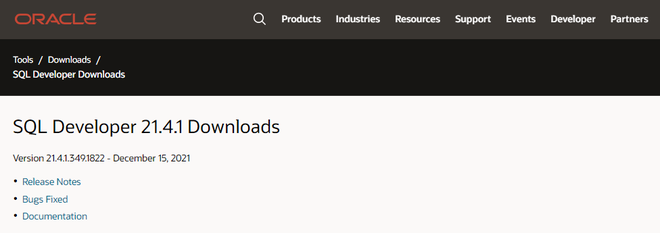
Step 2: Click on download.
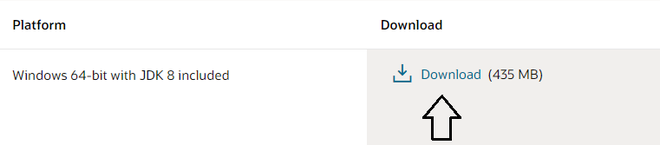
Step 3: Login in Oracle account or create a new account. It is free

Step 4: Extract the downloaded zip file.

Step 5: Open your computer C drive & program files. Cut & Paste the extracted file there.
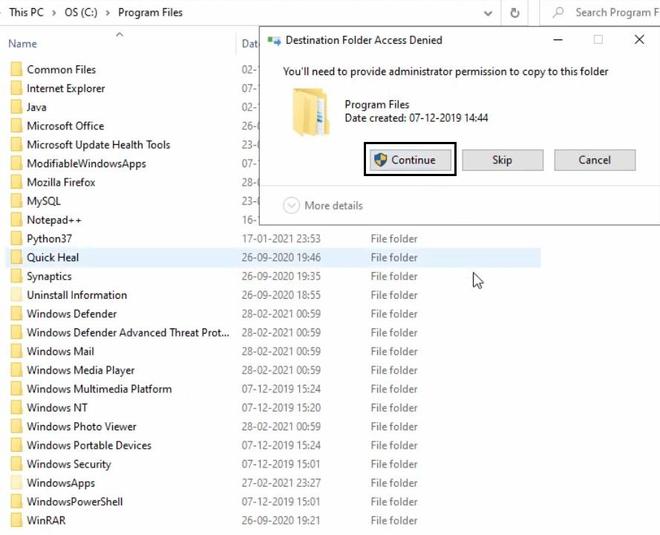
Step 6: Open the folder.
Step 7: Then open sqldeveloper folder.

Step 8: Find the sqldeveloper exe file there. Create a shortcut on desktop.
How to Install SQL Developer On Windows 10

In this SQL Developer Tutorial we will learn how to install SQL Developer on Windows 10 x64 bit as well as on windows10 x32 bit. If you are looking to install Oracle Database 12c on your system then click here. Also for Oracle Database 18c installation click here.
SQL developer is a free database management and development tool created by Oracle itself. You do not have to pay a single penny to use this software.
Though SQL Developer is completely free yet it is a very powerful tool in the market and packs several features which you don’t find even in various paid software. Moreover both database developer and administrator can take advantage from this tool.
How to Install SQL Developer on Windows 10
Installing SQL Developer is a 2 step process.
Step 1: Install latest version of Java Development Tool Kit (JDK)
Step 2. Install SQL Developer.
Step 1: Install Java Development Kit (JDK) on Windows 10
SQL Developer require latest version of Java Development Kit (JDK) installed on your windows 10. Thus before installing and start working with SQL Developer we need to properly install JDK.
If you already have latest version of JDK installed on your system then you can directly jump onto the step 2 and install SQL Developer.
Download Java Development Tool Kit (JDK)
To install Java Development kit on windows 10 first we need to download it. You can do so by visiting Oracle website or you can also click here for the direct link.
QuickTip
You can download the JDK for Windows 10 x64 bit by clicking the link with name the Windows x64 on the Java SE Development Toolkit download page. Also for the Windows 10 x32 bit you can use the link with the name Windows x86.
JDK installation is fairly simple. Once you have downloaded the JDK according to the Operating system then right click the .exe file and select “run as administrator” option that will start the installation.
Install Java Development Tool Kit (JDK) on Windows 10.
Screen1:

On welcome screen of JDK installer simply press “Next”
Screen 2:

From screen 2 copy the “JDK home” path.You need to specify the location of your JDK home to the SQL Developer thus make sure to note it down somewhere. Click “Next” – that will start the installation.
Screen 3:

Java Development Tool kit (JDK) installer will also install the Java Run time Environment (JRE) on your system. On screen3 you can change the JRE installation location if you want otherwise hit next.
Screen 4:

JDK installer screen 4 is the last step. Here you simply have to click close.
Step 2: Install SQL Developer on Windows 10.
SQL Developer does not require any installation on your system. You simply have to extract the files and execute the SQL Developer and start working.
Download the SQL Developer Software
You can either download the SQL Developer software from oracle website or click here for the direct SQL developer download page link.

To download the SQL Developer first you need to accept the “License agreement” and then choose the SQL Developer version according to your operating system architecture. You will also need to sign-in into your free oracle account to download the desired files.

All the SQL Developer software contents are downloaded as zipped files. To start working with SQL Developer you need to first un-zip the content of your download.
QuickTip:
For better organization try to place the extracted content [SQL Developer folder] with all the Oracle Directories.Though it is not mandatory.
After that go to the folder SQL Developer which you just un-zipped and find the executable file with the name“SQLDeveloper.exe” then double click and execute it. This will launch the SQL Developer software.
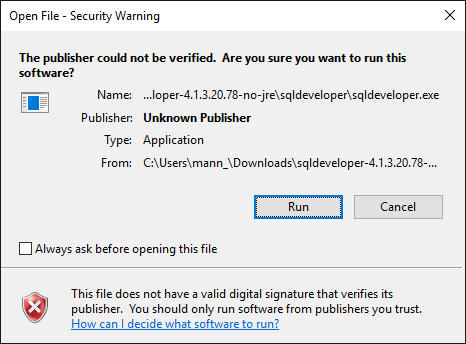
Sometimes execution might give a“publisher security warning”. There is no need to panic SQL Developer is designed, developed and maintained by oracle and it is completely secure. Just simply hit “Run” and proceed ahead.

Though it happens rarely yet SQL Developer might ask you to specify the “JDK home” path. In such case supply the JDK home location in the pop-up box which you noted down in the 2 nd step of the JDK installation.
All the steps shown above can be used for installing SQL Developer on Windows 10 x64 as well as x32 bit version.
Suggested reading links
If You Are A DBA then Oracle Enterprise Manager Should Be Your Best Friend. Check Out This Playlist Where I have Explained The Configuration Of Oracle Enterprise Manager Database Express.
That’s all for this tutorial on how to install SQL Developer on Windows 10 x64 bit version. Hope you enjoyed reading. Please share this blog on your social. Also, connect with me on my Facebook page. Thanks & have a great day!