Как увеличить скорость прокрутки колесом мыши?
сабж. Fedora 13, gnome. Желательно во всех приложениях. А то уже палец отваливается крутить.

В настройках мыши? В гноме же они есть ЕМНИП.
В настройках мыши нет ничего, относящегося к прокрутке
Как понимаю, в той статье написано о назначении номеров «кнопок» к прокрутке. У меня она работает и кнопки правильные.
Требуется увеличить количество строк, прокручиваемых за один поворот колеса
Опция иксов VertScrollDelta
>VertScrollDelta
Нет эффекта. Видимо, устарело N релизов назад. Какое бы значение не было — разницы нет.
//для некоторых, писал точно в нужную секцию.
>Нет эффекта.
В F13 используется hal в иксах по дефолту. Куда прописывал?
Проблема, пожалуй, в отсутствии у меня данного файла и таком же отсутствии малейшего представления о его содержании
Вот так получилось. Что я не так написал?
А так мышь определяется lshal:
Вроде все так, hal надо рестартнуть и иксы (вроде).
А дальше смотреть /var/log/Xorg.0.log
Вывод lshal должен показать выставленные значения:
udi = ‘/org/freedesktop/Hal/devices/platform_i8042_i8042_AUX_port_Synaptics_pass
_through_logicaldev_input’
info.capabilities = {’input’, ‘input.mouse’} (string list)
info.category = ‘input’ (string)
info.parent = ‘/org/freedesktop/Hal/devices/platform_i8042_i8042_AUX_port_Syna
ptics_pass_through’ (string)
info.product = ‘TPPS/2 IBM TrackPoint’ (string)
info.subsystem = ‘input’ (string)
info.udi = ‘/org/freedesktop/Hal/devices/platform_i8042_i8042_AUX_port_Synapti
cs_pass_through_logicaldev_input’ (string)
input.device = ‘/dev/input/event7’ (string)
input.originating_device = ‘/org/freedesktop/Hal/devices/platform_i8042_i8042_AUX_port_Synaptics_pass_through’ (string)
input.product = ‘TPPS/2 IBM TrackPoint’ (string)
input.x11_driver = ‘evdev’ (string)
input.x11_options.CorePointer = ‘true’ (string)
input.x11_options.Emulate3Buttons = ‘true’ (string)
input.x11_options.EmulateWheel = ‘true’ (string)
input.x11_options.EmulateWheelButton = ‘2’ (string)
.
Не знаю как в гноме, в кде как обычно всё настраивается. Как альтернативу могу посоветовать попробовать тёмную сторону сил^кде.
Намучался. Не заработало. Могу юзать для более-менее вменяемой прокрутки тачпэд, но это как-то не очень. Или это не работает, или я как-то не так делаю.
Altering mouse scroll speed in Linux
I started playing with Linux, having installed Mint (Ubuntu based, which is Debian based – for more details). Linux Mint is very user friendly (unlike Linux 15 years ago), but it does have its peculiarities (especially for us coming from decades of DOS & Windows use). One of the “problems” for me was simple mouse scroll button speed change. Here’s how I fixed that.
For solving this I used Imwheel. The procedure is relatively simple and straight forward, with a few tweaks (noted in this post). It boils down to this:
1. Installing Imwheel
You can open Software Manager, search for “Imwheel”, then click “Install”, after which you will be asked to enter your root password and that’s it.
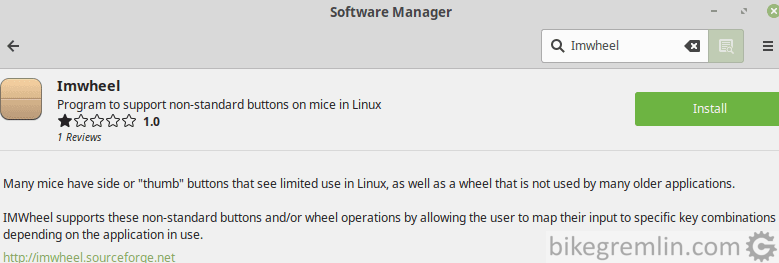 Installing Imwheel using Linux Software Manager
Picture 1 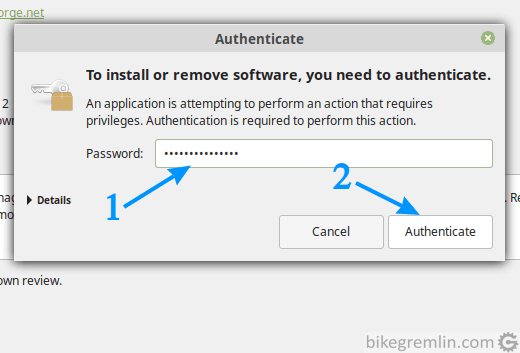 Authenticating the install with a root password (1), then click “Authenticate” (2)
Picture 2
Of course, you could use the command prompt (CTRL+ALT+T is the keyboard shortcut, not WIN+R – note to self �� ). Imwheel is installed using the following command (you will be prompted for a root password after pressing Enter):
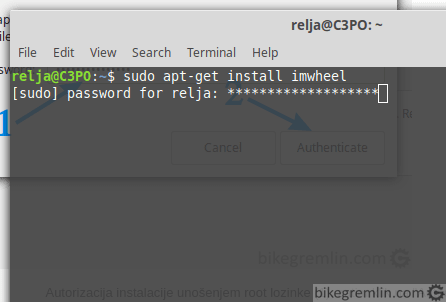
Command prompt installation of Imwheel
Picture 3
If all went well, you will see something like this:
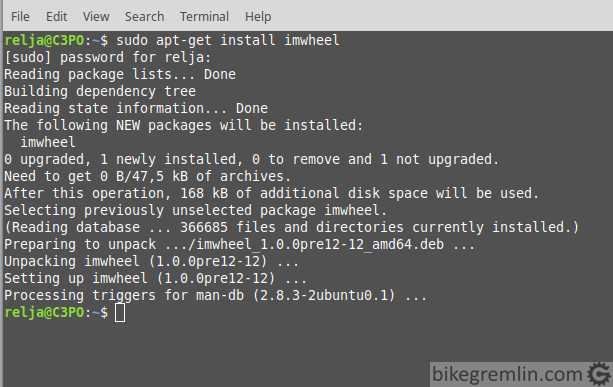
Imwheel successfully installed
Picture 4
2. Configuring Imwheel
Configuration boils down to creating a .sh file with an appropriate code, then running it. I did it the following way:
I created an “Utils” directory in my “Home” directory (that is “/home/relja/Utils”). Of course, you can put the file anywhere you want.
Then I opened a text editor, copied the needed code (found at this page – thank you) and saved it as “mouse.sh” – you can name it however you like, as long as you know the file name and directory where it’s saved at.
Needed file contents:
Then, in command promt, go to the directory and run the file. Before running the script, you must give it the execution rights using command “chmod +x” In my case:
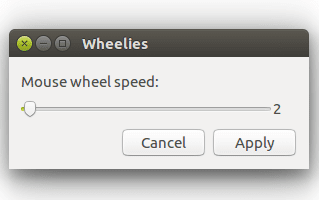
Here’s how it looks like on screen, you’ll get to set mouse scroll speed:
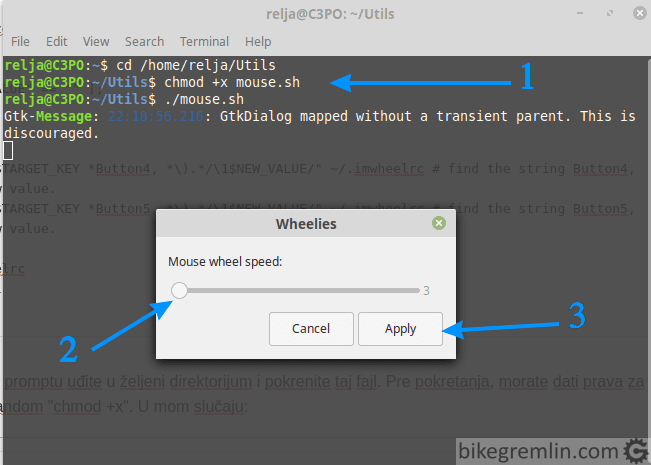
Enter the three command lines (enter after each, of course) (1), select desired scroll speed (2), then click “Apply” (3)
Picture 5
I chose 3. After clicking at “Apply”, you’ll see something like this:
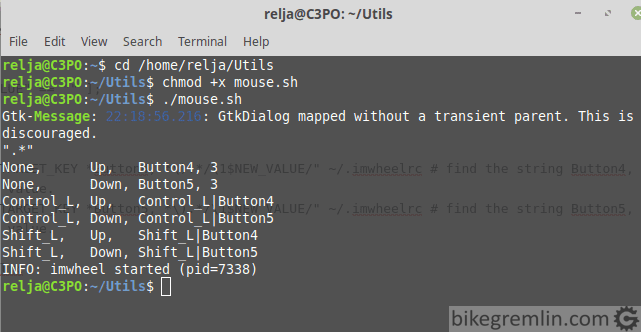
Successfully finished scroll speed configuration
Picture 6
If you aren’t happy with the newly set mouse scroll speed, just run the “mouse.sh” again, as expained in picture 5.
3. Configuring Imwheel to run after each restart
For this I used “Startup Applications”.
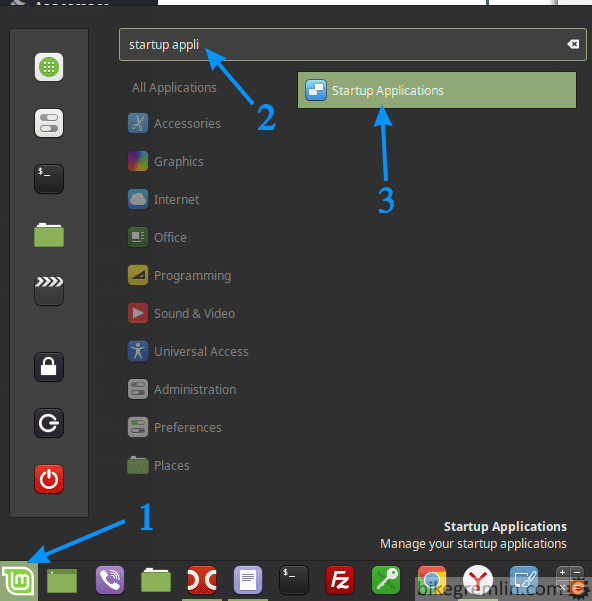
Opening “Startup Applications”
Picture 7
On the next screen click the ” + ” sign and choose “Custom command” option.
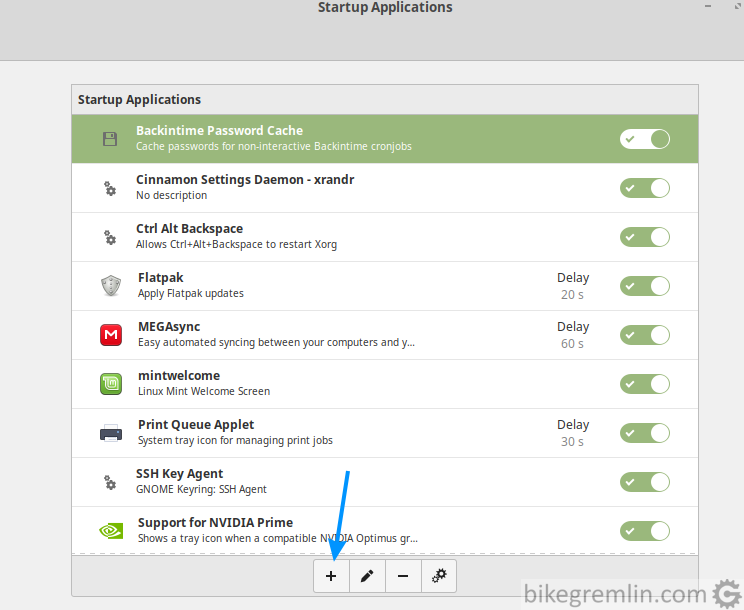
Click the + sign and choose “Custom command”
Picture 8
The last step is shown and explained in the picture 9:
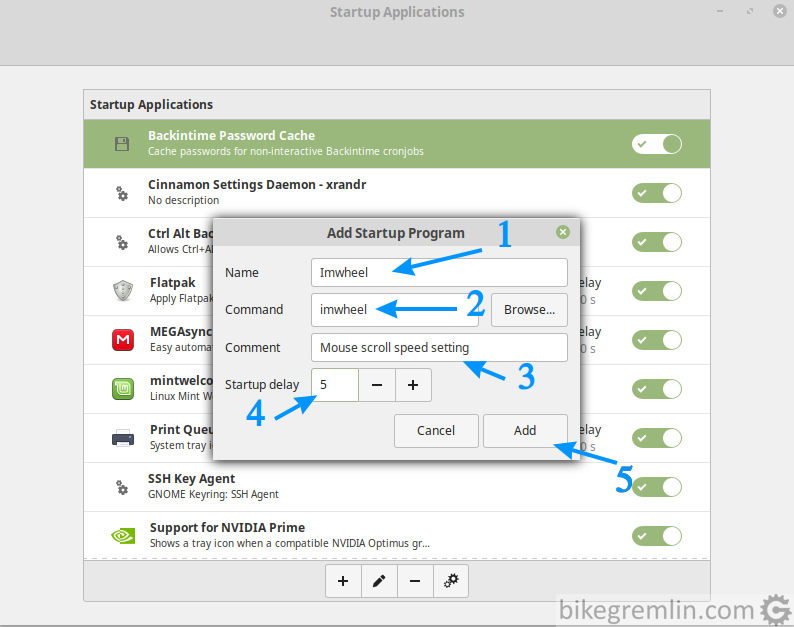
Use whatever you want for name (1)
Command must say “imwheel”, because that is the application (2)
For comment, use whatever you like (3)
Add a startup delay if you like – I set a 5 second delay (4)
Finally, click “Add” (5)
Picture 9
You can try restarting the computer, to make sure mouse scroll speed is still working properly.
Troubleshooting
As Alex added in the comment section, there can be a problem with the functioning of extra mouse buttons (with some mouses that have extra buttons, in addition to the standard two and the wheel). The solution is limiting imwheel to the scroll only (wheel up: 4, and wheel down: 5). For Linux Mint, it is the following command:
“-b” is the switch that basically says “deal only with the listed buttons”. This can also be added to the command line – (2) in picture 9.
Ubuntu 20.04 mouse scroll wheel speed
I had a very slow scroll speed until I found that.
Install and run
You have to install imwhell with :
And download this bash script on http://www.nicknorton.net (thanks to him)
You can type, as @victoor say in comments :
You can just do bash <(curl -s http://www.nicknorton.net/mousewheel.sh) instead of copy the script manually and changing permissions. 🙂
Then set up the .sh file to executable with :
And then run script with :
And set your mouse wheel speed in the popup by clicking on apply button. (my setting is 7) Re-run script for change.