Unity Remote 4
Unity Remote (currently at version 4), is a downloadable app designed to help with Android or iOS development. The app connects with Unity while you are running your project in Play mode from the editor. The visual output from the editor is sent to the device’s screen and the live inputs are sent back to the running project in Unity. This allows you to get a good impression of how your game really looks and handles on the target device without the nuisance of a full build for each test.
With version 4, Unity Remote has been completely rewritten and replaces the separate iOS and Android Remote apps used with earlier versions.
Device and Feature Support
Unity Remote currently supports Android devices (on Windows and OSX via a USB connection) and iOS devices (iPhone, iPad and iPod touch, through USB and only on OSX)
The Game view of the running Unity project is duplicated on the device screen but at a reduced framerate. The following input data from the device is also streamed back to the editor:
- Сенсорный ввод
- Акселерометр
- Гироскоп
- Потоки камеры устройства
- Compass
- GPS
Note that the Remote app simply shows the visual output on the device and takes input from it. The game’s actual processing is still done by the Unity editor on the desktop machine and so its performance is not a perfect reflection of the built app.
Obtaining and Using Unity Remote
Unity Remote can be downloaded for free in the form of a Unity project that you build yourself or as a pre-built app from the device’s app store:
- Unity Project (requires custom building) from the Asset Store:
- Android App from Google Play:
- iOS App from the App Store:
Having downloaded the app, you should install and run it on your device and also connect the device to your computer using a USB cable.
To enable Unity to work with your device, you should open the Editor Settings in Unity (menu: Edit > Project Settings > Editor) and select the device to use from the Unity Remote section:
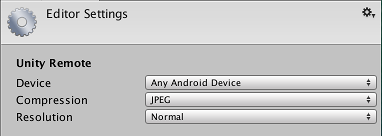
If you now click the Play button in the editor, you should see your game appear on the device as well as the Unity game window as Unity connects to the Remote app. While the game plays, input from the device (accelerometer, etc) will be sent to your scripts as if they were running on the device itself.
Решение проблем
I have more than one device plugged in but only one of them works with Unity
Currently Unity Remote doesn’t support multiple connected devices of the same kind (ie, two iPhones or two Androids) and to resolve this, it will automatically pick the first device it finds. However, it is fine to have one iOS and one Android device connected at the same time since you can select which one to use from the Editor Settings mentioned above (menu: Edit > Project Settings > Editor).
I’m getting really poor graphics quality when running my game in Unity Remote
When you use Unity Remote, the game actually runs in the Unity editor while its visual content is streamed to the target device. Since the bandwidth between editor and device is limited, the stream must be compressed heavily for transmission and this compression inevitably reduces the image quality.
In the Unity Remote section of the Editor settings (menu: Edit > Project Settings > Editor), you can switch the compression method between JPEG and PNG and also optionally downsize the resolution of the screen image. PNG compression is “lossless” (ie, image quality doesn’t degrade) but uses more bandwidth than JPEG. A downsized image has lower bandwidth requirements than one at full resolution. By changing these settings, you can trade image accuracy off against framerate as necessary.
However, you should bear in mind that Unity Remote is only really intended to give a quick approximate check of how your game will look and feel when running on the device. You should make sure that you occasionally do a full build and test the “real” app.
The editor doesn’t connect to the iOS device on OSX
To establish the connection to the iOS device through USB, Unity uses a 3rd party utility (iproxy) which is known to misbehave occasionally. You can try the following to fix the problem:
- Reconnect the device.
- Restart the device.
- Go to the Editor settings (menu: Edit > Project Settings > Editor) and in the Unity Remote settings, briefly switch the device to Any Android Device and then back to Any iOS Device.
- Restart the Unity editor.
- Quit the Unity editor, open the Terminal and execute the command killall unityiproxy . Then, restart the editor again.
In most cases reconnecting or restarting the iOS device is enough to restore the connection.
Unity Android — гайды для начинающих
Для удобства тестирования игры в Unity есть свой проигрыватель, но некоторые вещи в нем нельзя проверить: оптимизацию игры для вашего устройства, удобство управления и т. п.
Есть отличный способ отладить приложение со смартфона — с помощью функции Build and run. Сейчас я покажу, как настроить свой смартфон для отладки своей игры.
Сначала необходимо перейти в настройки смартфона и включить режим разработчика, отладку по USB или что-то в этом роде (разные модели смартфонов называют этуопцию по-разному).
Далее подключаем смартфон к ПК с помощью USB кабеля. Теперь переходим к настройке Unity.
Как подключить телефон к юнити
Completing the CAPTCHA proves you are a human and gives you temporary access to the web property.
What can I do to prevent this in the future?
If you are on a personal connection, like at home, you can run an anti-virus scan on your device to make sure it is not infected with malware.
If you are at an office or shared network, you can ask the network administrator to run a scan across the network looking for misconfigured or infected devices.
Another way to prevent getting this page in the future is to use Privacy Pass. You may need to download version 2.0 now from the Chrome Web Store.
Cloudflare Ray ID: 71aef5a8c845081c • Your IP : 82.102.23.104 • Performance & security by Cloudflare